Start by checking the connections on the devices you’ll use to copy your photos. A drive with USB-C and USB-A can be useful with a compatible phone and computer, while a single suitable connection may be all you need for computer backups. Next, choose enough capacity for your archive and keep the originals or a second, separate copy; one drive is not a complete backup routine. A stated read speed doesn’t automatically tell you how quickly your photos will be written to the drive.
Who is a USB flash drive backup suitable for?
Copying photos between your phone and computer
You want to transfer photos from your phone to a drive without using the cloud, then view them on a computer. The connection, any adapter you may need and support for external storage all affect which option is right for you; Apple Support explains the requirements for iPhone storage.
Keeping a local family archive
You have lots of family photos and want to be able to update your copy regularly and check that you can read it back. Storage space and separate copies both matter; VeiligInternetten and SeniorWeb explain how to back up to external storage.
Keeping private photos offline
You’d rather keep personal photos offline and want to consider whether encryption is right for the risk of a small drive getting lost. VeiligInternetten discusses encryption as an extra layer of protection; Lexar describes password-protected storage for one of its product ranges.
What should you consider when buying?
Dual USB-C and USB-A connectors
Choose this if: you want to copy photos directly from a compatible mobile device and use the same drive with a USB-A computer.
Bear in mind: the connector alone doesn’t guarantee compatibility. Mobile devices may also need to support external storage, and formatting or an adapter may be a factor.
One connector for computer backups
Choose this if: your photos are already on a laptop or desktop and you don’t need to connect the drive directly to a phone.
Bear in mind: a USB-A drive won’t fit a device with USB-C only unless you have a suitable adapter. Also check that you’ll be able to open the copied files later.
Encrypted local copy
Choose this if: you want to limit unauthorised access to private photos if a portable drive gets lost.
Bear in mind: you’ll need to manage passwords or recovery information, and check which devices or software you’ll need to open the files later.
The points below will help you weigh up connections, archive space and how easy it is to recover your files. VeiligInternetten, Apple Support, Kingston Technology and SeniorWeb explain the related backup and compatibility requirements.
| Concern |
What to check |
Who should consider this most? |
| A recoverable copy |
Keep the originals or a second copy separately, plan regular updates and try opening files from the drive. Eject the drive properly after writing to it. |
I want to be able to retrieve my photos if something happens to the drive; consumers who prioritise recoverability account for about 33% of this decision context. |
| Connection and compatibility |
Check the ports on your phone and computer. For iPhone, Apple Support lists requirements including a single data partition and supported file systems such as exFAT and FAT32. |
I want to copy photos directly between my own phone and computer; consumers who see the connection as their main concern account for about 27% of this decision context. |
| Space for your photo archive |
Check the size of the files you want to copy and allow for future growth. Compare speed claims for the exact variant and distinguish between read and write speeds. |
My photo archive is growing and I want space for future copies; consumers who prioritise capacity account for about 20% of this decision context. |
| Access to private photos |
Check that your encryption method works on the devices you’ll use to open the files, and keep the necessary access information separate. |
I want to stop someone opening my private photos if the drive gets lost; consumers who prioritise privacy account for about 20% of this decision context. |
Common mistakes when backing up to a USB flash drive
-
Moving photos to one drive and deleting the originals
A backup is a separate copy, in addition to the files on your original device. If the drive contains your only copy, losing it could mean losing your photo archive too.
Keep the originals or a second, separate copy, and check that you can open the files you’ve copied.
-
Assuming two connectors mean full phone compatibility
Having the right physical connector isn’t the only requirement. Apple lists requirements for external storage; Transcend states that mobile devices need USB OTG support for the JetFlash 930C.
Before buying, check your devices’ ports, support for external storage, formatting requirements and whether you’ll need an adapter.
You may need an adapter or another way to copy your files.
-
Using read speed to estimate backup time
Reading and writing are different operations. Lexar states that the write speed of the D400 is lower than its stated read speed.
Compare speed information only for the exact variant, and check whether the figure refers to read speed, write speed or measured performance.
Brands and product ranges to consider
Kingston
Kingston describes the DataTraveler microDuo 3C as a product range with USB-C and USB-A connectors, with capacities of up to 256 GB.
- Kingston states a read speed of up to 200 MB/s for this model.
- That read speed isn’t a guaranteed write speed. Kingston recommends ejecting the drive properly; one drive shouldn’t be your only safe copy.
Lexar
According to Lexar, the JumpDrive Dual Drive D400 combines USB-C and USB-A; a 256 GB variant is among the options.
- Lexar describes DataShield as a password-protected, encrypted storage space.
- For the 256GB variant, Lexar states a read speed of up to 130 MB/s. The manufacturer says writing is slower and performance may vary.
Transcend
According to Transcend, the JetFlash 930C is available with USB-A and USB-C connectors in 128, 256 and 512 GB variants.
- Transcend states speeds of up to 420 MB/s read and 400 MB/s write for this product range.
- The stated maximum speeds don’t determine the speed you’ll get on your device; the manufacturer also says that mobile devices must support USB OTG.
SanDisk
The Ultra Flair is a USB-A product range for copying via a compatible computer. A Dutch Joybuy product listing describes a 512 GB variant.
- The Joybuy listing states a read speed of up to approximately 150 MB/s and support for password protection.
- The product listing doesn’t confirm the full manufacturer part number for the variant on offer, so don’t compare it with a specific manufacturer variant without that number.
Joybuy products for local photo backups
This selection includes USB flash drives for local photo archives, from computer backups with a suitable connection to copying between compatible mobile devices and computers.
 No image available
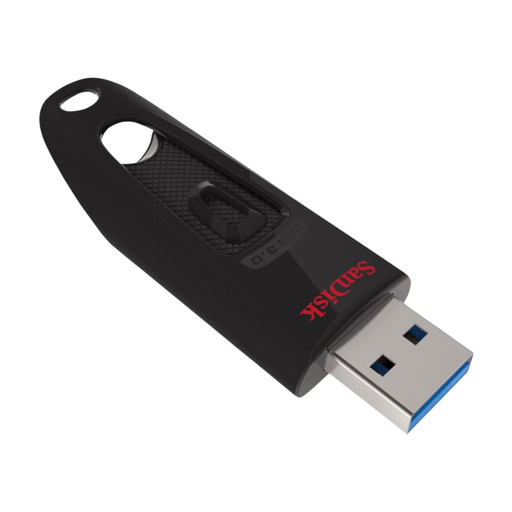
SanDisk Ultra USB Flash Drive, 128 GB, USB 3.0
Suitable for a computer backup if your computer has a USB-A port; you’ll need a suitable adapter for devices without one.
Storage capacity: 128 GB. Connection according to the product name: USB 3.0.
View at Joybuy
 No image available
SanDisk Ultra Dual Drive Go, USB 3.1/USB-C, 512 GB
Designed for making a local copy between compatible USB-C and USB-A devices; check whether your phone supports external storage.
Storage capacity according to the product name: 512 GB.
View at Joybuy
 No image available
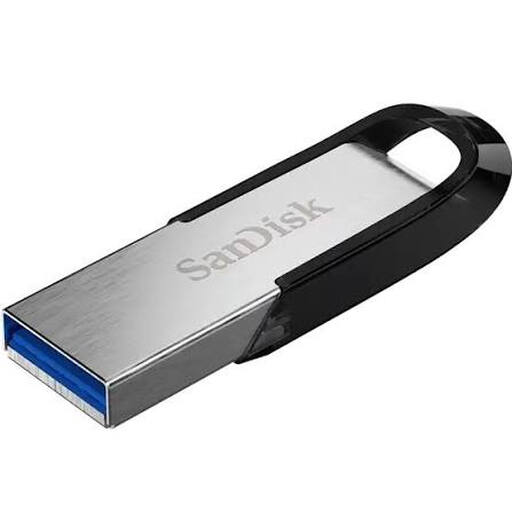
SanDisk Ultra Flair, USB 3.0, 256 GB
An option for a local photo archive. If you need encryption, check that your preferred method works on your devices.
Storage capacity according to the product name: 256 GB.
View at Joybuy
 No image available
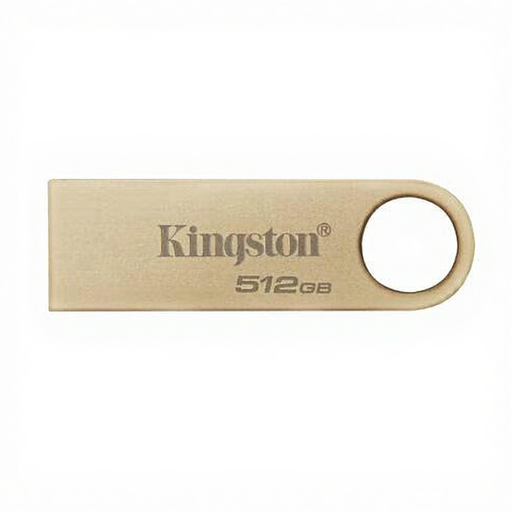
Kingston DataTraveler 512 GB, 220 MB/s, Metal, USB 3.2 Gen 1 SE9 G3
An option for a local photo archive on a computer with a suitable connection. Check what the speed listed in the product name refers to.
Storage capacity according to the product name: 512 GB. The product name also lists 220 MB/s and USB 3.2 Gen 1.
View at Joybuy
 No image available
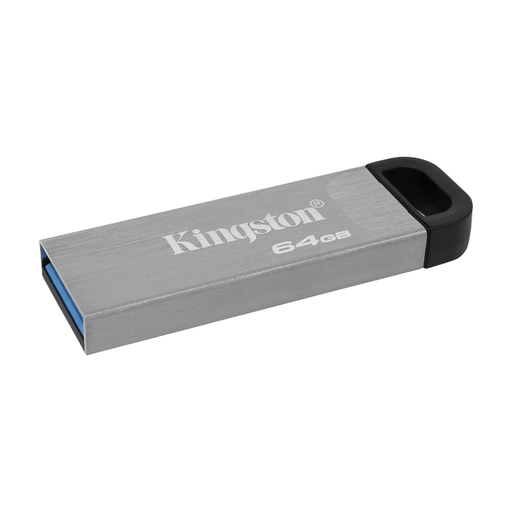
Kingston DataTraveler Kyson USB Flash Drive, 64 GB
Suitable for copying from a computer with a USB-A port; you’ll need a suitable adapter for devices without USB-A.
Storage capacity according to the product name: 64 GB.
View at Joybuy
Frequently asked questions
Can I copy photos directly from my iPhone to a USB flash drive without using the cloud?
Yes. Apple explains how to export photos to compatible external storage. You’ll need a suitable connector or adapter; Apple also lists requirements for the data partition and supported file systems, including exFAT and FAT32. Check that your iPhone and drive meet those requirements before deleting any originals.
How can I avoid a damaged or incomplete copy?
Wait for the files to finish writing, safely eject the drive from a computer, then open a few of the copied photos to check them. Kingston Technology warns in its care advice that interrupting a write operation can make files inaccessible.
Am I entitled to a legal guarantee in the Netherlands if the drive breaks too soon?
If a product proves faulty under normal use, the seller is responsible for providing an appropriate solution, according to ACM ConsuWijzer. The statutory guarantee is separate from any manufacturer’s warranty and depends on what you could reasonably expect from the product.
Do I need permission to keep family photos privately on a drive?
According to the Dutch Data Protection Authority, the exception for personal or household use applies to photos you keep for yourself or share with only a very limited group. That exception doesn’t automatically apply if you share them more widely or use them for business; this answer concerns only private storage in the situation described.


