
Photographer managing a large collection
You want to be able to restore not just the catalogue, but your photo files too. Adobe makes clear that the Lightroom Classic catalogue backup doesn’t automatically include the photos.


First, decide which catalogue files and photos you need to be able to restore if something goes wrong. Adobe says that Lightroom Classic’s built-in backup includes only the catalogue file, not the photos themselves. Then choose a capacity and connector to suit your workspace. For large or frequent copies, check the write speed, and protect sensitive files in a way that’s appropriate for how they’ll be used. Don’t rely on a USB flash drive as your only backup, and test that you can restore your files.
You want to be able to restore not just the catalogue, but your photo files too. Adobe makes clear that the Lightroom Classic catalogue backup doesn’t automatically include the photos.
You switch between computers or connections and want to consider who could access a USB flash drive if it’s lost. The Dutch Data Protection Authority cites the loss of a USB flash drive containing unencrypted personal data as an example of a potential data breach.
You want to check that the right files have been copied and can be restored. The National Cyber Security Centre recommends testing backups by opening files.
First, work out which files you’ll need to restore and how much storage space they require. Then check the connection and security features, and consider the write speed alongside the computer you’ll be using.
| What to consider | What to look for | Who should pay particular attention? |
|---|---|---|
| Size and completeness | Check the size of the files you want to copy, and allow for growth. Plan to back up photos separately if your software’s catalogue backup doesn’t include them. | If I want to be able to restore my entire photo collection as well as the catalogue, I’ll start by checking the total folder size; around 34% of consumers put completeness and capacity at the top of their list when buying. |
| Privacy | Decide who should be able to open the files, and check the security features of the exact model and your workplace’s rules. | In a shared workspace, I want to prevent anyone from opening my files if the flash drive is lost; around 20% of consumers prioritise limiting unauthorised access. |
| Copying time | Compare the stated write speed of the model and check that the computer and USB mode support it. Read and write speeds aren’t the same. | For large or frequent copies, I want to know how long writing might take; around 13% of consumers put transfer time at the top of their list. |
| Connection | Check which USB ports are available on the workstations and whether removable storage is allowed. | If I want to switch between computers without an adapter, I’ll check which ports are available first; around 13% of consumers say connection type is their main concern when buying. |
| Restoring files | Don’t use the flash drive as your only copy, and plan a test where you open or restore files from the backup. | I don’t just want to copy files; I also want to check that I can restore them. Around 20% of consumers prioritise the ability to restore files and having multiple copies. |
Adobe says that Lightroom Classic’s built-in backup includes only the catalogue file. You’ll need to back up the photos separately if you want to be able to restore them too.
Make a note of the catalogue and photo folders you want to restore, and check that both are included in your backup plan.
If that drive is lost or damaged, you won’t have a second copy to fall back on. In its backup guidance dated 28 November 2025, the National Cyber Security Centre recommends keeping at least three versions of important business data: the originals and two backups.
Use the flash drive as part of a backup plan that includes copies on other media or in other locations, and test that you can restore your files.
A stated read speed doesn’t tell you how quickly photos can be written to the flash drive. Lexar quotes a maximum read speed of 130 MB/s for the JumpDrive D300; that isn’t its write speed. Kingston says that the DataTraveler Max’s speed depends on the host device and how it’s used.
Check the write specification for the exact model, and make sure it’s compatible with the workstation’s USB port and mode.
The DataTraveler Max is worth considering if high stated transfer speeds matter to you. IronKey Vault Privacy 50 is a separate range with hardware encryption.
The Ultra Dual Drive Luxe is designed for use with USB-A and USB-C connections.
The JumpDrive Dual Drive D300 is worth considering if you need both USB-A and USB-C in a shared workspace.
The JetFlash 920 is a USB-A range to consider if you regularly write files to your drive.
These Joybuy USB flash drives are options for photo copies that fit within the stated capacity, with models for different USB connections. Check which ports are available in your workspace before you buy.
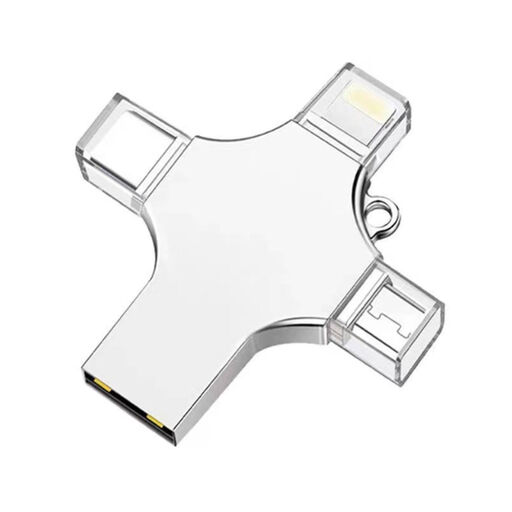 Image unavailable
The Joybuy product listing specifies 32 GB of storage, making it suitable for a defined copy that fits within that capacity.
The listed connections are USB 3.0, Lightning, USB-C and Micro-USB. Check that the connection you need is available on your work computer.
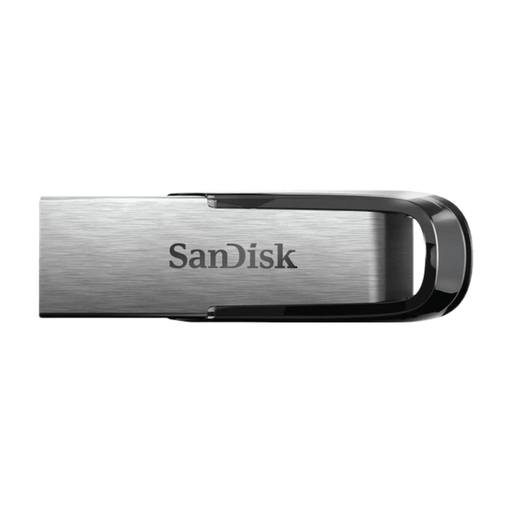 Image unavailable
The Joybuy product listing specifies 512 GB of storage and a USB-A connection. Check that the files you want to copy fit within the available capacity.
The stated read speed is around 150 MB/s. This isn’t a write speed.
 Image unavailable
The Joybuy product listing specifies 512 GB of storage and both USB-A and USB-C connections on the same flash drive. This could be useful if you switch between workstations with these ports.
The stated maximum read speed is 150 MB/s; this isn’t a write speed.
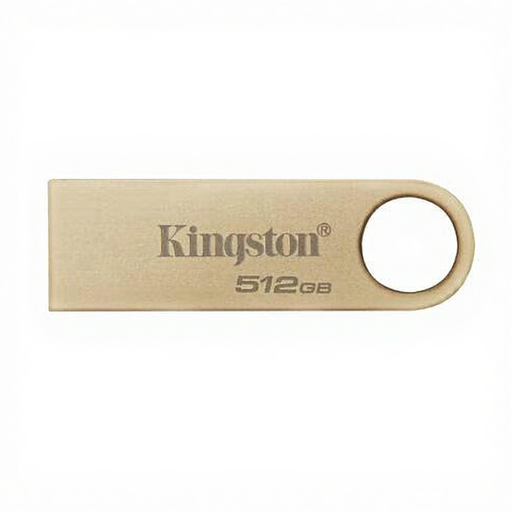 Image unavailable
The Joybuy product listing specifies 512 GB of storage for photos and backups. Check the size of the copy you want to keep.
The stated maximum read speed is 220 MB/s. No write speed is specified.
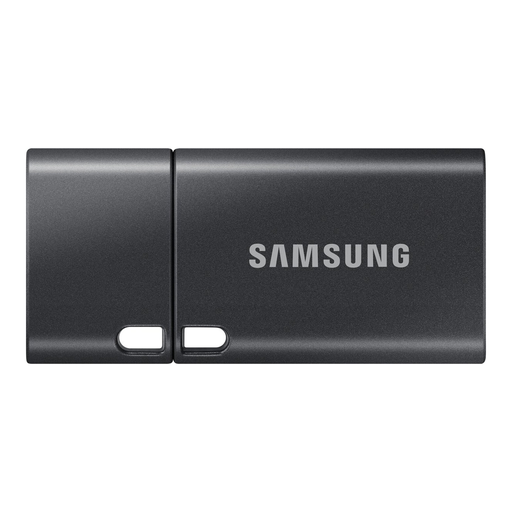 Image unavailable
The Joybuy product listing specifies 512 GB of storage and a USB Type-C connection. Check that your work computer has this port.
The stated maximum read speed is 400 MB/s. No write speed is specified.
No. Adobe says that Lightroom Classic’s built-in backup includes only the catalogue file. Make a separate copy of your photos and any exported files you want to be able to restore.
Open files from the copy or try restoring them. The National Cyber Security Centre recommends testing a backup by opening files.
First check which file systems your work computers support. Microsoft states that FAT32 has a maximum file size of 4 GiB, while exFAT has a higher limit. Formatting can erase existing data, so save it somewhere else first.
There’s no general requirement to encrypt every photo flash drive. Organisations that process personal data must take appropriate security measures, according to the Dutch Data Protection Authority. Losing a flash drive containing unencrypted personal data could be a data breach. The appropriate measures depend on the data and how the drive is used.