Choose a USB flash drive once you’ve worked out which files you need to take with you and measured their total size. Also check that it will connect to the computer you’ll use to make and access the copy. Keep the copy separate from your working files, and open a few files from the drive after copying them. In Lightroom Classic, a catalogue backup contains only the catalogue file, not the photos themselves, according to a response in the Adobe Community. For a large collection, an external drive or another backup location may be more practical.
Who is this buying guide for?
Someone moving house with a photo collection
Wants to save an up-to-date copy of their catalogue and the photos they need before packing, then find everything again after the move. VeiligInternetten and SeniorWeb describe a USB flash drive as one possible place to keep a backup.
Photographer with a large catalogue
Wants to find out how much space the complete collection takes up and whether the connection and copying time suit the computer they have available.
User of multiple computers
Wants to be able to open the copy after moving house on a computer that may have a different USB connection or operating system.
What should you look for when buying?
| What to consider |
What to look for |
Who is this important for? |
| Completeness and recovery |
Check whether the copy contains only the catalogue or also the original photos and any edits you need. Open a few files from the drive after copying them. |
I want to be sure before moving house that I can access both the catalogue and the photos I need. Around 29% of consumers say completeness and recoverability are their top priority. |
| Usable capacity |
Measure the total size of the folders you want to copy and compare it with the usable space, not just the capacity printed on the packaging. |
I want the entire measured collection to fit on the drive without taking along far more space than I need. Around 23% of consumers prioritise having enough capacity for their files. |
| Copying time |
Compare the stated write speed and USB specification with your computer’s port. Manufacturer claims don’t guarantee copying times. |
I want to finish copying before moving day, so I look at write speed, not just read speed. Around 18% of consumers say copying time is their top priority. |
| Connection and access |
Check the connections on the computer you’ll copy the files from and the one you’ll use to open them. Apple Support recommends exFAT as a format for a drive larger than 32 GB used with Mac and Windows; formatting erases existing files. |
I want to be able to open the copy on both computers, even if they have different USB ports or operating systems. Around 18% of consumers prioritise connection and access after moving house. |
| Privacy if the drive is lost |
Do the files contain personal data? If so, decide whether you need protection against unauthorised access, and check before you leave that you can open the encrypted copy on the receiving device. The Dutch Data Protection Authority cites the loss of a USB flash drive containing unencrypted personal data in its guidance on data breaches. |
I want to stop someone from viewing the files if the drive goes missing, but I still need to be able to unlock the copy myself. Around 12% of consumers say preventing unwanted access is their top priority. |
Common mistakes
-
Copying only the catalogue file and assuming the photos are included
For Lightroom Classic, the catalogue backup reviewed contains only the catalogue file. The photos themselves aren’t copied automatically.
Before you buy, make a list of the folders and files you want to protect, and make a separate copy of the photos you need.
-
Assuming the stated capacity is the same as the available space
Formatting and system use may take up some of the stated storage space.
Compare the measured size of your files with the usable space on the drive, not just the figure on the packaging.
-
Assuming a high read speed means faster backups
When you make a copy, you’re writing files to the drive. A high read speed alone doesn’t tell you how quickly the copy will be made; a port or hub can also limit speed.
Check the stated write speed and the USB connection required for the exact model.
-
Keeping the drive in the same moving box as your only computer copy
If the computer and the drive go missing or are damaged together, you may lose access to both copies.
Check the copied files, then keep the drive separate from your working files and equipment.
Brands to compare
Kingston
The DataTraveler Max range has separate USB-A and USB-C models, including 1 TB options.
- Kingston states maximum speeds of 1.000 MB/s for reading and 900 MB/s for writing across the range.
- For optimum speed, Kingston specifies a compatible USB 3.2 Gen 2 host port and, where necessary, a compatible hub. Check which connection the model you choose has.
Transcend
According to the manufacturer, the JetFlash 930C has both USB-A and USB-C and is available in capacities up to 512 GB.
- Transcend specifies maximum speeds of 420 MB/s for reading and 400 MB/s for writing.
- Transcend says actual speeds depend on factors including the host, usage and capacity. A 512 GB model may be too small for a larger collection.
Samsung
FIT Plus is a compact USB-A range; the model reviewed, MUF-256AB/APC, has a capacity of 256 GB.
- Samsung states a read speed of up to 400 MB/s for this capacity.
- This is a read speed specification, not a stated write speed. If your computer only has USB-C, check the connection or look for a suitable solution.
SanDisk
The Extreme PRO Flash Drive with USB-C is a USB-C option for larger files; the manufacturer page reviewed is for the 1 TB model.
- SanDisk specifies maximum speeds of 1.000 MB/s for reading and 900 MB/s for writing across the range.
- These are manufacturer claims, not independently measured copying times. Check the USB-C port and the exact model.
USB flash drives at Joybuy
These USB flash drives are intended as an extra copy you can take with you. Compare their capacity with the size of your files, and check that the connection works with the computers you’ll use to make and access the copy.
 No image available
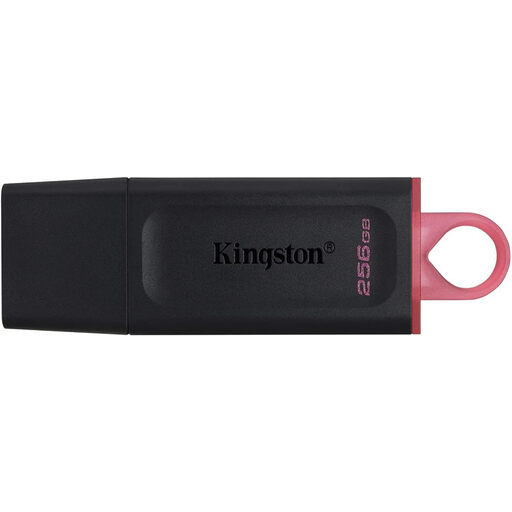
Kingston DataTraveler Exodia DTX 256 GB
A good choice if your measured files fit within the stated capacity and you want to take a copy with you.
The product title states USB 3.2 Gen 1 and write speeds of up to 625 MB/s. This is a stated product specification, not a guaranteed copying time.
Joybuy
 No image available
SanDisk Ultra Dual Drive Go USB 3.1 USB-C 512 GB
A good choice if you want to transfer files between devices with USB-A and USB-C, and your measured collection fits within the capacity.
The product information lists USB-A and USB-C, and a read speed of up to 150 MB/s.
Joybuy
 No image available
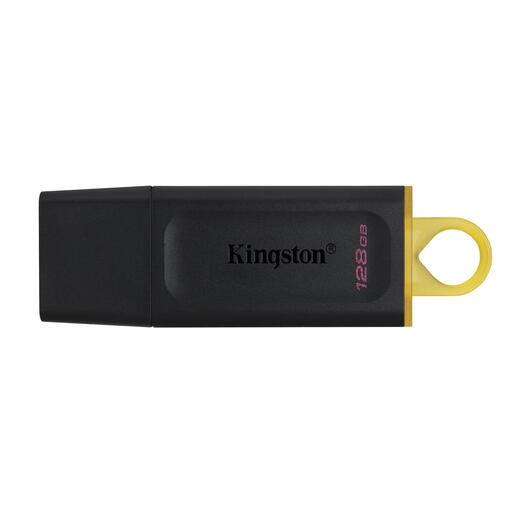
Kingston DataTraveler Exodia 128 GB
A good choice if the files you want to take with you fit within the stated capacity.
The product information lists USB 3.2 Gen 1, a protective cap and a loop for carrying the drive.
Joybuy
 No image available
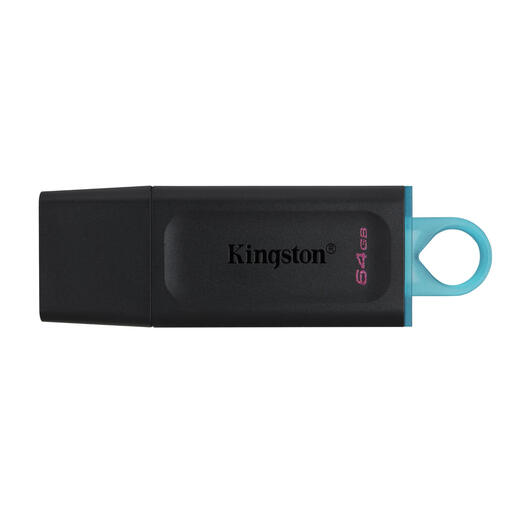
Kingston DataTraveler Exodia 64 GB
A good choice if the files you’ve measured and want to copy fit within the stated capacity.
The product information lists USB 3.2 Gen 1, plug-and-play, a protective cap and a loop for carrying the drive.
Joybuy
 No image available
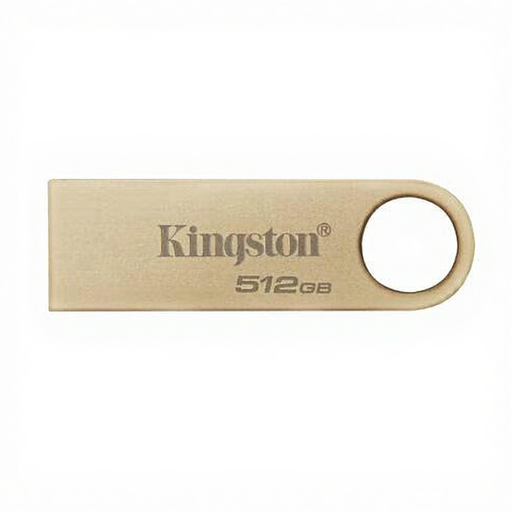
Kingston DataTraveler 512 GB 220 MB/s Metal USB 3.2 Gen 1 SE9 G3
A good choice if your measured files fit within the stated capacity and you want a compact drive to take with you.
The product information lists USB 3.2 Gen 1 and read speeds of up to 220 MB/s. Read speed doesn’t indicate how quickly files are written to the drive.
Joybuy
Frequently asked questions
Does backing up your photo catalogue also back up your photos?
Not with the Lightroom Classic catalogue backup reviewed: it contains only the catalogue file. For this programme, make a separate copy of the photos you need as well. If you use another photo programme, check what its backup file contains.
How can you use one drive with both a Mac and a Windows computer?
First, check the USB connections. Apple Support describes exFAT as a formatting option for a drive larger than 32 GB used with both systems. Formatting erases existing files, so do this before putting your only copy on the drive.
What if the drive stops working: are you only covered by the manufacturer’s warranty in the Netherlands?
No. According to the Dutch government, statutory consumer rights apply alongside any manufacturer’s warranty, and the retailer is your point of contact if there’s a problem. The Netherlands has no fixed statutory warranty period that applies to all products.


