First, work out the total size of your Lightroom Classic catalogue, photos and project folders. Then choose a USB flash drive with enough usable space and the right connector. If you regularly copy large amounts of data, check the stated write speed. Use a flash drive as an additional copy, though: a catalogue-only backup doesn’t include your photos, and stated maximum speeds don’t guarantee how long a complete backup will take.
Who is this buying guide for?
Photographers with a growing archive
You want to keep your catalogue, originals and large project folders safe in one place. Start by checking how much space these files take up, and allow for future projects. Adobe distinguishes between the catalogue and the photos in Lightroom Classic: a catalogue backup doesn’t automatically include your images.
Creators who often copy projects
You regularly transfer large folders to a flash drive and want to know what write speed is suitable for the job. Kingston and Transcend publish maximum speeds for specific models, but these don’t guarantee how quickly a complete copy will transfer on your computer.
Photographers who use multiple computers
You switch between devices with USB-A and USB-C ports and want to be able to open your backup on each one. Transcend lists both connectors for the JetFlash 930C, but they can’t be used at the same time. If you’re carrying work photos of identifiable people, also consider how you’ll protect the files if the drive is lost.
What should you look for when buying?
| What to consider |
What should you check? |
Who is this for? |
| Usable capacity |
Add together the size of your catalogue, originals and project folders, then compare the total with the usable space on the exact model. Leave room for new files. |
If you want to keep an extra copy of a growing archive in one place, having enough space comes first; around 28% of consumers say capacity is their top priority. |
| Complete backup |
Decide which photos, catalogue files, project folders and exports you need to be able to restore. After copying, open a few files from the flash drive. |
If you want to recover not just your catalogue but also the associated images and projects after a problem, completeness matters most; around 22% of consumers put this need first. |
| Writing large files |
Check the write-speed specification for the exact model and whether your computer supports the corresponding USB interface. A maximum read speed doesn’t tell you how quickly files will be written to the flash drive. |
If you often copy large project folders and want to factor in transfer time, the write-speed specification is what matters; around 22% of consumers make copy time their top priority. |
| Connector and file system |
Check whether your devices have USB-A or USB-C ports and which file systems they can read. Microsoft states that FAT32 has a 4 GB limit per individual file; exFAT supports files larger than that. |
If you want to use the copy on different devices or have individual files larger than 4 GB, the connector and file system matter most; around 17% of consumers start with this compatibility check. |
| Protecting files on a portable drive |
Consider encryption if you’re carrying sensitive work files. The Dutch Data Protection Authority lists an encrypted USB flash drive as an alternative when storage on a work server isn’t possible. |
If you’re carrying photos of identifiable people and want to limit the impact of losing the drive, protecting the copy is essential; around 11% of consumers put this concern first. |
Common pitfalls
-
Copying only the catalogue and assuming your photos are safe
According to Adobe, a Lightroom Classic catalogue backup contains only the catalogue file. Without the associated photos and any necessary project files, you may not be able to restore everything you need.
Check which files need to be copied separately, then try opening a few files from the flash drive once the transfer is complete.
-
Assuming a high read speed means fast backups
A backup writes files to the flash drive, so a stated read speed doesn’t tell you how quickly the copy will transfer. Samsung specifies a maximum read speed of 400 MB/s for the MUF-512DA/APC and says that write speeds are slower.
Compare the write-speed specification for the exact model, and don’t treat manufacturers’ maximum speeds as guaranteed performance during extended copying.
-
Looking only at the capacity on the packaging
The full stated capacity isn’t available for storing data. As a result, an archive that looks as if it should fit on paper may still leave too little room for the files you plan to store.
Measure the size of everything you want to copy, and allow for usable space and future projects when choosing a drive.
-
Confusing an extended warranty with your statutory rights
Additional cover isn’t the same as your statutory rights if a product is faulty. The Dutch Government states that there is no fixed statutory warranty period in the Netherlands and that you should contact the retailer if you have a problem with a product.
Before choosing extra cover, read the terms and check what it actually adds.
Brands to compare
Kingston
The DataTraveler Max is available in separate USB-C and USB-A models, including 1 TB versions.
- Kingston lists maximum speeds of 1,000 MB/s for reading and 900 MB/s for writing across the range.
- Kingston says actual speeds can vary depending on the host, software and usage; the maximum speeds don’t guarantee sustained write performance.
SanDisk
The Extreme PRO range includes separate USB-A and USB-C models, including 1TB versions.
- For the 1TB models listed, SanDisk specifies maximum speeds of 1,000 MB/s for reading and 900 MB/s for writing.
- Check the full model number and connector: the USB-A and USB-C versions are different models. These speeds are SanDisk specifications, not independent test results.
Samsung
The USB Type-C Flash Drive range in the Netherlands includes the 512 GB MUF-512DA/APC.
- Samsung lists a maximum read speed of 400 MB/s for this model.
- Samsung states that write speeds are slower than read speeds. The read speed is not a stated write speed.
Transcend
The JetFlash 930C has USB-A and USB-C connectors and is available in capacities up to 512 GB.
- Transcend lists maximum speeds of 420 MB/s for reading and 400 MB/s for writing across the range.
- The two connectors can’t be used at the same time. Check that 512 GB is enough for your entire archive, with room to grow.
Lexar
The JumpDrive P30 is a USB 3.2 Gen 1 flash drive, and Lexar lists a 1 TB version.
- Lexar specifies maximum read and write speeds of 450 MB/s.
- The stated maximum speeds don’t show how quickly a complete photo backup will transfer on your computer.
USB flash drives at Joybuy
This selection includes 256 GB and 512 GB USB flash drives for files that fit within those capacities. Check which connector you need and what write speed is specified for the exact model.
 No image available
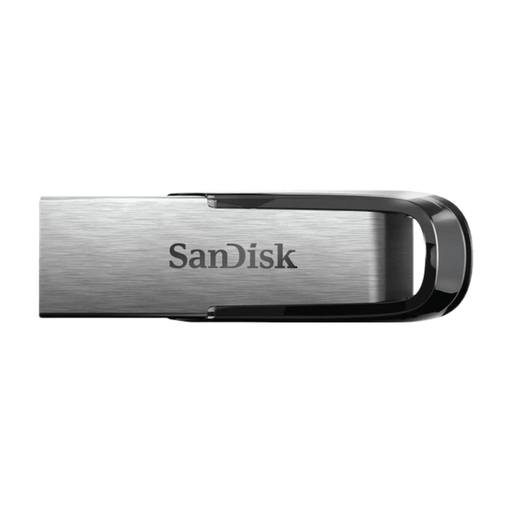
SanDisk Ultra Flair 512GB USB 3.0
An option for a copy that fits within the stated capacity and will be used with a computer that has USB-A.
The product title lists 512 GB and USB 3.0. No write speed is listed here, so check this before choosing the drive for regular large transfers.
View at Joybuy
 No image available
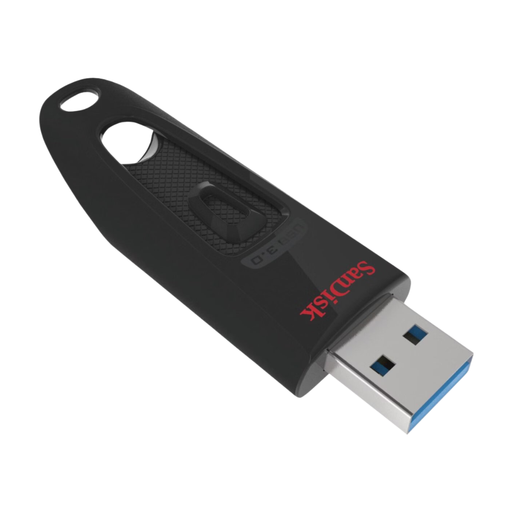
SanDisk Ultra 512GB USB 3.0
A good fit for an archive that stays within 512 GB and will be used with a computer that has USB-A.
The product name lists 512 GB and USB 3.0. If you’ll be writing large amounts of data, compare the write-speed specification for this exact model.
View at Joybuy
 No image available
SanDisk Ultra Dual Drive Go 512GB USB-A/USB-C
An option if you want to use the drive with devices that have USB-A and USB-C, and your files fit within 512 GB.
The product name lists 512 GB and USB 3.1/USB-C. Check the write-speed specification before choosing this drive for frequent large backups.
View at Joybuy
 No image available
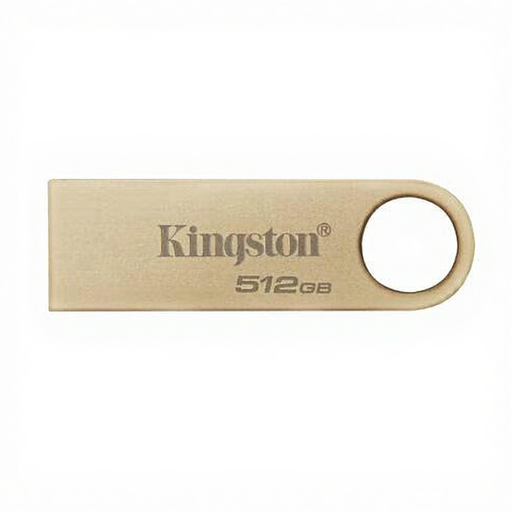
Kingston DataTraveler 512GB 220MB/s Metal USB 3.2 Gen 1 SE9 G3
An option for files that fit within 512 GB and use with a computer that has USB-A.
The product name lists 512 GB and USB 3.2 Gen 1. Check the write-speed specification for this model before copying large amounts of data.
View at Joybuy
 No image available
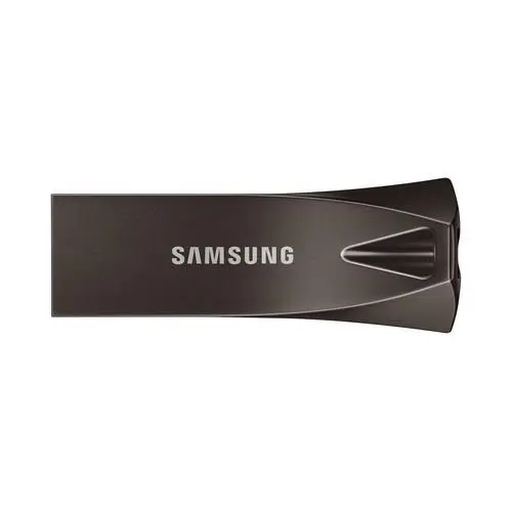
Samsung MUF-256BE 256GB USB Type-A
An option for a collection that fits within 256 GB and use with a computer that has USB-A.
The product information lists a write speed of 30 MB/s. Bear this in mind if you regularly copy large folders to the flash drive.
View at Joybuy
Frequently asked questions
Are my photos automatically included in a Lightroom Classic catalogue backup?
No. Adobe states that a Lightroom Classic catalogue backup contains only the catalogue file. Make a separate copy of the photos and any other files you want to be able to restore.
Why won’t a large file fit on a flash drive with enough free space?
Check the file system. FAT32 has a 4 GB limit per individual file, while exFAT supports files larger than that. Before formatting, check that your devices can read the file system you’ve chosen, and make sure your existing files are safe elsewhere.
How can I keep my backup usable?
Update your copy regularly and check that you can open the files you need from the flash drive after copying. VeiligInternetten describes both manual and automatic backups and emphasises the importance of keeping a recent copy.
Who can help if a flash drive bought in the Netherlands is faulty?
For a consumer purchase, the Dutch Government says you should contact the retailer. There is no fixed statutory warranty period in the Netherlands; a manufacturer’s warranty is in addition to your statutory right to a product that works properly.
Does the GDPR always apply to photos I put on a USB flash drive?
No. According to the Dutch Data Protection Authority, there is an exception for photos that someone keeps privately for personal or household use, or shares with only a very limited group. The GDPR may apply if you use photos of identifiable people for work; consider the specific way you’re processing them and protect portable copies against loss.


