Choose a USB flash drive with enough usable capacity and connectors to suit the computers you’ll use to copy your photos. For a large archive, pay particular attention to the stated write speed. Use the drive as an extra, checked copy: keep the original, and ideally another copy somewhere else too. If your studio handles identifiable client photos, you should also assess what security measures are appropriate.
Who is this guide for?
A studio with a large photo archive
You want to copy a large number of images before moving. Look for enough storage, a suitable write speed and a separate copy of the originals. Veeam recommends keeping three copies of your data: the original and at least two additional copies.
A studio with old and new workstations
You move images between devices that may have different USB ports. The connectors and file system can determine whether you can use the copy on both workstations.
A studio with identifiable client images
You store business photos in which people are identifiable. The Dutch Data Protection Authority considers identifiable people in images to be personal data. Organisations must choose security measures that are appropriate to the risks of processing that data.
What should you look for when buying?
First, check the size of the photo folders you’re taking with you and the ports on both workstations. Then compare write speeds and decide how you’ll store additional copies.
| What to consider |
What should you check? |
Who is this important for? |
| Keep a copy |
Keep the original and check that you can open the copied folders and files. Don’t transport all your copies together. |
If I don’t want to rely on a single drive during the move, I’ll keep an additional copy separately. Around 25% of consumers say that keeping an extra copy they can check is their top priority. |
| Capacity |
Check the total folder size and compare it with the usable capacity of the version you’re considering. |
If I want to put my entire photo selection on one drive, I’ll check in advance that it will fit. Around 25% of consumers say capacity is their main concern. |
| Write speed |
Compare the stated write speed of the exact version and check the computer’s USB port. A maximum speed isn’t a guaranteed transfer time. |
If I need to finish transferring files within a limited time before the move, I’ll check the write speed and the computer port. Around 20% of consumers prioritise transfer speed. |
| Connectors |
Check that the drive fits the USB-A and USB-C ports on both workstations. Check the file system before copying too. |
When I move files between different computers, I want to know that the same drive will connect to both and work properly. Around 15% of consumers say compatibility between workstations is their main concern. |
| Protecting client images |
Consider how identifiable images will be transported and whether encryption and access controls are suitable for the computers you use. |
If I’m taking identifiable client photos with me, I’ll consider suitable protection in case the drive goes missing. Around 15% of consumers prioritise protecting these images. |
Common copying mistakes
-
Using the drive for the move as your only copy
An extra drive doesn’t replace the original. If the drive goes missing or a file hasn’t copied properly, having just one copy may not be enough.
Keep the source files and an additional copy somewhere else. After copying, check that you can open the folders and files on the drive.
-
Confusing read speed with write speed
When transferring photos to a drive, write speed matters. A stated read speed doesn’t tell you how quickly files will copy onto it.
Compare the write speed of the exact version and check the computer’s USB port. Manufacturers’ maximum speeds don’t guarantee how quickly the full transfer will finish.
-
Formatting the drive for the other computer after copying
Formatting erases the files on a drive. Apple warns users about this when formatting a drive.
Check the ports and file systems on both workstations in advance. Save your files elsewhere before formatting.
Brands to compare
Kingston
Kingston offers DataTraveler Max versions with USB-A or USB-C, as well as the encrypted IronKey Locker+ 50 G2.
- For the DataTraveler Max, Kingston states maximum speeds of 1,000 MB/s read and 900 MB/s write. Actual speeds depend on the computer and how the drive is used.
- Kingston lists hardware encryption, a maximum capacity of 256 GB and a maximum write speed of 115 MB/s for the IronKey Locker+ 50 G2. These features don’t apply to every Kingston drive.
Transcend
According to Transcend, the JetFlash 930C has USB-A and USB-C connectors and is available in versions up to 512 GB.
- Transcend states maximum speeds of 420 MB/s read and 400 MB/s write for this model.
- For use with mobile devices, Transcend specifies that USB-OTG support is required. The maximum speed isn’t an independent real-world test result.
SanDisk
Both the Ultra Dual Drive Luxe and Extreme PRO Dual Drive have USB-A and USB-C. Compare the individual product ranges for capacity and stated speed.
- SanDisk describes the Ultra Dual Drive Luxe as a dual-connector drive for transferring files.
- The maximum speeds of 1,000 MB/s read and 900 MB/s write stated by SanDisk for the Extreme PRO Dual Drive don’t automatically apply to the Luxe or reflect real-world speeds.
Samsung
The Samsung USB Type-C Flash Drive MUF-256DA/APC is a USB-C option for devices with that connector.
- Samsung states a maximum read speed of 400 MB/s for the 256 GB version.
- No write speed is stated. According to Samsung, actual read speeds depend on the device and conditions of use; this model doesn’t have a USB-A connector.
USB flash drives at Joybuy
These Joybuy products are USB flash drives for storing and transferring photo files. Check their capacity and connectors against the workstations you use.
 No image available
Kingston DataTraveler Exodia 128 GB
An option if your measured photo selection fits within 128 GB and your computer has USB-A.
USB 3.2 Gen 1 Type-A; the product description states that it is backwards compatible with USB 2.0.
View product
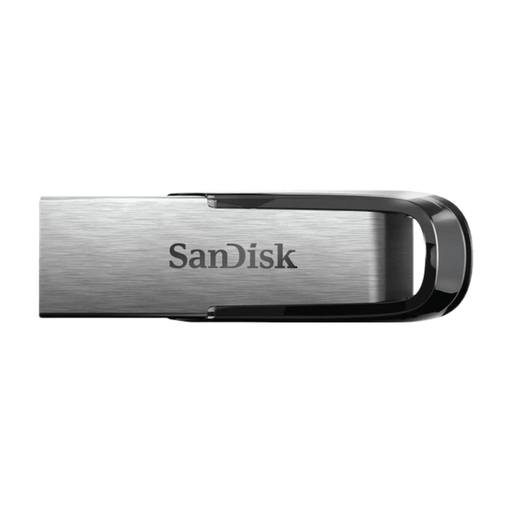 No image available
SanDisk Ultra Flair 512 GB
An option if your photo folders fit within 512 GB and you’re copying from a computer with USB-A.
USB 3.0. The product description states a maximum read speed of around 150 MB/s and support for password protection and 128-bit AES encryption.
View product
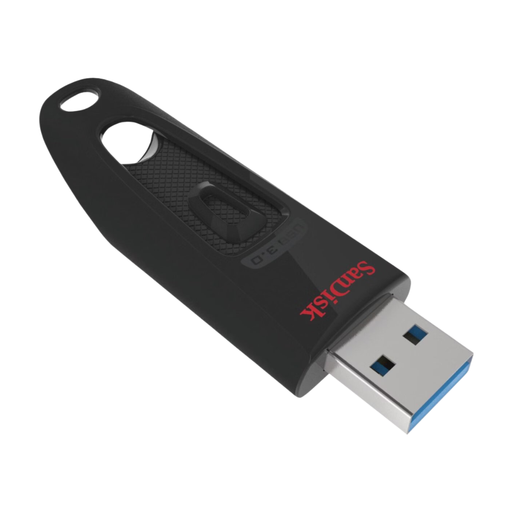 No image available
SanDisk Ultra 512 GB
An option for an additional copy if your measured photo selection fits within 512 GB and your workstation has USB-A.
USB 3.0. The product description states that password protection is available for private files.
View product
 No image available
SanDisk Ultra Dual Drive Go 512 GB
An option if you want to use the same drive with workstations that have USB-A and USB-C, provided your photo selection fits within 512 GB.
USB 3.1; the product description lists USB-A and USB-C connectors and a maximum read speed of 150 MB/s.
View product
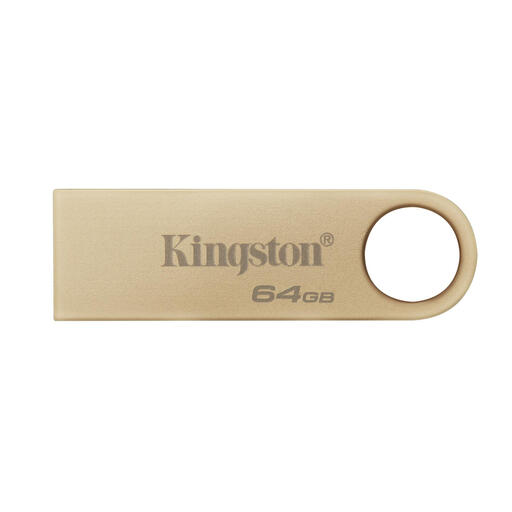 No image available
Kingston DataTraveler SE9 G3 64 GB
An option if your measured selection fits within 64 GB and your computer has USB-A.
USB 3.2 Gen 1 Type-A. The product description states maximum speeds of 220 MB/s read and 100 MB/s write.
View product
Frequently asked questions
How do you work out how much storage you need?
Before buying, check the total size of the photo folders you’re taking with you and compare it with the usable capacity of the version you’ve chosen. Kingston notes that formatting and other features use some of the stated capacity.
Can you use the same drive with a Mac and a Windows PC?
Yes, if the connector fits and both computers support the file system. Apple lists ExFAT as a formatting option for a drive larger than 32 GB that will be used with Windows. Formatting erases the files already on the drive, so do it before copying your photos or save those files elsewhere.
Is the manufacturer’s warranty your only right if a drive breaks?
For consumer purchases in the Netherlands, statutory rights are separate from any manufacturer’s warranty. According to the Dutch government, there is no fixed statutory warranty period, and you should contact the seller if a product is faulty. A studio’s business purchase isn’t automatically a consumer purchase, so check the terms of your contract.
Does the GDPR require every drive containing portfolio photos to be encrypted?
The Dutch Data Protection Authority doesn’t set a general product rule requiring every drive to be encrypted. Identifiable people in photos may be personal data; organisations must decide on appropriate security measures based on the risks and how the data is used. There is a separate exemption for private use that remains private.


