What should you consider when choosing?
USB-A for a single compatible port
Best for: you mainly use devices with USB-A and don’t need a second connector type.
Bear in mind: the drive won’t plug directly into a device with USB-C only.
USB-A and USB-C for different devices
Best for: you want to transfer files between devices with different USB ports.
Bear in mind: for a phone or tablet, also check that it supports external USB storage.
USB-C for devices with USB-C
Best for: you use compatible devices with USB-C and don’t need a direct USB-A connection.
Bear in mind: a USB-C drive won’t plug directly into a device with USB-A only.
Compare the capacity with the size of your complete folder, then check the connectors, and only after that look at the speed specifications.
| What to consider |
What should you check? |
Who is this important for? |
| Space for project folders |
Add up the files and attachments in the folders you want to transfer, then compare the total with the capacity of the exact model. |
I want to keep my recipes, project folders and any attachments, with room to grow. That’s why around 36% of consumers prioritise having enough storage space. |
| Connection to your devices |
Check the ports on each device; for mobile devices, also check whether they support external storage. |
I transfer files between devices with different USB ports and want the drive to connect to them. Around 29% of consumers prioritise compatible connectors. |
| Copying time for lots of files |
Where available, compare the stated write speed and test conditions; bear in mind the host port and how files are distributed across folders. |
I regularly update project folders containing lots of small files and don’t want to rely on read speed alone. Around 21% of consumers prioritise copying time. |
| Keeping files safe |
Consider whether the drive would be your only copy and whether sensitive content needs extra protection. |
If important recipes are stored only on this drive, I risk losing them if it’s lost or damaged. Around 14% of consumers prioritise keeping files safe or protecting them. |
USB flash drives on Joybuy
These USB flash drives are designed for storing and transferring recipes and project folders; compare their capacity and connectors with your devices.
 No image available
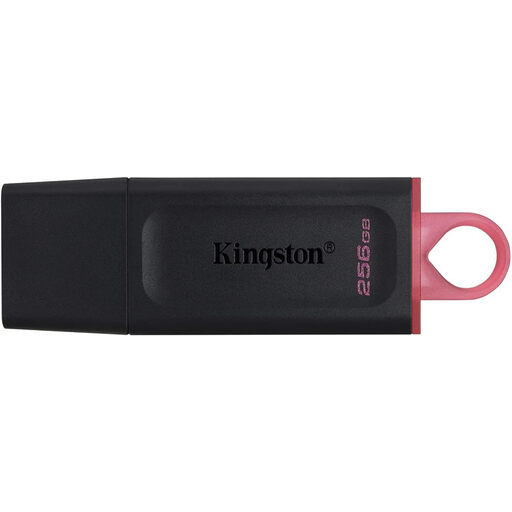
Kingston DataTraveler Exodia DTX 256 GB
An option for storing recipes and project files if 256 GB suits the size of your folders.
USB 3.2 Gen 1; 256 GB. The product name states a write speed of up to 625 MB/s.
Joybuy
 No image available
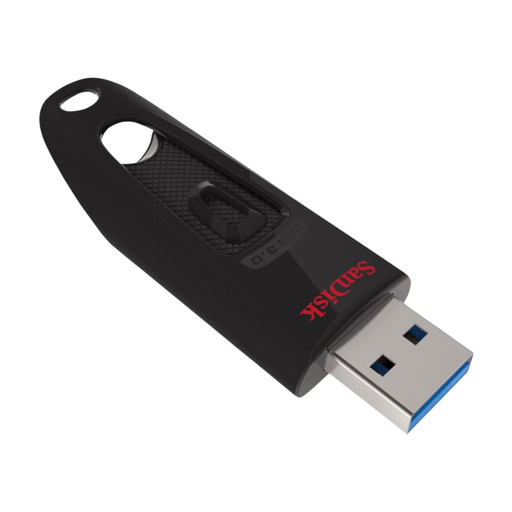
SanDisk Ultra 128 GB
A USB-A option for computers with this type of port, if 128 GB is enough for your documents.
128 GB; USB 3.0.
Joybuy
 No image available
SanDisk Ultra Dual Drive Go 512 GB
The combination of USB-A and USB-C could be a good fit if you transfer files between devices with both types of port.
512 GB; USB 3.1; USB-A and USB-C.
Joybuy
 No image available
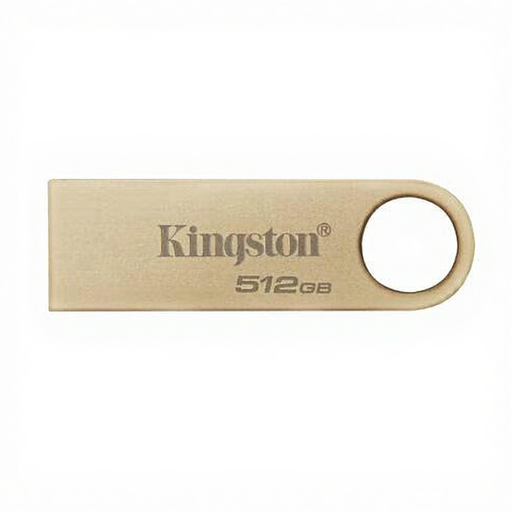
Kingston DataTraveler SE9 G3 512 GB
An option for large project folders if 512 GB meets your storage needs and the connector works with your devices.
512 GB; USB 3.2 Gen 1; metal design.
Joybuy
 No image available
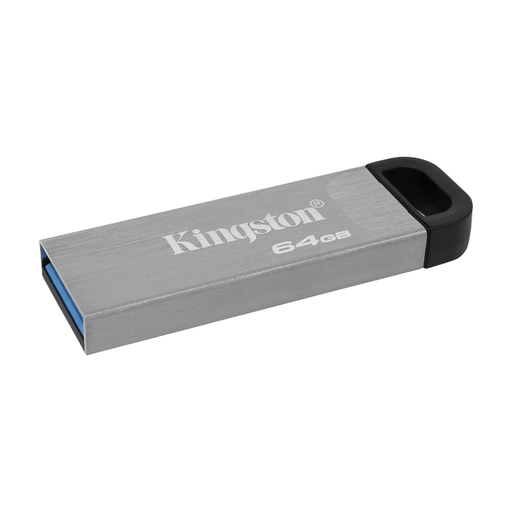
Kingston DataTraveler Kyson 64 GB
An option for recipes and smaller collections of documents if 64 GB gives you enough space.
64 GB; USB 3.2 Gen 1. The product description lists a USB-A connector.
Joybuy
Frequently asked questions
Can I use my recipe folder on both a Windows computer and a Mac?
Yes, if you use a file system supported by both devices. Apple Support lists ExFAT as a format compatible with Windows and as an option when formatting volumes larger than 32 GB. Check the connections on both computers too. First, make a copy of your existing files elsewhere, as formatting erases the drive.
Why does copying lots of recipe files take longer than the stated speed suggests?
A stated maximum speed isn’t a guarantee for every folder. SanDisk Support lists lots of small files, deeply nested folders and a slower host port as possible reasons for lower transfer speeds.
Is the USB flash drive itself enough as a backup for important recipes?
Not if it’s your only copy. VeiligInternetten points out that files can be lost if a USB flash drive is damaged, so keep important documents somewhere else too and make sure that copy is up to date.
Who should I contact if a USB flash drive stops working?
For a consumer purchase in the Netherlands, you’re entitled to a product that meets the standards you can reasonably expect. The Dutch government states that the seller must provide a solution if there’s a problem; any manufacturer’s warranty is in addition to this.
Am I legally required to encrypt recipe documents on a USB flash drive?
That depends on how the files are used and what they contain; there isn’t one answer that applies to every recipe file. If you process other people’s personal data, for example in a professional capacity, the GDPR may apply. The Dutch Data Protection Authority lists the loss of a drive containing unencrypted personal data as a possible data breach. In that case, assess what security measures are appropriate for the content.


