First, choose a connector that works with both your recording device and the shared workstation. Then decide on capacity based on the clips you want to keep. For large or frequent transfers, compare the stated write speed, but check the file system too: Xbox Support specifies USB 3.0 and NTFS for recording directly to external storage, while Apple Support notes that a Mac may not be able to write to NTFS by default. Keep important recordings in a second location as well.
Who is this choice relevant to?
Players moving clips between devices
If you record on one device and transfer files using a shared workstation, check the connectors and file systems on both devices. Apple Support and Xbox Support highlight different considerations when writing to external storage.
Players building up a clip library
If you keep lots of video files or particularly large ones, choose a capacity that suits your recordings. If you copy files regularly, check the stated write speed too; a maximum speed doesn’t tell you how fast it will perform on your devices.
Players who want to keep recordings private
If you use a workstation with other people, check that you can unlock your chosen access protection on your devices. It’s still important to keep another copy, as a USB flash drive can be damaged or lost.
Which buying considerations matter?
Start with your devices and how you record. Then choose the capacity you need and any additional protection.
| Consideration |
What should you check? |
Who is this important to? |
| Connector and file system |
Check the ports on both devices and whether you’re recording directly or copying existing clips. Also check the file system requirements for each device. |
I want to move clips between my recording device and a shared workstation without running into connection or write-compatibility issues. Around 36% of consumers put connectivity first. |
| Space for clips |
Check the size of your recordings and how many clips you want to keep on the drive. Leave room for new files too. |
If I’m taking a growing library with me, I want to choose a capacity that suits the size and number of my files. Around 29% of consumers prioritise having enough storage space. |
| Write speed |
Compare the stated write speed of the exact model and the workstation’s USB capabilities. |
I often copy large clips, so I want to know the stated write speed for my devices. Around 21% of consumers say copying time is their top buying priority. |
| Access and keeping files safe |
Check how security features work on your devices, and keep important recordings in a second location too. |
When other people use the same workstation, I want to keep personal recordings private and avoid relying on a single drive. Around 14% of consumers make privacy their priority. |
Common mistakes when choosing
-
Comparing read speed alone
A stated maximum read speed doesn’t tell you how quickly clips will save. The drive, port and conditions of use all play a part too.
Look up the write-speed specification for the exact model and check the workstation’s USB capabilities.
-
Assuming one format works for every setup
Xbox Support specifies NTFS for recording directly to external storage. Apple Support notes that a Mac may be able to read NTFS, but can’t write to it by default.
First decide whether you’re recording directly or copying existing clips, then check the file system requirements for each device. Back up your files before formatting a drive.
-
Using the drive as your only archive
If a USB flash drive is damaged or lost, the files on it could be lost too.
Keep important gaming recordings in a second storage location as well.
Brands to consider as a guide
Transcend
The JetFlash 930C is designed for transferring files between devices with USB-A and USB-C ports.
- For this range, Transcend quotes read speeds of up to 420 MB/s and write speeds of up to 400 MB/s, with 128 GB, 256 GB and 512 GB models available.
- You can’t use both connectors at the same time. Check compatibility with your console for the intended use.
Kingston
The DataTraveler Max range is designed for large file transfers, while the IronKey Vault Privacy 50 range offers access-restriction features.
- Kingston quotes maximum speeds of up to 1,000 MB/s read and 900 MB/s write for the DataTraveler Max. The range has separate USB-A and USB-C models. For the Vault Privacy 50, Kingston lists hardware encryption and a read-only mode.
- The DataTraveler Max doesn’t have both connectors. If you choose an encrypted drive, check that you can unlock it on the shared workstation.
Samsung
The BAR Plus 256 GB, model MUF-256BE4/APC, is a USB-A option.
- Samsung quotes a sequential read speed of up to 400 MB/s for this model.
- Samsung notes that actual speeds can vary depending on the device and conditions of use. The stated read speed doesn’t tell you the write speed; check the connector if your workstation only has USB-C.
SanDisk
The Ultra Dual Drive Go 128 GB is designed for transferring files between devices with USB-A and USB-C ports.
- SanDisk describes this model as having both connectors and a USB 3.2 Gen 1 interface.
- The interface name doesn’t provide a verified sustained write speed, so don’t compare this model with other ranges based on that alone.
USB flash drives on Joybuy for gaming recordings
These Joybuy products are USB flash drives for storing and transferring gaming recordings. For each model, check the connector, capacity and any requirements of your recording device and workstation.
 No image available
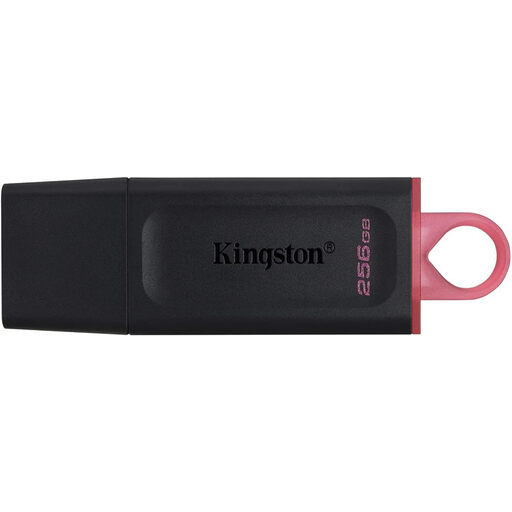
Kingston DataTraveler Exodia DTX 256 GB USB 3.2 Gen 1
Could suit regular transfers of large clips. The product name lists 256 GB, USB 3.2 Gen 1 and write speeds of up to 625 MB/s. This is a stated maximum, not a measured speed on your workstation.
View at Joybuy
 No image available
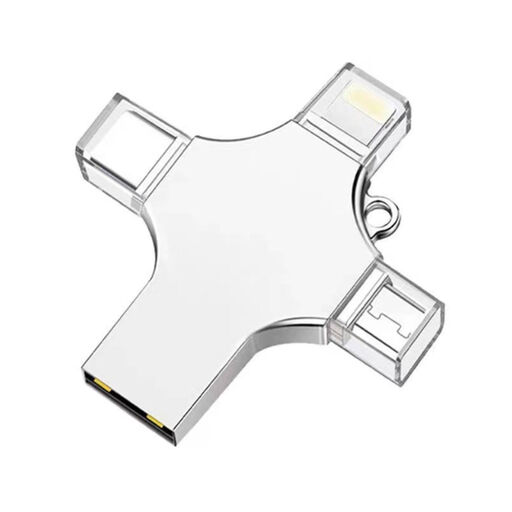
32 GB USB flash drive with USB 3.0, Lightning, USB-C and Micro-USB
An option for transferring a smaller number of clips between devices. The name lists 32 GB and USB 3.0, Lightning, USB-C and Micro-USB connectors; check that they’re compatible with your equipment.
View at Joybuy
 No image available
SanDisk Ultra Flair USB 3.0 64 GB
Could be a good fit if 64 GB is enough for the clips you want to take with you. The product name lists USB 3.0; check your devices’ connector and file system requirements.
View at Joybuy
 No image available
SanDisk Ultra Dual Drive Go 512 GB USB 3.1 and USB-C
Could suit a larger clip library and transfers between USB-A and USB-C devices. The product information lists 512 GB and USB 3.1; check the ports and file system requirements for both devices.
View at Joybuy
 No image available
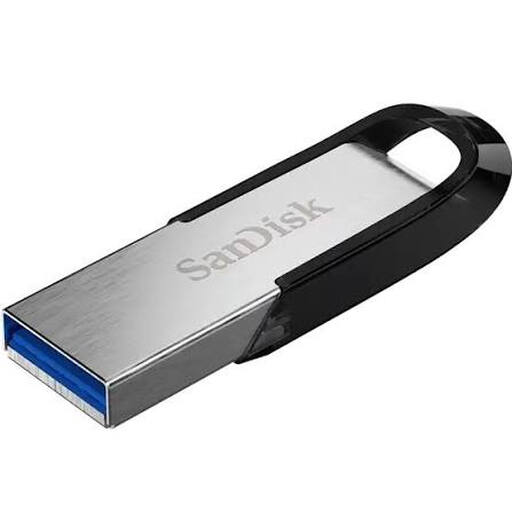
SanDisk Ultra Flair USB 3.0 256 GB
Could suit you if you want to take more space with you than the 64 GB model offers. The product name lists 256 GB and USB 3.0; choose a capacity that suits your files and check the connector on your workstation.
View at Joybuy
Frequently asked questions
Which file system is useful if I want to use files on Windows and Mac?
exFAT may be suitable for use with Windows and Mac. Apple Support notes that a Mac may be able to read NTFS, but can’t write to it by default. Check any console requirements too, and copy existing files before formatting.
Can I use the same drive to record directly from an Xbox and edit on a Mac?
That isn’t guaranteed to be compatible: Xbox Support specifies USB 3.0 and NTFS for recording directly to external storage, while Apple Support notes that a Mac may not be able to write to NTFS by default. Recording directly is also different from copying existing clips to a drive.
How can I reduce the risk of losing data after copying?
Safely eject the drive in Windows before disconnecting it, and keep important recordings in a second location too. Safe Internet notes that files on a USB flash drive can be lost if the drive is damaged.
What are my rights in the Netherlands if my USB flash drive stops working too soon?
According to ACM ConsuWijzer, the retailer remains responsible for the statutory guarantee, alongside any manufacturer’s warranty. What you can reasonably expect from the product is taken into account when assessing your claim.


