
Creator with lots of video clips
You need to deliver a large set of captures and regularly copy large files. Check both the capacity and the write speed.


Choose a USB flash drive for gameplay captures after checking the total file size, connection type and file system used by the receiving device. If you regularly copy large clips, compare write speeds too. For confidential material, agree an unlocking method with your client. PS5 and Xbox workflows have different requirements for USB storage.
You need to deliver a large set of captures and regularly copy large files. Check both the capacity and the write speed.
You’re not sure which connection or computer your client uses, or you’re exporting files from a console first. The connection type and formatting can affect whether the transfer works.
You’re delivering material that your client has access or security requirements for. Agree how the recipient will open the files.
Start with the files and the receiving device. Then decide whether transfer time or agreed security is the main priority.
| What to consider | What to look for when buying | Who is this most important for? |
|---|---|---|
| Room for the complete transfer | Add up the file sizes of the final set of captures, and allow for the available space after formatting. | I want to deliver the entire final set without leaving out any files. That’s why around 29% of consumers prioritise having enough storage space. |
| Connection type and file system | Ask your client which port and operating system they use. If you’re exporting from a console, check that console’s instructions separately. | If I’m not sure what equipment my client uses, I want to know whether the flash drive and its formatting are compatible. That’s why around 29% of consumers prioritise connection and file system compatibility. |
| Write time for large clips | Compare the stated write speed of the exact model and check which USB port you’re using on your computer. | If I regularly copy large video clips, I want to avoid taking too long to fill the flash drive. Around 24% of consumers prioritise the time it takes to write files. |
| Access to confidential files | Ask which security and unlocking method your client accepts, and check that it works with their equipment. | If the captures are confidential, I want to agree in advance who can open them and how. Around 18% of consumers put access security ahead of other buying considerations. |
Reading files is different from writing captures to the flash drive. The computer and USB port you use can also limit transfer speeds.
Check the write speed for the exact model and see which USB port you’re using.
The PS5 feature described for copying captures and Xbox recording to external storage have different requirements. Formatting also deletes existing files.
First decide where you’ll record and where your client will open the files. Make a separate copy of the contents before formatting.
Security won’t help with the transfer if the recipient can’t unlock the flash drive or doesn’t have the agreed computer.
Agree the security arrangements and how you’ll share the password in advance, then test together that the recipient can open the files.
The Ultra Dual Drive Luxe is designed for transferring files between USB-A and USB-C devices. The Extreme PRO Dual Drive is worth comparing if writing large files is a priority.
DataTraveler Max offers a USB-C option for fast transfers, while IronKey Locker+ 50 G2 is a separate option for secure transfers agreed in advance.
BAR Plus is a USB-A option if the recipient’s equipment has that type of port.
JetFlash 930C has USB-A and USB-C connections for transferring files between devices with different ports.
The Dual QuickStick 128 GB has USB-A and USB-C connections for sharing files.
This selection includes USB flash drives for storing and transferring gameplay captures. Choose a capacity that suits your files, and check that the connection and write specifications match your equipment and how you plan to use it.
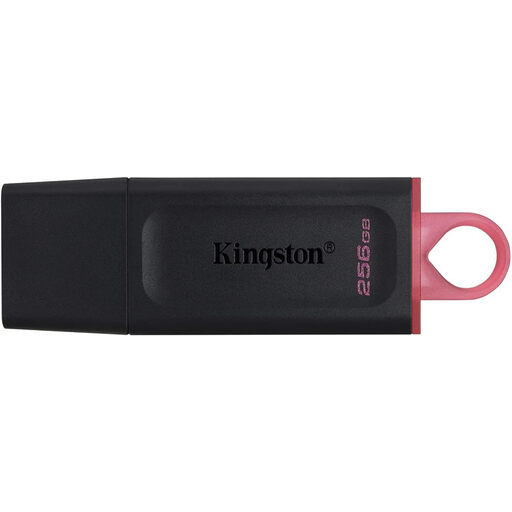 No image available
Suitable for a set of captures that fits within 256 GB, where the stated write speed matters.
USB 3.2 Gen 1; write speeds of up to 625 MB/s according to the product name.
 No image available
An option if your set of captures fits within 128 GB and you want to transfer files via a USB-A port.
128 GB; USB 3.2 Gen 1 Type-A.
 No image available
Suitable for a smaller set of captures that fits within 64 GB and will be transferred via USB-A.
64 GB; USB 3.0.
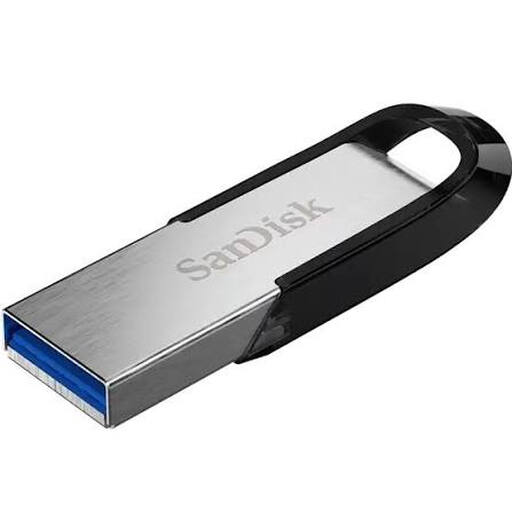 No image available
An option if your set of captures fits within 256 GB and your equipment uses USB 3.0.
256 GB; USB 3.0.
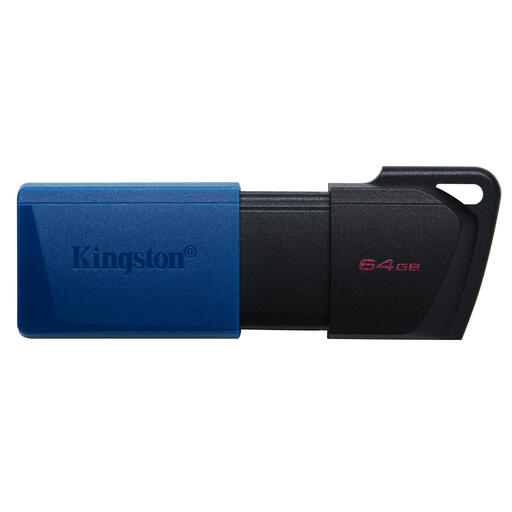 No image available
Suitable for a set of captures that fits within 64 GB; check that the connection matches your equipment.
64 GB; USB 3.2 Gen 1.
Not with the capture-copying feature described here: PlayStation requires a USB drive formatted as FAT or exFAT that isn’t set up as extended USB storage. Also check that your chosen USB flash drive is compatible.
First check which devices you’ll use with the flash drive. Microsoft Learn states that FAT32 has a 4 GB per-file limit; Apple lists exFAT as a format compatible with Windows. Apple also says that macOS can’t write to NTFS, so don’t assume you’ll be able to edit files on a Mac after transferring them from an Xbox flash drive formatted as NTFS.
For the feature Xbox describes for recording directly to external storage, Xbox Support specifies USB 3.0 and NTFS. Formatting erases existing files, so save them elsewhere first and check whether the feature is available on your console.
Not every USB flash drive for gameplay captures needs to be encrypted. The Dutch Data Protection Authority says that organisations processing personal data must decide on appropriate security measures based on the risks. For confidential files, agree the security arrangements and access with your client.