
Creator with large video folders
You collect game captures and regularly edit or move large project folders. Capacity, write speed and file size are all important considerations.


First, choose a drive to suit the size of your folders and individual video files, the ports on your devices and the format required by your capture workflow. If you write files regularly, compare the stated write speed too: a maximum read speed won’t tell you how quickly your files will copy to the drive. You should also keep important projects in a second location.
You collect game captures and regularly edit or move large project folders. Capacity, write speed and file size are all important considerations.
You want to transfer captures from a PS5 or Xbox to a computer. Check the format required by your console and make sure the drive works with the devices you need to use. PlayStation Support and Xbox Support set out different requirements for these workflows.
You want to take recordings with you without making the portable drive your only copy. VeiligInternetten recommends keeping a recent backup; a USB flash drive can be used as an external storage location.
PlayStation Support recommends FAT or exFAT for a standard USB drive used for things such as screenshots. For external captures, Xbox Support requires USB 3.0 and NTFS. Microsoft Learn states that FAT32 has a maximum file size of 4 GiB per file. So, before transferring files or formatting a drive, check both the connection and the file system requirements for your workflow.
| What to consider | What should you check? | Who is this important for? |
|---|---|---|
| Available capacity | Compare the size of your folders and their expected growth with the capacity of the version you choose; formatting can affect the usable space. | If I want to carry several capture and project folders at once, I focus on how much space they take up together. Around 33% of consumers rank capacity as their top priority. |
| Writing to the drive | Look for the stated write speed for that exact version; read speed and write speed are not the same. | If I often copy large video folders to the drive, I want to know the stated write speed for that model. Around 27% of consumers put write speed first. |
| Connection and formatting | Check whether you need USB-A or USB-C, and which file system your console requires for captures. Copy any existing files before formatting. | If I want to move captures between a console and computer, I first check that the connection and format work with both devices. Around 27% of consumers name compatibility as their top priority. |
| A second copy | Decide where you’ll keep a recent second copy and whether the drive has enough space for the project files you want to store. | If I take irreplaceable recordings with me on a drive, I also want to keep another recent copy elsewhere. Around 13% of consumers rank keeping an extra copy as their top priority. |
According to Xbox Support, a storage drive formatted for Xbox games isn’t suitable for external game captures. PlayStation also distinguishes between standard USB storage for captures and extended game storage.
Before you use a drive, check which workflow you want to transfer and what format it requires. Copy existing files elsewhere before reformatting.
A stated maximum read speed doesn’t tell you how quickly large project folders will be written to the drive. Manufacturer maximums are also not guaranteed real-world speeds.
Compare the stated write speed for the same capacity and connection, and check that your computer’s USB port supports the standard listed.
A portable drive can carry files or provide extra storage, but that doesn’t automatically make it a second copy.
Keep a recent copy in another location and check that you can open the files after copying them.
The DataTraveler Max range includes USB-A and USB-C versions, with capacities of 256 GB, 512 GB and 1 TB.
FIT Plus is a compact USB-A range that includes a 512 GB version; the Type-C range is a separate option for USB-C devices.
The JetFlash 920 is a USB-A range with versions available up to 512 GB.
The Extreme PRO USB 3.2 Solid State Flash Drive is a USB-A range; SanDisk lists the 512 GB version SDCZ880-512G-G46, among others.
The JumpDrive P30 is a USB 3.2 Gen 1 range that includes a 1 TB version.
Each of these USB flash drives offers 512 GB of storage and is designed for storing and carrying large files. Choose one to suit the ports on your devices, and check separately which format your console requires for captures.
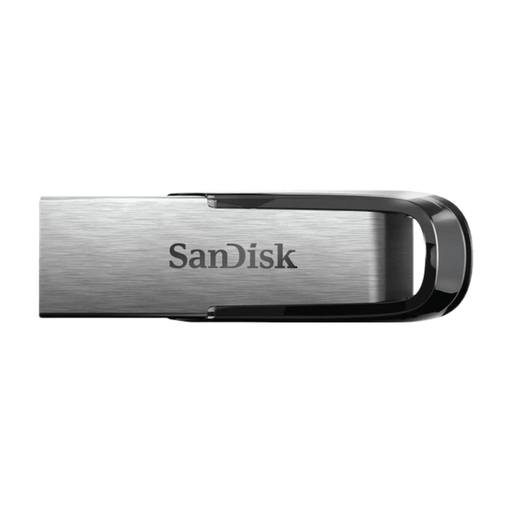 No image available
An option if you want to carry large files and need a USB-A connection.
512 GB; USB 3.0; stated read speed of up to 150 MB/s. No write speed is stated.
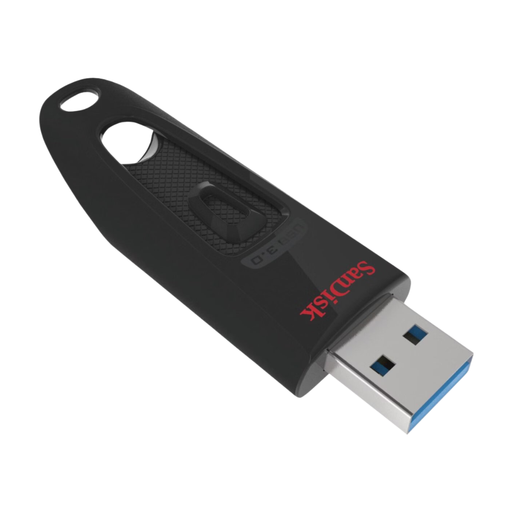 No image available
Suitable for carrying large files when your device has a USB-A connection.
512 GB; USB 3.0; stated read speed of up to 150 MB/s. This is not a write speed.
 No image available
An option for transferring files between devices with different connections, including USB-C.
512 GB; USB 3.1 and USB-C; stated read speed of up to 150 MB/s. No write speed is stated.
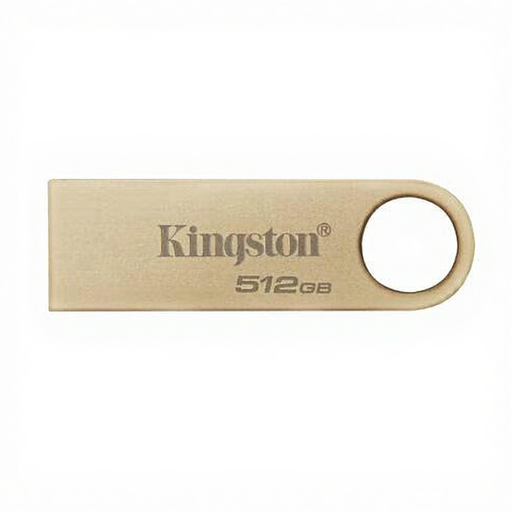 No image available
For large files on devices with a compatible USB connection; check your computer’s port.
512 GB; USB 3.2 Gen 1; stated read speed of up to 220 MB/s. No write speed is stated.
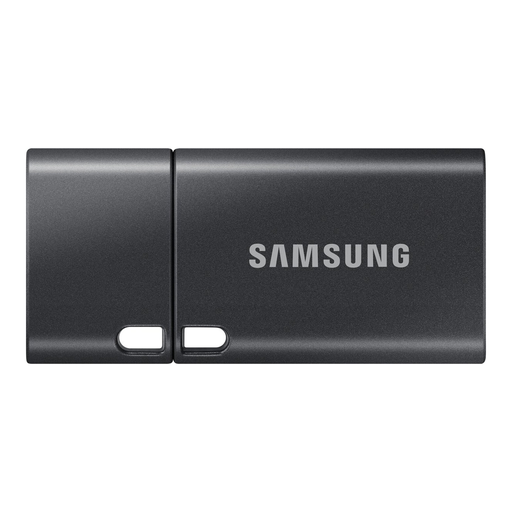 No image available
An option for large files on USB-C devices; check that the connection works with your console and computer.
512 GB; USB Type-C 3.2 Gen 1; stated read speed of up to 400 MB/s. No write speed is stated.
Don’t assume so: PlayStation Support recommends FAT or exFAT for a standard USB drive used to store things such as screenshots, while Xbox Support requires USB 3.0 and NTFS for external captures. Xbox also says that a drive formatted for Xbox games isn’t suitable for game captures. Copy any existing files before reformatting.
Check the file system’s maximum file size. Microsoft Learn states that FAT32 supports a maximum of 4 GiB per file; exFAT doesn’t have this particular limit. However, make sure you choose a format supported by your device for your capture workflow.
Xbox Support explains how to use a USB 3.0 storage device formatted as NTFS and choose where to save recordings via Settings > Preferences > Capture and share. After recording, connect the designated device to your PC. Xbox says that recordings stored externally can’t be shared over the Xbox network in the same way as recordings stored on the console.
Only if you have another usable copy as well. VeiligInternetten lists a USB flash drive as a possible external storage location and recommends keeping a recent backup. Update the copy and check that you can open the files.
No. Read speed doesn’t tell you how quickly files will be written to the drive. For large project folders, look for the stated write speed of the exact version, and bear in mind that manufacturer maximums don’t guarantee the speed you’ll get on your computer.