
Studio with lots of video clips
You regularly transfer large capture batches and need plenty of space and a write speed that suits your setup. Manufacturers list different capacities and speeds for each version.


Choose a USB flash drive based on the devices you use to transfer footage between, the size of your capture batches and the write speed your setup can make use of. Use the drive for transfers or as an extra copy, not as your only archive. If you’re using a console, check its export method and formatting requirements first.
You regularly transfer large capture batches and need plenty of space and a write speed that suits your setup. Manufacturers list different capacities and speeds for each version.
You transfer files between workstations with different USB ports or capture footage from consoles. The connection and export method determine which transfer route will work.
You don’t want to keep important recordings only on a removable drive, or you work with footage in which people can be identified. In that case, backups and appropriate access controls deserve special attention.
| What to consider | What should you check? | Who should pay particular attention? |
|---|---|---|
| Space for recordings | Compare the capacity of the exact version with the size of a typical work batch, and leave room for future transfers. | If I regularly move large batches, I don’t want to run out of space halfway through. Around 28% of consumers mainly need enough storage space. |
| Writing video files | Check the stated write speed of the exact model and make sure it matches the computer’s port; read speed doesn’t tell you how quickly the drive writes. | When copying files regularly, I want to know how quickly the drive writes them, not just how quickly it reads them. Around 22% of consumers prioritise write speed. |
| Connection and export route | Check which USB ports you have, and for each console, find out how captures are exported and what formatting is required. | If files need to move between different workstations, I want the connections to match and the source device to be able to export them. Around 22% of consumers prioritise this device-to-device compatibility. |
| Keeping files safe | Alongside your transfer drive, plan to keep a separate copy and make safe removal part of your routine. | I want to be able to recover unique studio recordings if a drive is lost or damaged. Around 17% of consumers prioritise keeping important material safe. |
| Access to footage | Consider whether captures contain identifiable people, who needs access and which computers can unlock a secure drive. | If footage contains personal data, I want to manage access carefully without choosing a workflow the studio can’t use. Around 11% of consumers prioritise restricted access. |
Write speed matters when transferring video batches. The maximum speeds quoted may also depend on the host device.
Compare the write speed of the exact version and check the port on the computer you’ll be copying to.
A lower write speed can mean extra waiting when transferring large batches.
Xbox Support says that storage formatted for Xbox games won’t work for direct external capture.
Check the required formatting and move any existing files elsewhere before reformatting a drive.
You may need a separate storage route or extra time to move files.
If there’s only one copy, losing or damaging the drive could also mean losing the recordings. The National Cyber Security Centre advises keeping multiple versions of important business data, using different media and storing a copy in another location.
Keep the original files and make a separate copy on another medium or in another location.
A separate backup routine requires extra storage space and management.
Kingston lists Windows and macOS support for the IronKey Locker+ 50 G2; this doesn’t show that a console can directly access its secure storage.
Test your intended workflow and agree in advance how passwords will be managed.
Unlocking it on a supported computer may add an extra manual step.
The JetFlash 930C range includes a version with both USB-A and USB-C for transferring files between different ports.
DataTraveler Max is designed for fast transfers, while IronKey Locker+ 50 G2 is a separate range for managed access to files.
The Ultra Dual Drive Go 256GB is a USB-A/USB-C option for transferring files between computers with those connections.
The Type-C Flash Drive MUF-256DA/APC is a USB-C option for workstations with that connection.
The V3 256GB is a USB-A option for workstations with that connection.
These USB flash drives are options for storing and transferring game captures. Check that each model’s connection and stated features suit your setup.
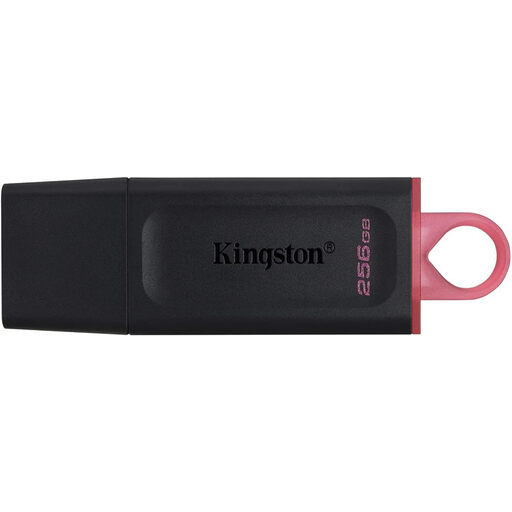 No image available
A USB flash drive for storing and transferring captures and other files.
256 GB; USB 3.2 Gen 1; stated write speed of up to 625 MB/s according to the product title.
 No image available
The two listed connections are handy when transferring files between workstations with USB-A and USB-C ports.
512 GB; USB-A and USB-C; read speed of up to 150 MB/s according to the product information. No write speed is listed.
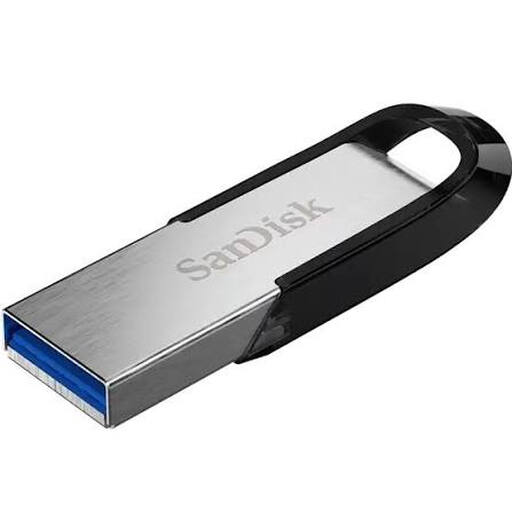 No image available
A USB flash drive for storing and transferring captures and other files.
256 GB; USB 3.0; read speed of up to 150 MB/s and 128-bit AES file encryption via software, according to the product information.
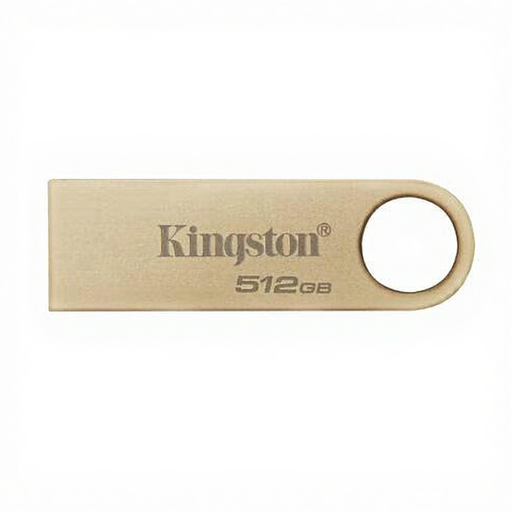 No image available
The stated capacity is worth considering if you want to carry larger batches on a single drive.
512 GB; USB 3.2 Gen 1; read speed of up to 220 MB/s according to the product information. No write speed is listed.
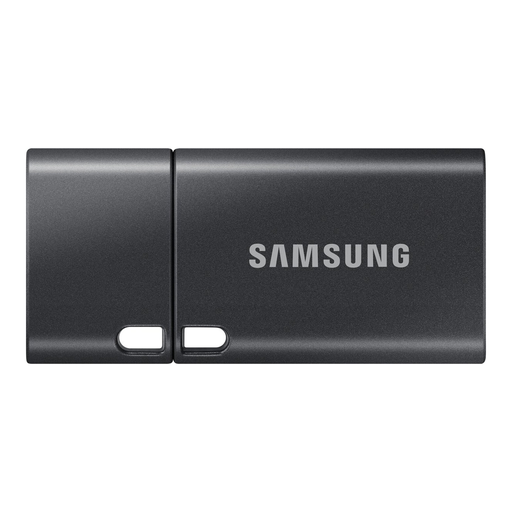 No image available
The USB-C connection suits workstations with this port; check that it matches the devices in your studio.
512 GB; USB Type-C 3.2 Gen 1; read speed of up to 400 MB/s according to the product information. No write speed is listed.
Don’t assume so: the export method varies by console. Xbox Support specifies USB 3.0 and NTFS for direct external capture. PlayStation describes copying PS5 captures from the Media Gallery to USB, while Nintendo describes transferring Switch captures to a computer via a USB cable. Check the process for the console you’re using before formatting a shared drive.
Move any existing files elsewhere first, then use the safe removal procedure. Formatting erases data; PlayStation warns that disconnecting USB storage incorrectly can cause data loss or damage.
Not as your only way to recover important material. The National Cyber Security Centre advises keeping multiple versions of important business data, using different media and storing a copy in another location.
When you buy as a consumer, you’re entitled to a product that works properly. According to ACM ConsuWijzer, the seller must fix a fault that appears too soon during normal use free of charge. These consumer rules don’t automatically apply to purchases for a business studio, so check your contract and warranty terms.
There isn’t one universal USB specification for all game captures. If an organisation processes personal data, the Dutch Data Protection Authority says it must determine appropriate security measures based on the risks; identifiable people in footage count as personal data. Consider the content and who needs access before choosing a secure version.