
Families who want to keep their photos safe
Before you start packing, make a copy that you can open and store it separately from the originals. VeiligInternetten points out that files on a USB flash drive can be lost if the drive becomes damaged.


Choose a USB flash drive with enough usable space and a connector that works with the device your photos are stored on. A higher write speed matters most if you need to copy a lot of files in a short time. Keep the originals where they are, check that you can open the copied files, and don’t rely on the drive as your only copy: a USB flash drive can become damaged or get lost.
Before you start packing, make a copy that you can open and store it separately from the originals. VeiligInternetten points out that files on a USB flash drive can be lost if the drive becomes damaged.
Check how much space your photos and any videos take up altogether. Usable space may be less than the capacity stated on the label, as Samsung and Kingston explain.
Check that the drive works with the devices you’ll use to copy and access your photos. For direct use with a phone, support for external storage may be required; Transcend states that USB-OTG support is needed to use the JetFlash 930C with a mobile device.
| What to consider | What to look for when buying | Who is this important for? |
|---|---|---|
| A copy you can recover | Keep the originals, open a few files after copying, and store copies separately. VeiligInternetten warns that a USB flash drive can become damaged. | If I want to check a copy before moving day and store it separately, being able to recover my files is my top priority. Around 36% of consumers share this priority. |
| Enough usable space | Check the size of your photo folders and any videos, then compare them with the capacity of the model you’re considering. According to Samsung and Kingston, available space may be less than the stated capacity. | If I want to take my entire collection with me, the drive needs to be large enough for all the files I’ve selected. Around 29% of consumers prioritise having enough space. |
| Connection and compatibility | Check the connectors on both the source device and the device you’ll use to access the files. Direct use with a mobile device may require support for external storage; Transcend specifies USB-OTG support for the JetFlash 930C. | If I want to move files between devices with different ports, the drive needs to work with all of them. Around 21% of consumers prioritise compatibility. |
| Copying time | Compare the stated write and read speeds, and check your computer’s USB port. Kingston says that a suitable USB 3.2 Gen 2 port is needed for optimal performance; speeds may vary on your device. | If I need to copy lots of photos shortly before moving, I want to know how quickly I can fill the drive. Around 14% of consumers prioritise copying time. |
A separate drive can get lost or damaged during a move. If that happens, you could lose the only copy of your photos.
Keep the originals and store a separate copy as well. Before you move, try opening a few files from the drive.
Formatted, usable space may be less than the nominal capacity. A copy that doesn’t contain all the files you selected won’t protect your entire collection.
Check the size of the files you want to keep and make sure they’ll fit on the model you choose.
If the files don’t fit, you may need additional storage.
When filling the drive, the write speed and the source device’s USB port matter. A stated maximum doesn’t guarantee how long copying will take on your device.
Compare the stated write and read speeds separately, and check which USB port your computer has.
The DataTraveler Max range includes USB-C and USB-A models. Choose the version that works with the devices you’ll use to copy and access your files.
The USB Type-C Flash Drive range is worth considering if the devices you’ll use to copy and access your files have a suitable USB-C port.
The JetFlash 930C has USB-A and USB-C connectors, making it suitable for devices with different ports.
The JumpDrive Dual Drive D400 has USB-A and USB-C connectors, so you can switch between devices with different ports.
This selection includes USB flash drives for copying photos from devices with USB-A, as well as options for use between devices with different connectors. Check the size of your files and make sure the connector works with both the source device and the one you’ll use to access the files before buying.
 No image available
Suitable for copying from a device with USB-A; won’t connect directly to a device with only USB-C.
128 GB; USB 3.2 Gen 1; Type-A.
 No image available
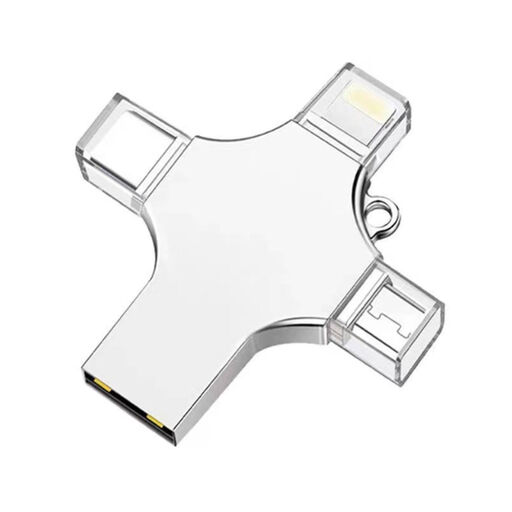
The connectors listed make this model a useful option if you want to copy files between devices with different ports; check that they work with your devices.
32 GB; USB 3.0; Lightning, USB-C and Micro-USB.
 No image available
A USB-A model for copying from a device with that connector; not suitable for direct use with a device that has only USB-C.
64 GB; USB 3.0.
 No image available
A useful option if you want to transfer files between USB-C and USB-A devices; check the connectors on both devices before use.
512 GB; USB 3.1 and USB-C.
 No image available
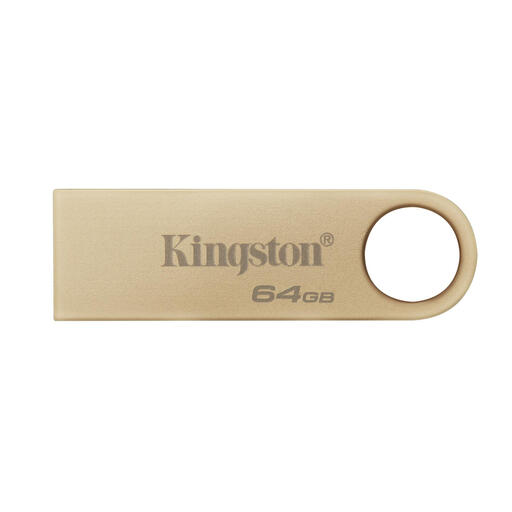
A USB-A model for devices with that connector; check that both the source device and the one you’ll use to access the files are compatible.
64 GB; USB 3.2 Gen 1; USB-A.
Don’t delete them if that would leave the USB flash drive as your only copy. First, open a few of the copied files and keep a separate copy too; a drive can become damaged.
No, having the right connector isn’t enough. Check whether your phone supports external USB storage; Transcend states that USB-OTG support is required to use the JetFlash 930C directly with a mobile device.
Check the total size of the photos and any videos you want to copy, then compare it with the capacity of the model you’re considering. Bear in mind that the actual available space may be less than the stated capacity.
No, the write speed also matters when filling the drive. The actual transfer speed also depends on the USB port and device; manufacturer maximums don’t guarantee copying times.
Don’t format the drive if it contains photos you still need, as formatting can erase data. Kingston notes that Windows may not recognise a Mac file system; before backing up, check which file format works on the devices involved.