What should you consider when choosing?
Start by considering the role of the flash drive in your archive and the size of your files. Then check the connections, copying time and any access management requirements.
| Consideration |
What to look for when buying |
Who is this important for? |
| Preserving files |
Plan separate copies on different media and in different locations. Record where each file is stored and compare checksums after transferring. |
If I want to find design concepts again in the future, I don’t want to rely on a single flash drive. Around 29% of consumers prioritise preserving and checking files. |
| Storage capacity |
Catalogue file sizes and planned additions; check the capacity of the exact model. |
If my collection grows, I want to know which files will fit on this copy before choosing a capacity. Around 23% of consumers put having the right amount of storage at the top of their list. |
| Connection and file sharing |
Make a note of the USB ports on your computers and check that the file system works on those devices. |
If volunteers share files between different computers, I want to know whether the flash drive plugs straight into them. Around 18% of consumers prioritise compatibility between devices. |
| Write speed |
Compare the stated write speed of the exact model with the computer’s interface; maximum read speed is not the same as write speed. |
If I regularly copy large files to a flash drive, I want to be able to assess its stated write speed. Around 18% of consumers prioritise copying time. |
| Access to sensitive content |
First establish whether personal data is being processed and assess the risks; then check the security features and password management of the exact flash drive. |
If files contain personal data or other confidential content, I want to agree in advance who will manage access. Around 12% of consumers give controlled access the highest priority. |
USB flash drives at Joybuy
This selection includes USB-A flash drives and models with USB-A and USB-C for storage and file transfer. Use a flash drive as one copy or as a way to transfer files, not as your only archive copy; also keep separate copies on different storage media and in different locations.
 No image available
Kingston DataTraveler Exodia 128 GB
A USB-A option if its capacity suits your inventoried collection and your computers have USB-A ports.
128 GB; USB Type-A; USB 3.2 Gen 1.
Joybuy
 No image available
SanDisk Ultra Dual Drive Go 512 GB
A model with two connectors for sharing files between devices with USB-A and USB-C, if 512 GB suits your collection.
512 GB; USB-A and USB Type-C; USB 3.1.
The product description lists a maximum read speed of 150 MB/s; it doesn’t specify a write speed.
Joybuy
 No image available
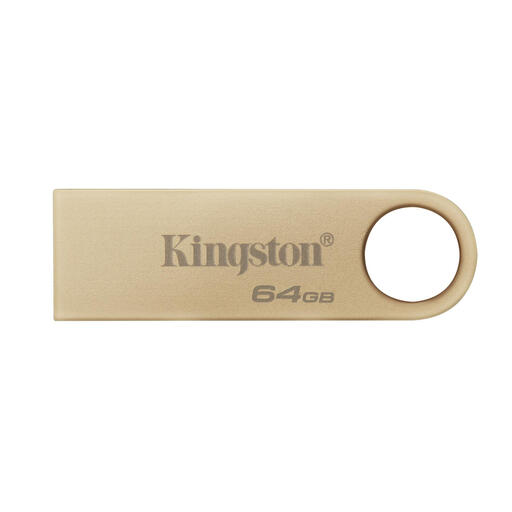
Kingston DataTraveler 64 GB Metal USB 3.2 Gen 1 SE9 G3
A USB-A option for a collection that fits within 64 GB and computers with a Type-A connector.
64 GB; USB Type-A; USB 3.2 Gen 1.
The product description lists maximum speeds of 100 MB/s for writing and 220 MB/s for reading; these maximum figures aren’t a real-world measurement of your transfer.
Joybuy
 No image available
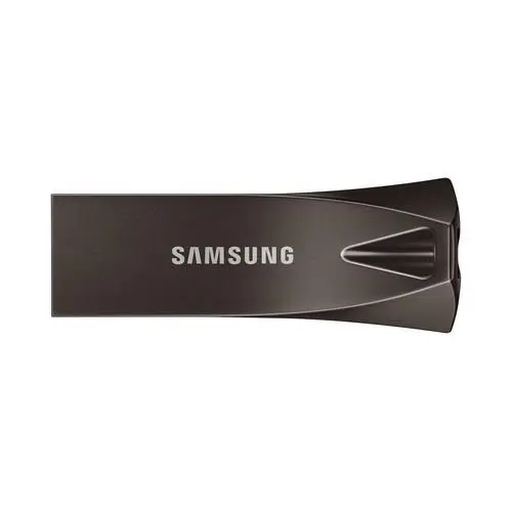
Samsung MUF-256BE 256 GB
A USB-A option if 256 GB suits your inventoried files and your computers have Type-A ports.
256 GB; USB Type-A; USB 3.2 Gen 1 (3.1 Gen 1).
The product description lists a maximum sequential read speed of 400 MB/s; these product details don’t specify a write speed.
Joybuy
 No image available
MOVESPEED USB flash drive 512 GB, YSUYVP10-512GSR
A model with USB-A and USB-C for sharing files between devices with either connection, if 512 GB suits your collection.
512 GB; USB-A and USB-C; the product name lists a maximum read speed of 1090 MB/s.
The product description lists maximum read and write speeds, but doesn’t give a separate write speed here. Don’t judge the speed of the exact model and equipment on the read specification alone.
Joybuy
Frequently asked questions
Can a USB flash drive be the only copy of a community archive?
No. Don’t use a single USB flash drive as your only copy if you want to preserve files over time. The Library of Congress recommends keeping copies on at least two different types of storage media and in separate locations; also keep a record of where each file is stored.
How can you check that design files are intact after copying?
Compare checksums for the source and destination files, and record which copy you checked. The Library of Congress explains that matching checksums can help establish whether the checked file contents have changed. Also check that the file formats can still be opened later.
What if a large design file won’t fit on the flash drive even though there’s free space?
Check the file system: FAT32 cannot handle a single file of 4 GB or larger. Kingston states that the relevant DataTraveler G4 requires NTFS or exFAT for larger files. Make another copy before formatting, as formatting erases the existing contents, and check that the computers you use support the chosen file system.
Does a community archive need to encrypt every USB flash drive?
Not automatically just because it’s an archive. If an organisation processes personal data, the Dutch Data Protection Authority says it must determine appropriate security measures based on the risks of that processing. Hardware encryption may be appropriate, but it also requires clear arrangements for passwords and recovery access.
Can a community archive keep personal data indefinitely?
Don’t assume so. The Dutch Data Protection Authority states that, in principle, personal data must not be kept for longer than necessary; the appropriate retention period depends on the circumstances. Guidance on the Archives Act concerns public-sector organisations and does not necessarily apply to a community archive.


