
Archive volunteer using several computers
You copy presentations between devices and want to avoid finding that the connector won’t fit one of the computers. Kingston Technology describes the USB-A connector used by its DataTraveler range.


First, choose a USB flash drive that connects directly to the computers you use to copy presentations. Then decide on the capacity based on your files and any additions you expect to make. Use the drive for transferring files, not as your only archive copy: the National Archives and KB, the National Library of the Netherlands, stress that long-term digital preservation also requires good organisation, accessibility and attention to damage. If your presentations contain personal data, consider appropriate security measures; the Dutch Data Protection Authority cites the loss of an unencrypted drive containing personal data as an example of a data breach.
You copy presentations between devices and want to avoid finding that the connector won’t fit one of the computers. Kingston Technology describes the USB-A connector used by its DataTraveler range.
You want to keep files easy to transfer while setting up a system that will help you find and use them later. The National Archives and KB, the National Library of the Netherlands, explain that digital archiving involves more than simply making a backup.
You need to consider appropriate security before making a portable copy if the files contain personal data. The Dutch Data Protection Authority highlights the importance of protecting personal data appropriately.
First, check which ports are available on the source and destination computers. Then work out how much capacity you need and, if you copy files frequently, check the write speed of the exact model.
| Consideration | What should you check? | Who is this important for? |
|---|---|---|
| Connector | Check the ports on both computers. Choose USB-A, USB-C or a drive with both connectors, depending on the devices you want to use it with directly. | If I move presentations between computers with different ports, I don’t want to be stuck without a compatible connector. Around 26% of consumers prioritise having the right ports. |
| Long-term preservation | Use the drive to transfer files, and also keep a record of where managed archive copies are stored. Check that the copied files can be read. | I want to be able to find and use presentations later, not just store them on a portable drive. Around 26% of consumers prioritise a reliable preservation process. |
| Capacity and files | Add up the size of your files and allow for future additions. Microsoft states that FAT32 has a maximum file size of 4 GiB; also check that your destination devices support it. | As the collection grows, I want to know whether the files I’m copying now, and those I add later, will fit on the drive. Around 21% of consumers prioritise having enough space. |
| Copying time | If available, compare the write speed of the exact model. Read speed doesn’t tell you how quickly files are written to the drive. | When copying files regularly, I don’t want to look only at read speed when saving files to the drive. Around 16% of consumers focus on the time it takes to copy files repeatedly. |
| Personal data | Check whether your presentations contain personal data. If they do, consider which security measures are appropriate for the files and the way you work. | If presentations contain personal data, I want to consider appropriate security before making a portable copy. Around 11% of consumers prioritise the protection of personal data. |
A drive can become damaged, and using one on its own isn’t an archiving process. The National Archives and KB, the National Library of the Netherlands, also highlight the need for organisation and accessibility, as well as the risk of file formats becoming obsolete.
Store and manage copies separately from the transfer drive, and check that the copied files can be read.
Copying presentations to a drive involves writing data. A stated read speed doesn’t tell you how quickly that happens.
If you copy files regularly, compare the write speed of the exact model and take the computer you’re using into account.
A drive may have enough total capacity but still reject an individual file. Microsoft states that FAT32 has a limit of 4 GiB per file.
Before making any changes, check the size of your largest files, the file system and device compatibility.
The Dutch Data Protection Authority cites the loss of a USB flash drive containing unencrypted personal data as an example of a data breach.
If your files contain personal data, consider in advance which security measures are appropriate for the data and the way you work.
The DataTraveler Exodia M range is a USB-A option for carrying documents.
The MyDual Pro combines USB-A and USB-C for transferring files between devices with different ports.
The BAR Plus 128 GB is a USB-A option with a metal casing; Samsung also has a separate USB-C range.
According to SanDisk, the Ultra Dual Drive Go 128 GB is designed to transfer files between USB-A and USB-C devices.
The JetFlash 790 range includes USB-A models, including a 64 GB version, with a retractable connector.
These Joybuy options are USB flash drives for transferring files. Check that the connector and capacity of each model suit your computers and presentation files.
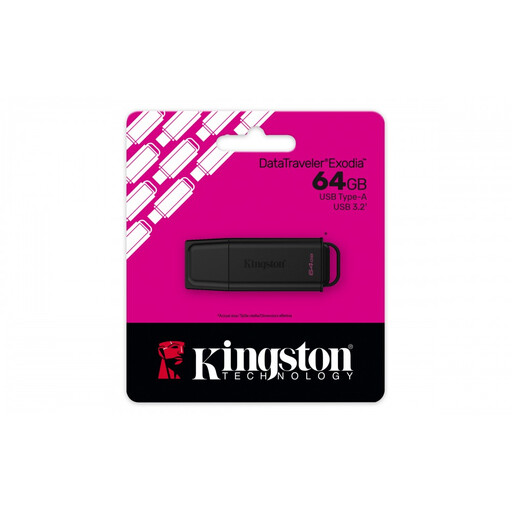 Image unavailable
An option for carrying presentations between computers with a compatible USB-A port.
64 GB of storage, USB-A and USB 3.2 Gen 1; the product information also mentions a metal casing and attachment loop. Don’t use the drive as your only archive copy.
 Image unavailable
Worth considering if 128 GB is suitable for your presentation files and your computers have a compatible USB Type-A port.
The product information lists USB 3.2 Gen 1, backwards compatibility with USB 2.0 ports and an integrated loop. It has a USB Type-A connector, so direct use with USB-C only isn’t confirmed.
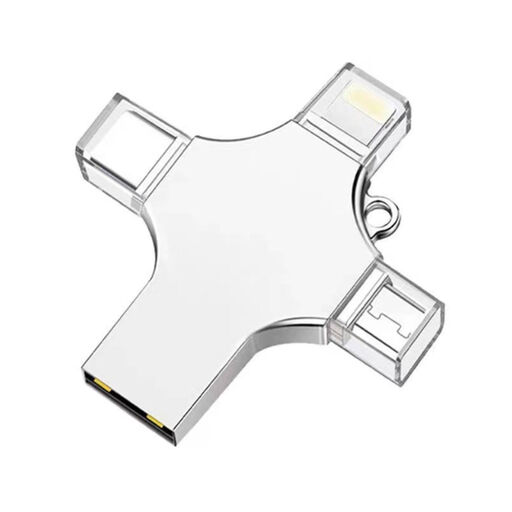 Image unavailable
An option to consider if you want to transfer files between devices with different connectors.
The product name lists 32 GB and USB 3.0, Lightning, USB-C and Micro-USB connectors. Check that the plug and connector are suitable for each device you plan to use.
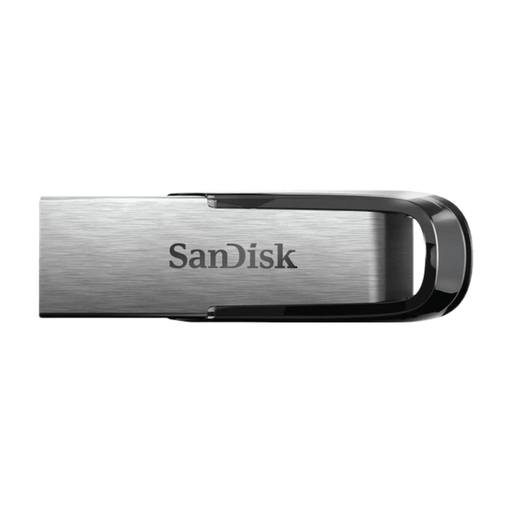 Image unavailable
An option if you want to carry a larger collection of presentations on a USB-A drive.
The product information lists 512 GB, USB-A and USB 3.0, and states that it supports password protection and 128-bit AES encryption. Consider whether the stated security feature and configuration are suitable for your files and the way you work.
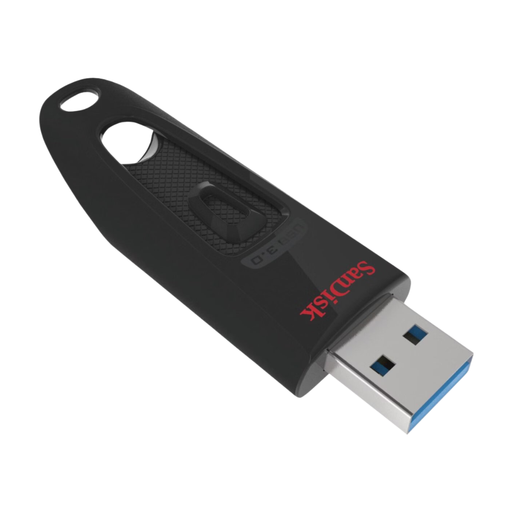 Image unavailable
An option to compare if you want to carry a lot of files on a USB-A drive.
The product information lists 512 GB, USB-A and USB 3.0, with SanDisk SecureAccess for password protection. Check whether the stated security feature suits your files and the way the drive will be managed.
Add up the sizes of your actual presentation files and allow for expected additions. Also check that the file system and destination devices can handle your largest individual files.
First, check the existing file system and the devices that need to read the drive. Microsoft Learn states that FAT32 has a maximum file size of 4 GiB; exFAT doesn’t have this specific limit. Formatting erases existing data, so save it elsewhere first.
No. Treat the drive as a way to transfer files or as an extra copy, not as the entire archive. The National Archives and KB, the National Library of the Netherlands, also highlight the need to select, organise and describe files, and to consider damage and file formats becoming obsolete.
If an organisation processes personal data, the Dutch Data Protection Authority says it must protect that data appropriately, taking the risks into account. Encryption may be one possible measure; this doesn’t mean that one security feature on a USB flash drive is a universal legal product requirement for every presentation.
Kingston states that the DataTraveler Exodia M has a five-year warranty, but this doesn’t guarantee that stored files will remain intact or accessible for five years. So store and manage archive copies separately from the transfer drive.