
Anyone handing over final recipes
You’ll want to check before your client meeting that the right documents have been copied and can be opened. Keep important working files somewhere else too.


Choose a drive that works with your client’s device, has enough space for the final files and lets you open the copies before handing it over. If the documents contain personal data, match the security measures to the risk and check that your client can use the unlocking method. Keep important working files somewhere else too; the National Cyber Security Centre recommends keeping multiple copies of important data.
You’ll want to check before your client meeting that the right documents have been copied and can be opened. Keep important working files somewhere else too.
If the files contain personal data or other confidential information, decide who should have access and consider the consequences if the drive is lost. Check for yourself whether the recipe documents contain personal data.
If you create the files on one device and your client opens them on another, check that the connection is compatible and that the files can be read on the receiving device.
Choose this option: if you and your client both use a USB-A port and you need a straightforward way to transfer files.
Bear in mind: check the capacity and open the files on your client’s device; standard models don’t automatically include built-in access protection.
Choose this option: if the devices involved have different ports; a dual-connector drive could save you from needing a separate adapter.
Bear in mind: having two connector types doesn’t guarantee that both devices support the file format or any security software.
Choose this option: if the contents and the risk of loss make additional access protection worthwhile.
Bear in mind: check that your client can use the unlocking method and agree how codes will be managed. With the Kingston IronKey Keypad 200, entering the wrong administrator code repeatedly can result in permanent data loss.
| What to consider | What should you check? | Who is this most relevant to? |
|---|---|---|
| Verifiable transfer | Count the final files and versions, compare their total size with the drive’s capacity and open files from the drive. | When I hand over recipes, I want to check in advance that the copies really do open and that I won’t lose my working files. Around 36% of consumers give verifiable transfers top priority. |
| Protection if the drive is lost | Establish what information the files contain, then compare the access methods offered by secure models. | If my transfer contains confidential information, I want to be able to control who can access it and understand the implications of losing the drive. Around 29% of consumers prioritise protection in case of loss. |
| Connection and readability | Check the ports on both devices, and test the file format and any unlocking process too. | When I transfer files to another device, I want my client to be able to open them without connection or access problems. Around 21% of consumers give device access top priority. |
| Capacity and copying time | Count the files and versions you need; don’t treat stated read and write speeds as if they measure the same thing. | If I want to manage file size and the time needed to copy everything, I choose based on the actual volume of files rather than a speed claim alone. Around 14% of consumers prioritise capacity and copying time. |
If the drive is lost or becomes unreadable, you could lose your working files too. The National Cyber Security Centre recommends keeping multiple copies of important business data on different media and in different locations.
Keep a separate copy of your working files and check it before handing over the drive.
A connector that fits doesn’t necessarily mean the receiving device supports the file format or secure access.
Test the connection, file format, document files and any unlocking process together on your client’s device.
If the drive can’t be read or unlocked, it will take extra time to put the transfer right.
A manufacturer’s stated read speed doesn’t tell you how quickly your documents will be written to the drive.
Check read and write speeds separately, and don’t choose a drive for small documents based only on the highest speed claim.
The recipient needs to know how to unlock the files. With the Kingston IronKey Keypad 200, repeatedly entering the wrong administrator code can permanently erase the data.
Test the unlocking process together, agree on secure code management and keep a separate copy available.
Without working access, your client won’t be able to open the files; with this keypad model, entering the wrong code can also result in data loss.
The DataTraveler Exodia M models mentioned are USB-A flash drives for storing documents; the IronKey Keypad 200 series is a separate option with built-in encryption and a PIN.
The Ultra Dual Drive Go has USB-A and USB-C connectors, making it suitable for transfers between devices with different ports.
The Dual USB Drive offers USB-A and USB-C; the separate Secure Pro range is designed for secure access via a USB-A flash drive.
The Type-C flash drive reviewed is an option if the devices involved use USB-C.
This selection includes USB-A flash drives for storing and transferring recipe documents, in a range of capacities and designs.
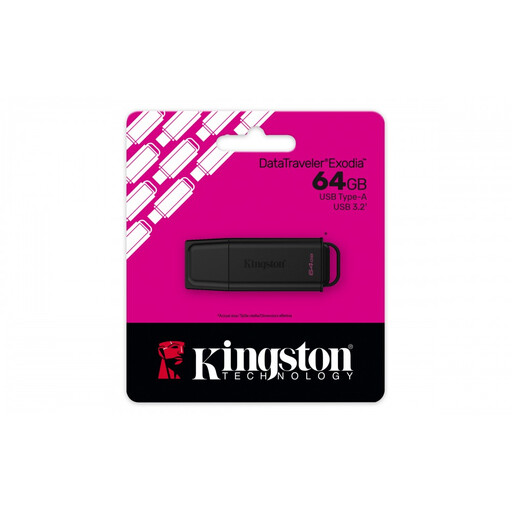 Image unavailable
A USB-A option for storing and transferring documents when both devices have a compatible port.
Capacity: 64 GB. USB 3.2 Gen 1. Direct use requires a USB-A port.
 Image unavailable
A USB-A option for documents and the versions you need when both devices have a compatible port.
Capacity: 128 GB. USB 3.2 Gen 1 Type-A. Direct use requires a USB-A port.
 Image unavailable
A USB-A option for storing and transferring files; the product description mentions password protection via SanDisk software.
Capacity: 64 GB. The encryption described works via SanDisk software; check that your client can use it.
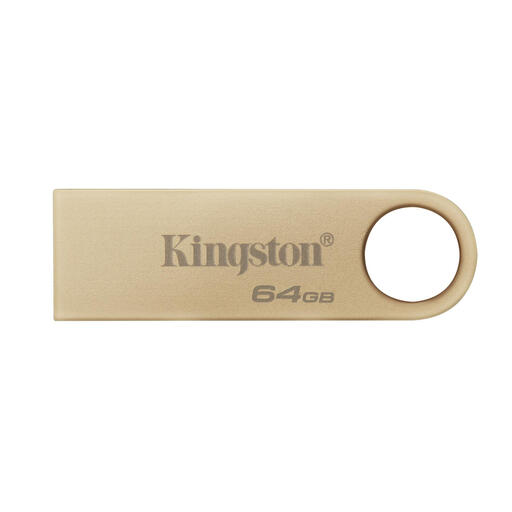 Image unavailable
A USB-A option for documents when your device and your client’s both have a compatible Type-A port.
Capacity: 64 GB. USB 3.2 Gen 1. Direct use requires a USB Type-A port.
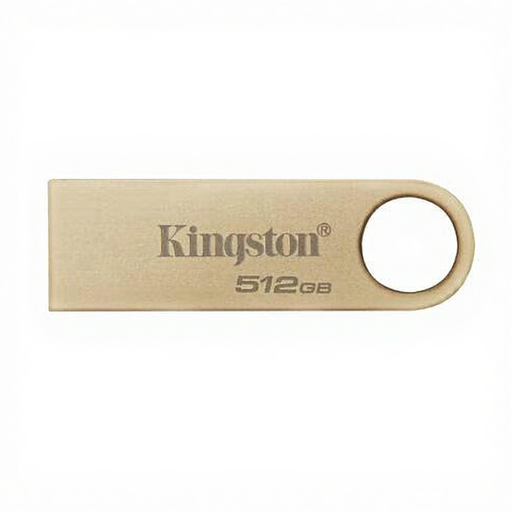 Image unavailable
This version offers 512 GB for anyone who has checked the total size of their documents and the versions they need.
Capacity: 512 GB. USB 3.2 Gen 1. The product description states a read speed of up to 220 MB/s; it doesn’t specify a write speed.
Copy the agreed final files, open a file from the drive on the receiving device and keep important working files somewhere else too. The National Cyber Security Centre recommends keeping multiple copies of important data; this doesn’t make an individual flash drive infallible.
Yes, if it uses a compatible file system. Apple Support describes exFAT as an option for use with Mac and Windows when formatting a drive larger than 32 GB. Formatting erases existing files; also check that your client can open the documents and use any security features.
Not for every flash drive containing recipe documents. According to the Dutch Data Protection Authority, security measures should be appropriate to the risks when personal data is processed. Whether your documents contain personal data and which measures are appropriate will depend on their contents and the circumstances.
No. In the case of a personal data breach, this depends on the risk to the people affected. The Dutch Data Protection Authority lists the loss of a flash drive containing unencrypted personal data as a possible data breach. If an organisation determines that it must report the breach, the Authority says the deadline is 72 hours from becoming aware of it; this doesn’t mean that every lost flash drive must be reported.
Check the terms for the exact model and seller. Kingston lists a five-year manufacturer’s warranty and free technical support for the DataTraveler Exodia M; this doesn’t in itself say anything about recovering lost files or the terms of a business purchase.