First, save a recent, separate copy and check that you can open the selected files from the drive. The Digital Trust Center advises against relying on a single storage location and recommends testing your backup. Then choose a drive based on its usable capacity, connectors and the client computer’s file system: Microsoft Learn states that FAT32 has a 4 GiB per-file limit, while Apple Support warns that formatting erases existing files. If the files contain personal data, assess separately what access protection is appropriate; a fast or encrypted drive is no substitute for a backup.
Who is this guide for?
Designer working with multiple versions
Wants to find and open the selected concepts when handing them over, without relying on the drive they take with them as the only copy. The Digital Trust Center advises against relying on a single storage location for backups.
Designer using different computers
Moves files between, for example, USB-A and USB-C devices or between Mac and Windows, and wants to check in advance that the connection and file system work. Apple Support explains what to consider when formatting a drive for use with Mac and Windows.
Manager of sensitive client files
Wants to assess what access protection is appropriate before taking personal data with them. The Dutch Data Protection Authority stresses that organisations must protect personal data properly.
What should you consider when choosing?
| Consideration |
What should you check? |
Who is this most important for? |
| Recoverable versions |
Make a separate copy and open the selected files from the drive. |
I want to be able to retrieve the right version after handing it over, even if the drive I take with me goes missing. Around 29% of consumers prioritise recoverability. |
| Usable capacity |
Compare the total folder size with the free space on the formatted drive. |
I want to take concepts, source files and exports with me without running out of space. Around 23% of consumers prioritise having room for all the versions they need. |
| Connection and file system |
Check the ports and systems on both computers, then test a representative file on the receiving device. |
I transfer files between different computers and want the client to be able to open them. Around 18% of consumers prioritise compatibility. |
| Access to client files |
Assess what data you’re taking with you and whether the recipient can use a secure drive. |
I want to control access to sensitive client files and choose appropriate protection. Around 18% of consumers prioritise access protection. |
| Write time |
Check the stated write speed for the exact version, not just the read speed. |
I need to transfer a large selection within a limited copying window. Around 12% of consumers prioritise write time. |
Common pitfalls
-
Using the drive as your only saved copy
A drive you take with you can go missing. Without a separate copy and a recovery test, you can’t be sure you’ll be able to retrieve the files later.
Keep a recent copy in another storage location and open the selected files from the drive.
-
Looking only at the stated read speed
When archiving, you write files to the drive. A stated read speed doesn’t tell you how quickly those files will be written. Samsung lists a maximum sequential read speed for the 512 GB version of the BAR Plus; this is not a write speed.
Check the stated write speed for the exact version, and bear in mind that actual performance may vary.
-
Assuming the right connector guarantees compatibility
A USB-C connection alone doesn’t guarantee that the file system or files will work on the client’s computer. Microsoft Learn states that FAT32 has a maximum file size of 4 GiB.
Check the receiving computer and test a representative file before handing over the drive. Make another copy before formatting; according to Apple Support, formatting erases existing files.
Reformatting or using another transfer method may require extra preparation time.
-
Assuming all secure drives offer the same protection
Kingston specifies hardware encryption for the IronKey Locker+ 50 G2, but not for the standard Exodia range. The DataShield vault described by Lexar is a software feature and isn’t necessarily the same as hardware encryption.
Decide what protection the files require, then check the security features and requirements for use on the receiving computer for the exact model.
Brands to consider for this use
Kingston
The DataTraveler Exodia is a standard USB-A range; the IronKey Locker+ 50 G2 is a separate USB-A range with hardware encryption.
- Kingston lists capacities of 64 to 512 GB for the DataTraveler Exodia.
- For the IronKey Locker+ 50 G2, Kingston specifies XTS-AES-256 hardware encryption.
- IronKey’s security features don’t automatically apply to Exodia; also check the system requirements for the IronKey.
SanDisk
According to SanDisk, the Ultra Dual Drive Luxe has USB-A and USB-C connectors. The Extreme PRO Dual Drive is a different range for anyone comparing stated transfer speeds.
- SanDisk lists a maximum write speed of 900 MB/s for the Extreme PRO Dual Drive.
- This maximum doesn’t guarantee the same speed for every capacity, computer or extended copying task.
Samsung
The BAR Plus is a USB-A range with a metal casing.
- The Dutch product page for the 512 GB version lists a maximum sequential read speed of 400 MB/s.
- This is the read speed for that version, not a verified write speed for archiving design files.
Transcend
According to Transcend, the JetFlash 930C combines USB-A and USB-C and is available in 128, 256 and 512 GB versions.
- Transcend lists maximum speeds of 420 MB/s for reading and 400 MB/s for writing.
- These are manufacturer-stated maximums; the USB-A and USB-C connectors can’t be used at the same time.
Lexar
The JumpDrive Dual Drive D400 is designed for transferring files between USB-A and USB-C devices.
- For versions of 64 GB and above, Lexar lists a maximum read speed of 130 MB/s.
- Lexar states that write speeds are slower than read speeds. The DataShield vault described is a software feature and isn’t necessarily the same as hardware encryption.
USB flash drives at Joybuy
This Joybuy selection is focused on copying and transferring design files. Compare the stated capacity and connectors with your files and the client’s computer; stated speeds don’t guarantee how long your copying task will take.
 No image available
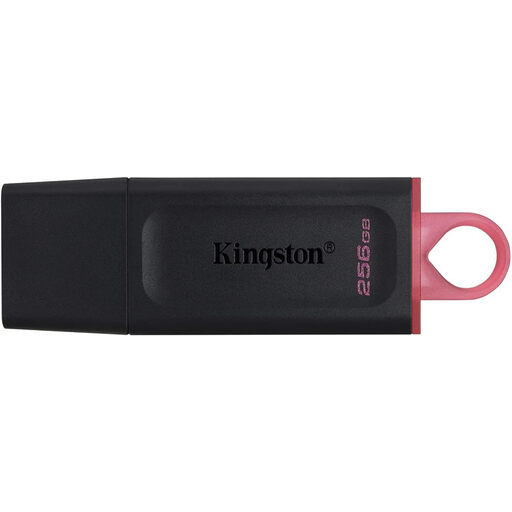
Kingston DataTraveler Exodia DTX 256 GB
An option for taking a selection of design files with you when 256 GB is enough for the folder size.
The product title lists USB 3.2 Gen 1 and a maximum write speed of 625 MB/s. This is a stated maximum, not a guarantee for your files or computer.
Joybuy
 No image available
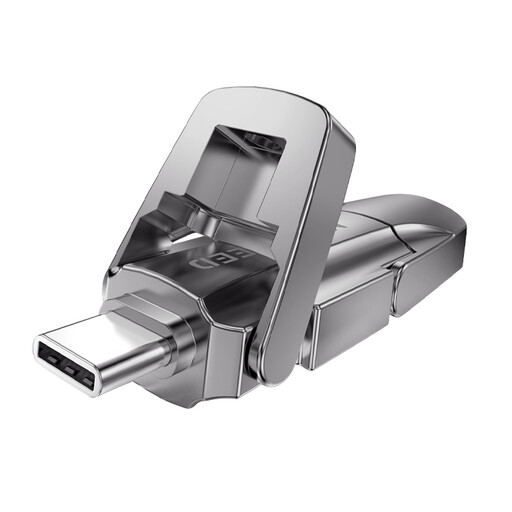
MOVESPEED YSUYVP10-256GSR 256 GB
The stated USB-A and USB-C connectors may suit transfers between devices with different ports; check the file system too.
The description lists 256 GB and a metal flip cover. The product title states a maximum read speed of 1090 MB/s; this is a stated read speed, not a write speed.
Joybuy
 No image available
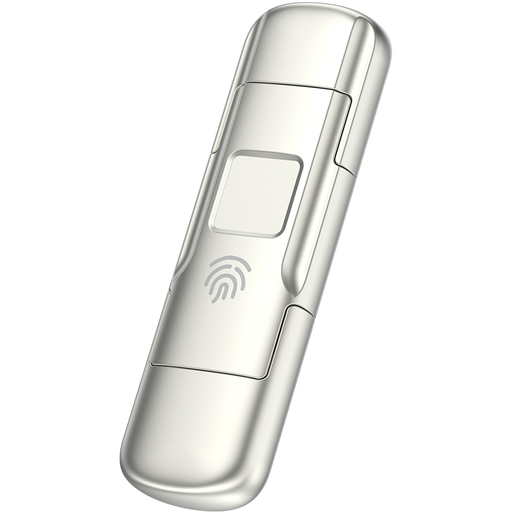
MOVESPEED YSUYC-256GSN 256 GB, silver
A version to consider if 256 GB and USB-A and USB-C connections suit the transfer, and you want to assess the stated access protection.
The description lists AES-256 encryption and fingerprint access, with maximum speeds of 550 MB/s for reading and 500 MB/s for writing. These are stated product specifications, not guaranteed real-world speeds.
Joybuy
 No image available
MOVESPEED YSUYVP10-512GSR 512 GB
The stated 512 GB capacity may be suitable if your selected design files need more space than a smaller version offers.
The description lists USB-A and USB-C; the product title states a maximum read speed of 1090 MB/s. Check the free space you need, and bear in mind that this stated read speed isn’t a write speed.
Joybuy
 No image available
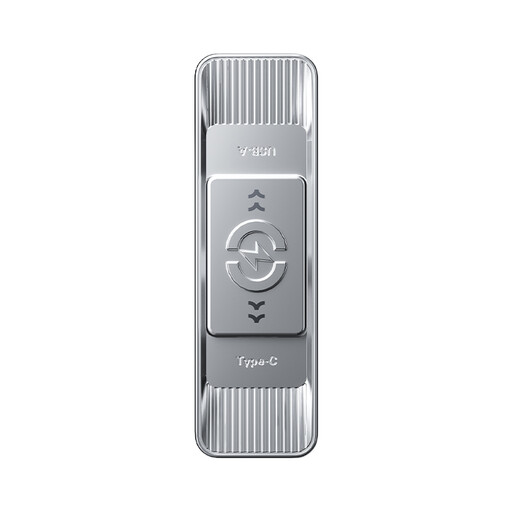
MOVESPEED YSUSP05-512GSR 512 GB, silver
A 512 GB version with USB-A and USB-C to compare if its capacity and connectors suit your transfer needs.
The description lists maximum speeds of 570 MB/s for reading and 520 MB/s for writing. These are stated product speeds; check performance with your computer and files.
Joybuy
Frequently asked questions
Can you keep the handed-over drive as your only archive copy?
That’s unwise if you want to be able to recover the files later. The Digital Trust Center advises against relying on a single storage location and recommends testing your backup by restoring files. Also decide which version you want to keep after handing the files over to the client.
Which file system should you choose if your client uses Windows and you use a Mac?
Apple Support lists exFAT as a format for use with Windows and explains how to format a drive for use with Mac and Windows. Check the client’s computer before handing over the drive. Formatting erases existing files on the drive, so make another copy first.
Why won’t a large export fit on a drive with enough free space?
Check the file system: Microsoft Learn states that FAT32 has a maximum file size of 4 GiB. If an individual file is larger, consider an alternative such as exFAT and check that the receiving equipment supports it.
What should you test before handing over the drive?
Open the selected files from the drive on the intended device, and also test that you can restore your separate backup. If you use exFAT, eject the drive safely; Seagate warns that removing it unsafely can lead to corruption.
Does a USB flash drive containing client files always need a particular type of encryption under the Dutch GDPR?
In the guidance cited, the Dutch Data Protection Authority doesn’t prescribe one type of drive or encryption for all client files. Organisations must protect personal data appropriately based on the risks. The regulator mentions an encrypted drive as a tip for a specific situation in which sensitive documents can’t be stored on the work server.


