Who is this choice important for?

Membership data administrator

You make copies of files that identify members and want to help prevent unauthorised access if the drive is lost. The right level of protection depends on the risk assessment; the Dutch Data Protection Authority lists encryption as one possible measure.

Volunteer responsible for restoring files

You want to be able to restore a usable earlier copy after something goes wrong. The Digital Trust Center recommends keeping backups in different locations and testing periodically that they can be restored.

Committee using different computers

You need to be able to copy or restore files on devices that may have different connections and operating systems. So check the ports, file format and any security software requirements.

What should you look for?

What to consider What should you check? Who is this most relevant for?
Access protection Assess what protection your risk assessment calls for. For an encrypted model, check which computers it supports, how password access is managed and what the recovery process involves. If I carry copies containing members’ data, I want to stop a lost drive from being easy to read; around 36% of consumers put protection against unauthorised access first.
Recoverability Plan to keep backups separately and restore them periodically. Choose enough storage for the number of versions you want to keep. If I need an older version after an incident, I want to know that restoring it really works; around 29% of consumers give recoverability top priority.
Connection and compatibility Check USB-A and USB-C ports, operating systems, file format and any system requirements for security software. When volunteers need to open files on different computers, I want the drive and files to work on them; around 21% of consumers prioritise sharing between computers.
Storage capacity and write time Take the size of your source files and the number of versions you keep into account. If you copy files regularly, compare write speeds; a stated maximum does not guarantee real-world performance. If my files are growing or I copy them often, I want enough space and a suitable write time; around 14% of consumers give storage capacity and copy time top priority.

Common purchasing mistakes

  • Relying on a USB flash drive as your only backup

    A drive may prove unusable if you have never tested a restore or keep all your copies in the same place.

    Keep your local source files intact, store an additional copy separately and periodically try restoring a file. This follows the Digital Trust Center’s advice.

  • Confusing two connections with data protection

    USB-A and USB-C can connect to different devices, but neither prevents access if a drive containing personal data is lost.

    Assess access protection separately and check what security features the exact model offers and which computers they work on.

  • Looking only at read speed

    Write speed matters when creating a backup. A stated read speed does not tell you how quickly your files will be copied to the drive.

    If you copy files regularly, compare the write specifications for the exact variant, and don’t treat stated maximum speeds as guaranteed performance on your computer.

Brands to compare

Kingston

The IronKey ranges are worth considering if access protection is your priority; the DataTraveler Exodia M is a simpler USB-A alternative.

  • Kingston describes hardware encryption and password roles for the IronKey ranges mentioned.
  • For the Locker+ 50 G2, Kingston lists USB-A and supported Windows or macOS versions. Ten incorrect administrator passwords can cryptographically erase the data, so keep an independent copy.
  • For the Exodia M, Kingston lists USB-A and capacities of 64, 128 and 256 GB.

Transcend

The JetFlash 930C is worth considering if you need USB-A and USB-C and want to compare stated speeds.

  • Transcend lists capacities of 128, 256 and 512 GB, and maximum speeds of up to 420 MB/s read and 400 MB/s write.
  • These are manufacturer-stated maximums, not independent test results. You can’t use both connectors at the same time. The stated data encryption is provided by downloadable Transcend Elite software; it is not hardware encryption built into the drive.

SanDisk

The Ultra Dual Drive Luxe is worth considering for moving files between devices with USB-A and USB-C connections.

  • SanDisk describes the model reviewed as a dual-connector drive with a metal casing.
  • The connection type alone doesn’t tell you whether the drive is suitable for unprotected member data. A stated read speed does not indicate how quickly a backup can be written.

USB flash drives for local backups

These Joybuy picks are aimed at local backups: mainly USB-A drives, with one model for devices with USB-A and USB-C connections.
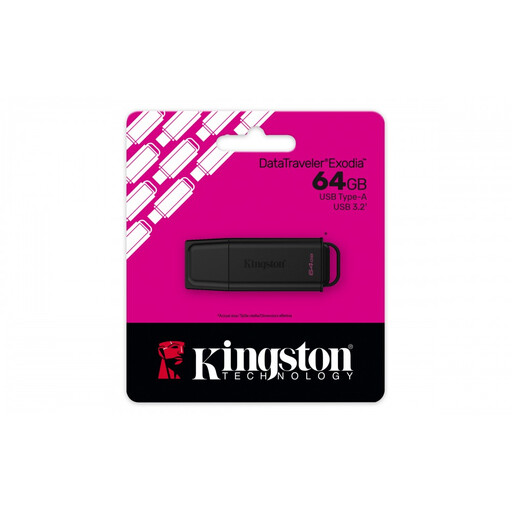
Kingston DataTraveler Exodia USB flash drive, 64 GB

Kingston DataTraveler Exodia 64 GB

A USB-A option for storing and transferring files from a computer with USB-A.

The product description lists write speeds of up to 60 MB/s.

Joybuy

Kingston DataTraveler Exodia USB flash drive, 128 GB, USB-A

Kingston DataTraveler Exodia 128 GB

A USB-A option for documents and other files on a computer with that connection.

128 GB; USB 3.2 Gen 1 Type-A.

Joybuy

SanDisk Ultra Flair USB flash drive, 64 GB

SanDisk Ultra Flair 64 GB

A USB-A option for files on computers with a USB-A port.

64 GB; USB 3.0. The stated speed is for reading, not the write speed of a backup.

Joybuy

SanDisk Ultra Dual Drive Go USB flash drive, 512 GB, USB-A and USB-C

SanDisk Ultra Dual Drive Go 512 GB

An option for moving files between devices with USB-A and USB-C connections.

512 GB; the product description lists both connections.

Joybuy
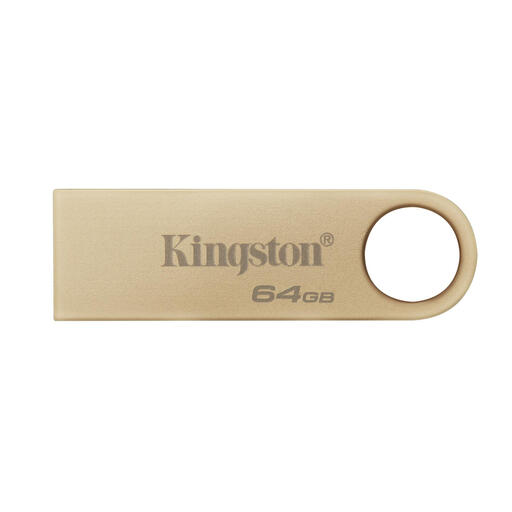
Kingston DataTraveler SE9 G3 USB flash drive, 64 GB

Kingston DataTraveler SE9 G3 64 GB

A USB-A option for local files and copies on a computer with that connection.

The product description lists write speeds of up to 100 MB/s.

Joybuy

Frequently asked questions

Can an association store members’ files on a USB flash drive?

Yes. The GDPR does not rule out using a USB flash drive for storage, but personal data must be protected appropriately. The Dutch Data Protection Authority recommends starting with a risk assessment. Encryption is one possible measure, not a specification that applies to every drive.

Is one USB flash drive enough to back up local source files?

No, don’t rely on a single drive. Keep the source files and the backup separately, and periodically test that you can restore them. The Digital Trust Center recommends using different storage locations and testing recovery.

Which file format should you use if volunteers use Windows and Mac?

First, check which computers and security software the association actually uses. Apple lists ExFAT as a Windows-compatible format on a Mac. Formatting erases existing files, so don’t do it on your only copy.

What should you do if a USB flash drive containing members’ data goes missing?

Assess the risk of the data breach straight away. According to the Dutch Data Protection Authority, a data breach must be reported unless it is unlikely to pose a risk to the rights and freedoms of the people affected. If a report is required, the general deadline is 72 hours after becoming aware of the breach. Whether you need to report it depends on the specific circumstances.

What should you consider when managing a secure USB flash drive?

Make a record of who manages the passwords and how access is handed over, and check the terms for the exact variant. Kingston lists a limited five-year warranty for the Locker+ 50 G2 and states that ten incorrect administrator attempts will cryptographically erase the drive. A warranty is no substitute for keeping a separate recovery copy.
