
Laptop user with patchy Wi-Fi
You want to use a wired alternative at a fixed workstation and can run an Ethernet cable to the network. Start by checking your laptop’s available port and considering a standalone adapter.


First, choose an adapter that fits an available USB-A or USB-C port on your laptop and is compatible with your operating system. A standalone gigabit adapter keeps things simple; a hub is useful if you also need extra ports or charging, while 2.5 gigabit is only relevant if the rest of your network supports that speed. The speeds quoted are specifications, not a measurement of the connection at your desk.
You want to use a wired alternative at a fixed workstation and can run an Ethernet cable to the network. Start by checking your laptop’s available port and considering a standalone adapter.
You want to combine Ethernet with charging or peripherals without having several separate connections on your desk. Compare the features of a hub with those of a single adapter.
You’re considering more than gigabit speeds, so you’ll also need to check whether the rest of your network can support them.
First, check whether you can run a cable from your desk to a working router or switch port. Then choose an adapter based on your laptop port, the extra connections you need and your network speed.
| Consideration | What should you check? | Who is this important for? |
|---|---|---|
| Wired connection instead of patchy Wi-Fi | Check whether an Ethernet cable can run from your desk to a usable router or switch port. | I want to avoid Wi-Fi dropouts and can run a cable to the network; around 36% of consumers have this as their main requirement. |
| Port and software compatibility | Check whether your laptop has a free USB-A or USB-C port, and check that the exact model supports your operating system. | I want to avoid buying an adapter that doesn’t fit or work with my system; around 29% of consumers prioritise connectivity and OS compatibility. |
| Extra ports or charging | Check whether the hub and laptop port can support the connections and charging function you need at the same time. | I want to combine Ethernet with the peripherals or charging function I use at my desk; around 21% of consumers have this as their main requirement. |
| Gigabit or 2.5 gigabit | Check the speed of your router or switch port and your cable before choosing 2.5 gigabit. | I’m mainly looking for faster wired data transfer and can upgrade the rest of my network to match; around 14% of consumers prioritise this. |
A USB-A plug won’t fit a USB-C port, and driver requirements can vary between adapters and operating systems.
Make a note of your laptop’s available port and your OS version, then compare them with the information for the exact product variant.
The wrong connection or a missing driver could cost you extra time while you find the right variant or support.
An adapter adds an RJ45 connection, but you’ll also need a working wired connection to the network.
Before buying, check whether you can run a cable from your desk to a usable router or switch port.
You may need to change the cable route or move your workstation.
The adapter’s stated speed won’t automatically match your internet connection or the speed of the entire network route.
Check the network cable and the ports at both ends. Otherwise, choose based on your need for a wired connection.
TP-Link describes standalone USB-A and USB-C gigabit adapters, as well as a USB-C adapter with 2.5-gigabit Ethernet.
Belkin describes both a 6-in-1 USB-C hub with gigabit Ethernet and a standalone USB-C adapter with 2.5-gigabit Ethernet.
UGREEN describes a standalone USB-C to RJ45 gigabit adapter.
StarTech.com describes the US1GC30A as a USB-C gigabit adapter; the manufacturer lists system compatibility for this model.
These products are designed to provide a wired laptop connection via USB-C, with standalone gigabit adapters and hubs with Ethernet. Before buying, check that your laptop’s available port, operating system and cable route are suitable. The Government of the Netherlands states that electronic products placed on the market in the EU must carry a CE marking.
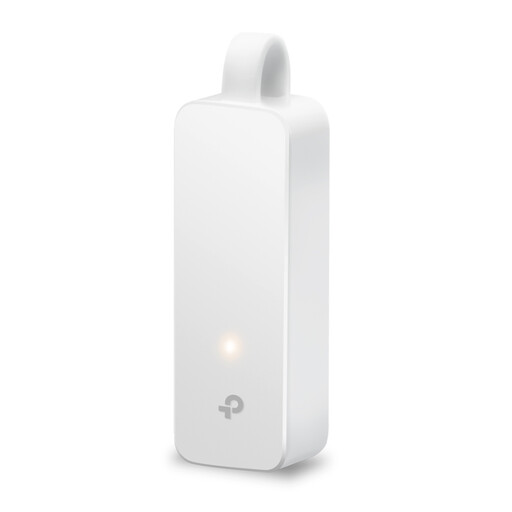 No image available
A standalone USB-C gigabit adapter for a laptop with a free USB-C port and a wired network connection.
USB 3.0; RJ45 supports 10/100/1000 Mbit/s. The product description lists Windows, macOS, ChromeOS and Linux.
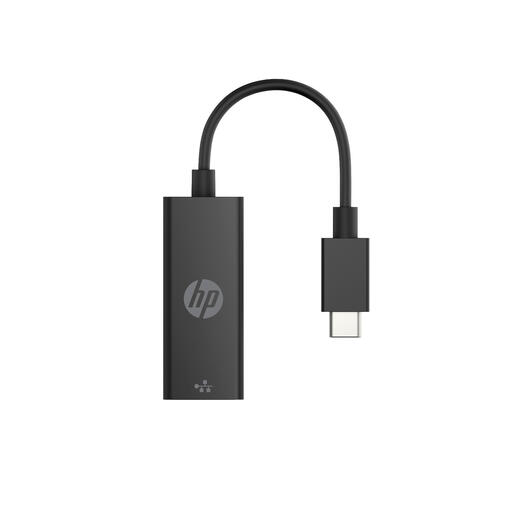 No image available
A standalone USB-C to RJ45 adapter for adding a gigabit connection to your laptop.
The specifications list a 0.1 m cable and a weight of 20 g. Windows 10 and Windows 11 are listed as supported operating systems.
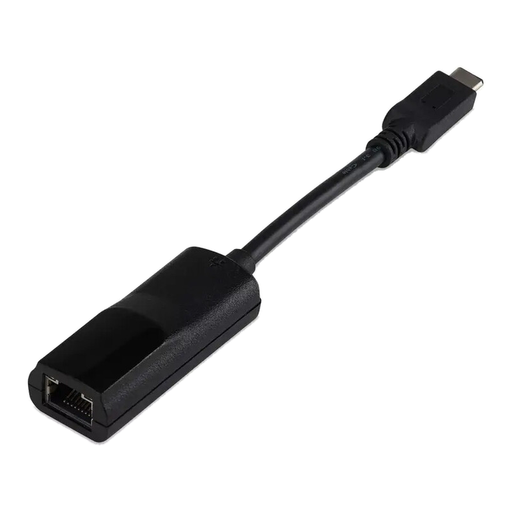 No image available
A compact USB-C to gigabit LAN adapter for a wired laptop connection.
The stated specifications list USB 3.2 Gen 1 Type-C and one RJ45 port with 1 Gbps.
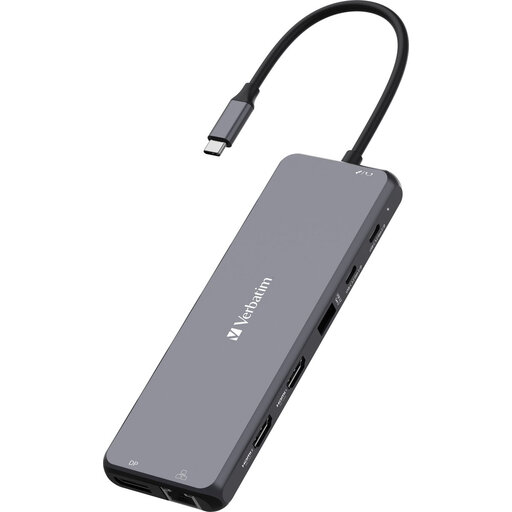 No image available
A USB-C hub for combining Ethernet with extra connections through the same laptop connection.
The specifications list one 1 Gbps Ethernet port. The description mentions several USB ports, HDMI, card readers and USB-C Power Delivery passthrough up to 100 W.
 No image available
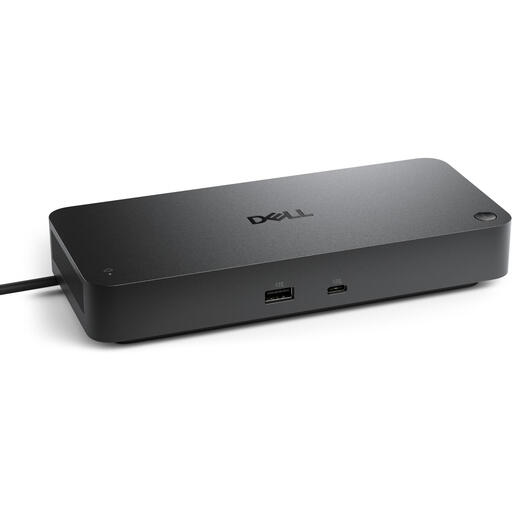
A docking station for a workstation that needs Ethernet alongside several other connections; it takes up more space than a standalone adapter.
The specifications list a USB-C host interface and a 2.5 Gbps RJ45 Ethernet port. The description mentions support for up to four monitors and USB-C Power Delivery up to 130 W. The stated width is 205 mm, the weight is 562 g, and a separate power supply is required.
Yes. For a wired connection, use an Ethernet cable to connect the adapter’s RJ45 port to a usable network port. Check beforehand that you can run a cable from your desk.
That depends on the model and your operating system. For the UE300C, TP-Link lists both plug-and-play support on certain systems and driver exceptions and version-specific downloads. Check the support information for the exact variant.
Check the cable and network port, and see whether your system needs a suitable driver. For the UE300C, TP-Link recommends a recent driver on its support page if the product isn’t working properly; this advice applies to that model.
According to the Government of the Netherlands, Dutch statutory warranty has no fixed duration: you’re entitled to a product that meets what you can reasonably expect from it, and the seller is your point of contact if there’s a fault. For online consumer purchases, a 14-day cooling-off period applies in many cases; check the relevant exceptions and conditions.
The Government of the Netherlands states that electronic products placed on the market in the EU must carry a CE marking. Check that the specific adapter you’re considering has one.