
Laptop users without a network port
You want to connect a network cable directly at home, so your main priority is finding an adapter with a USB-A or USB-C connector that fits a spare port on your laptop.


Choose an adapter with a connector that fits a spare USB port on your laptop, and check that the model supports your operating system. For a wired connection, you’ll also need an Ethernet cable and an available LAN port on your router or switch. Gigabit is a sensible choice if your network can’t offer higher speeds; 2.5 gigabit is only useful if the rest of your connection can support it.
You want to connect a network cable directly at home, so your main priority is finding an adapter with a USB-A or USB-C connector that fits a spare port on your laptop.
You’re looking for a wired alternative when Wi-Fi isn’t reliable enough for work. The cable and the connection to your router or switch are also part of the setup.
You want to know whether a 2.5-gigabit adapter matches the speed of the other parts of your network, rather than looking at the adapter’s specifications alone.
First, check the connector and laptop support. Then see whether your network is fast enough to make a model above gigabit worthwhile.
| What to consider | What to look for when buying | Who should pay particular attention? |
|---|---|---|
| The right USB connector | Compare the spare USB-A or USB-C port on your laptop with the connector on the exact model. For example, TP-Link lists separate USB-A and USB-C adapters. | If I want to connect my laptop without a docking station, the connector needs to fit a spare port; around 31% of consumers give the right connector their highest priority. |
| A working wired connection | Check that you have an Ethernet cable and a spare LAN port on your router or switch. Microsoft Support also recommends checking the cable and connection when troubleshooting connection problems. | Anyone who wants to connect directly by cable at home needs a working network connection as well as the adapter; around 31% of consumers prioritise getting that connection set up. |
| Operating system support | Check support for the exact model and OS version. TP-Link notes that some older versions require manual driver installation; StarTech.com lists support for specific operating systems. | If I want to use the adapter with my own laptop, I check in advance that my system is supported; around 23% of consumers give OS compatibility their highest priority. |
| Speeds above 1 Gbps | Compare the adapter’s specifications with the router or switch port you use and the rest of your network. Belkin lists 10/100/1000/2500 Mbps for the INC012btBK; TP-Link lists support up to 1000 Mbps for the UE300 and UE300C. | Speeds above gigabit may be useful if you want to transfer files over a suitable local network; around 15% of consumers prioritise a network speed above 1 Gbps. |
A USB-A adapter won’t automatically fit a spare USB-C port, or vice versa. The TP-Link models reviewed use different connectors.
Before you order, compare the connector on the exact model with the available port on your laptop.
Worth considering for standalone USB-A and USB-C gigabit adapters, as well as a model with extra USB ports.
The INC012btBK reviewed is a USB-C-to-Ethernet adapter with a stated speed of up to 2.5 Gbps.
The USB31000S reviewed is a USB-A-to-gigabit adapter with listed network features.
The USB-C-to-gigabit adapter reviewed is an option for laptops without an RJ45 port.
This selection includes USB-to-Ethernet adapters for wired use without a separate docking station. Options include USB-C gigabit models, a USB-A hub and a USB-C model supporting speeds of up to 2.5 Gbps.
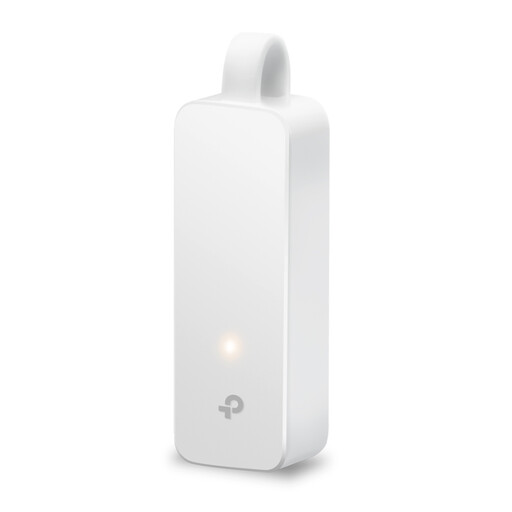 No image available
Suitable if you want to use a spare USB-C port for a wired gigabit connection.
The product description lists support for Windows 10, macOS 10.9 and later, ChromeOS and Linux.
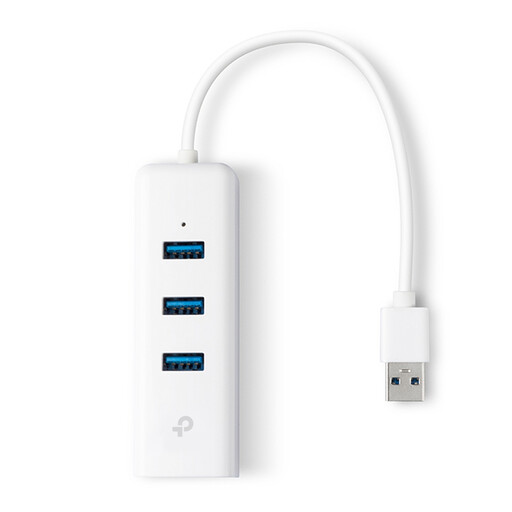 No image available
Suitable if you want extra USB ports as well as a wired network connection.
The product description lists three USB 3.0 ports and gigabit Ethernet; the product name specifies USB Type-A.
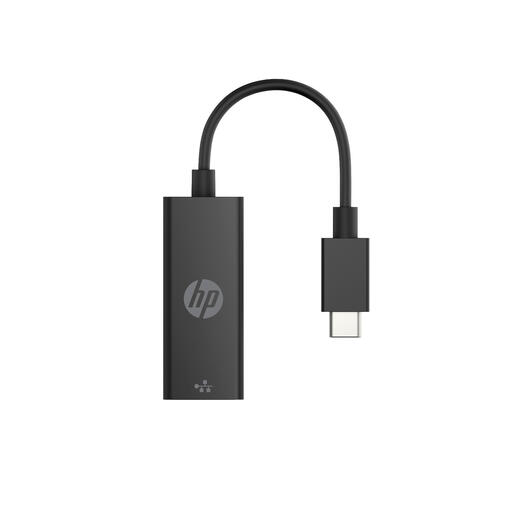 No image available
Suitable if you want to use a USB-C port to connect a laptop to a wired network.
The product description lists support for gigabit Ethernet speeds.
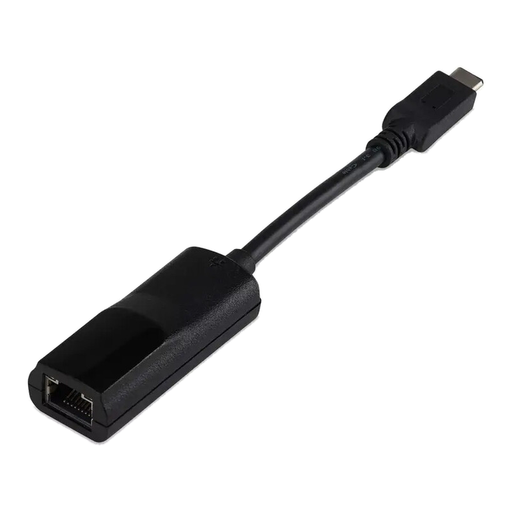 No image available
Suitable if you want to connect a USB-C device to a wired network via RJ45.
The product description lists one RJ45 port and support for speeds of up to 1 Gbps.
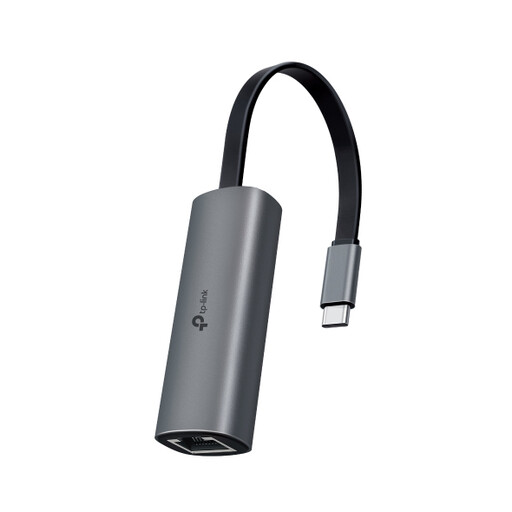 No image available
Suitable if you want to use a USB-C port for a wired connection with support for speeds above gigabit.
The product description lists support for speeds of up to 2.5 Gbps and plug-and-play functionality.
Connect an adapter that fits a spare USB port on your laptop, then use an Ethernet cable to connect its RJ45 port to a LAN port on your router or switch. Microsoft Support recommends checking the cable and connection if you have connection problems.
It depends on the model and your operating system. TP-Link lists plug-and-play support for the UE300C on certain supported systems, but manual installation is required for some older Windows and macOS versions. Check support for your exact OS version.
A 2.5-gigabit adapter may be useful if the other parts of your network also support that speed. Check the router or switch port, among other things: the adapter’s specifications alone don’t determine the speed of your entire connection.
For online consumer purchases in the Netherlands, you generally have a statutory cooling-off period of up to 14 days after delivery; ACM ConsuWijzer also explains the exceptions. If a product breaks too soon during normal use, your statutory warranty is separate from any manufacturer’s warranty. ACM ConsuWijzer explains that the law does not set a general fixed warranty period of two years.
Electrical and electronic products sold in the Netherlands must comply with the applicable European product rules. Business.gov.nl explains the requirements for electrical and electronic equipment; RVO lists CE marking requirements for relevant product groups and highlights exceptions. The rules that apply depend on the product group.