What should you look out for?
USB flash drive
Choose this option: if you mainly transfer a few presentations between devices. A model with connections that suit your computers could save you from needing adapters.
Bear in mind: Kingston lists a maximum read speed of 200 MB/s for the DataTraveler microDuo 3C G3; this is not a write speed.
External SSD
Choose this option: if you regularly copy larger presentation packs containing video or other media and want a compact drive. The 1 TB Samsung T7 is an example of this category.
Bear in mind: Samsung’s stated maximum speeds are not guaranteed copying times. The device, port, cable and file size all have an impact.
External HDD
Choose this option: if you also want to take a large local archive with you, and storage space matters more than having the smallest possible drive.
Bear in mind: check which cable comes with the specific model and whether it works with the computer you use.
Start by considering your files and devices, then compare the connection, capacity and file format.
| What to consider |
What to look for |
Who is this important for? |
| Taking a few files with you |
Check the available space and connection. Also check whether linked files and fonts will be included with the presentation. |
I want to take a few presentations with me and connect them easily. Around 36% of consumers give top priority to portability and easy file copying. |
| Different devices |
Check the ports and operating systems on the source and destination computers. Check the current file format before formatting, if needed, as this erases the files. |
When I transfer files between, for example, a Mac and a Windows computer, I want to know whether both can read the drive. Around 29% of consumers prioritise transferring files between devices. |
| Larger files and archives |
Check the size of your presentations and the capacity of the drive. Bear in mind that the connection and devices may limit the actual transfer speed. |
When my presentations contain lots of video or linked media, I want enough space for the files. Around 21% of consumers prioritise larger files and local storage. |
| Confidential content |
Decide what level of protection is appropriate and check that you can use it on all the computers you need. |
If my files are confidential, I want to consider what could be exposed if I lose the drive. Around 14% of consumers prioritise protecting confidential files. |
Products for taking presentations with you
This product selection includes USB flash drives and external SSDs for taking presentations and other files between devices.
 Image unavailable
SanDisk Ultra Dual Drive Go 512GB USB 3.1/USB-C
A USB flash drive for taking presentations and other files with you; check that its connections are compatible with the computers you use.
The product name lists 512 GB, USB 3.1 and USB-C.
Joybuy
 Image unavailable
Samsung Portable SSD T7 2TB USB Type-C 3.2 Gen 2 (3.1 Gen 2), Blue
An external SSD for taking larger presentation files with you; check in advance that its connection is compatible with your devices.
The product name lists 2 TB, USB Type-C and the colour Blue.
Joybuy
 Image unavailable
Samsung Portable SSD T7 1 TB USB Type-C 3.2 Gen 2 (3.1 Gen 2), Blue
An external SSD for anyone who regularly transfers larger files; check that its connection is compatible with the computers you use.
The product name lists 1 TB, USB Type-C and the colour Blue.
Joybuy
 Image unavailable
DigiEra LPS2000M-2 Magnetic Portable SSD 1TB, White
A portable SSD for larger files, provided your computer has a compatible USB-C connection.
The product name lists 1 TB, USB 3.2 Gen 2x2 and the colour White.
Joybuy
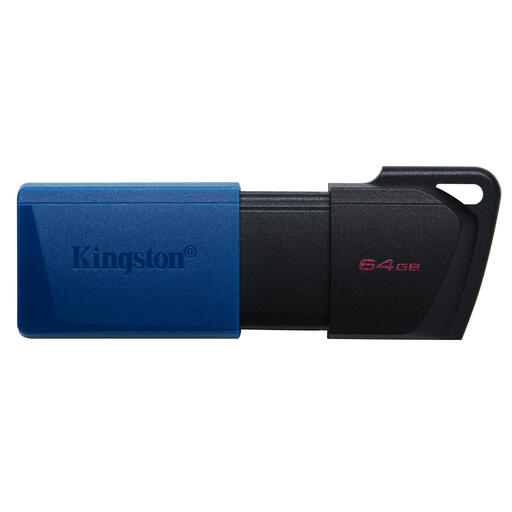 Image unavailable
Kingston DataTraveler Exodia M 64GB USB 3.2 Gen 1, Black + Blue
A USB flash drive for taking documents and presentations with you; check that its connection is compatible with the computer you’ll use to access the files.
The product name lists 64 GB and USB 3.2 Gen 1.
Joybuy
Frequently asked questions
How do you make sure linked files and fonts are included?
According to Microsoft Support, you can package a presentation in PowerPoint for a USB drive so that external elements such as linked files and fonts can be included. Check the result on the computer you’ll use for your presentation.
Which drive format should you use between a Mac and a Windows computer?
Apple Support recommends MS-DOS (FAT) for drives up to and including 32 GB, and exFAT for larger drives. Also check what the destination computer supports and make a backup first: formatting erases existing files.
How do you safely disconnect the drive after copying?
In Windows, use the Safely Remove Hardware feature and wait until it’s safe to disconnect the device. Microsoft Support recommends this to prevent data loss.
What if a new drive breaks too soon during normal use?
According to ACM ConsuWijzer, you have a legal guarantee as well as any manufacturer’s warranty. If the product does not meet what you could reasonably expect, the seller is responsible for providing an appropriate solution free of charge; the manufacturer’s warranty period does not automatically mark the end of your legal rights.
Must you always report the loss of a USB flash drive containing personal data?
No, not automatically. The Dutch Data Protection Authority gives the loss of a drive containing unencrypted personal data as an example of a data breach. Whether an organisation must report it to the AP depends on the assessment of the risk to the people concerned.


