Vandaag of morgen in huis

Kwaliteit gegarandeerd

Welkomstaanbiedingen ontgrendelen: GRATIS bezorging | Tot 80% korting | Gratis 30 dagen JoyPlus-proefperiode
Download de app
A tangle of cables on your desk. The constant search for the right adapter for your laptop. It's a familiar frustration for many remote workers and professionals. A USB-C monitor offers a simple solution: a single cable for power, video, and data. This not only creates a tidy workspace but also boosts your productivity.
However, the market offers a wide range of options. Which specifications truly matter? Do you need a built-in webcam? And is 4K worth the investment? As a Joybuy Product Recommendation Officer, I'm here to help you navigate the choices. In this article, we'll provide practical buying tips and highlight several popular models to help you make an informed decision.
A good monitor is an investment in your work comfort and efficiency. Pay attention to the following points to find a model that meets your needs.
The power of a USB-C monitor lies in its ability to function as a monitor with a built-in docking station. With a single USB-C cable, you can charge your laptop, transmit the video signal, and connect peripherals like a mouse, keyboard, or external hard drive.
Pay close attention to the Power Delivery (PD) wattage, expressed in watts (W). A laptop typically needs between 65W and 90W to charge efficiently while in use. Check your laptop's specifications and choose a monitor to match. Some monitors also offer a built-in RJ45 Ethernet port for a stable internet connection, making an external docking station completely redundant.
For those who spend many hours in front of a screen, an ergonomic monitor is not a luxury. Good posture prevents neck and back strain. Look for the following adjustment options:
A good monitor for working from home should offer these ergonomic features to ensure a healthy and productive work environment.
Modern monitors often offer more than just a display. A monitor with a built-in webcam and speakers is ideal for those who frequently participate in video conferences. It eliminates the need for separate devices and keeps your desk tidy.
Additionally, resolution is a key factor. Full HD (1920x1080) is sufficient for most office tasks. However, if you work with detailed graphics, photos, or multiple windows simultaneously, a 4K office monitor (3840x2160) can provide a significant upgrade in sharpness and screen real estate.
Based on specifications and functionality, we have selected monitors that excel in various use cases.
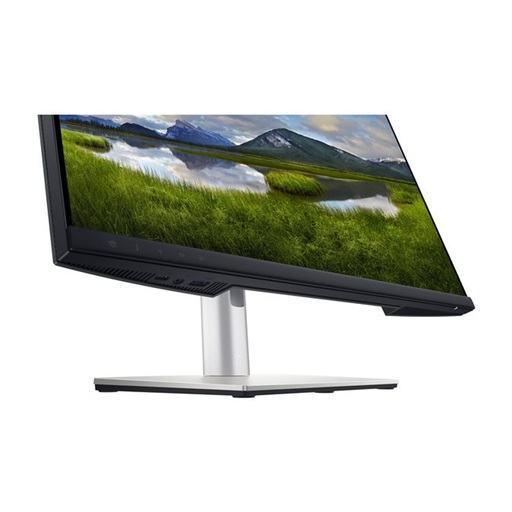
Why It Stands Out This Dell monitor is designed as a complete collaboration hub. With a built-in 4MP webcam, microphone, and speakers, you're instantly ready for any video conference. The powerful 90W Power Delivery via USB-C effortlessly charges even demanding laptops, while the RJ45 port ensures a stable, wired network connection.
Key Features
Who Is It For? For the professional who works from home frequently and often participates in online meetings. If you're looking for an all-in-one solution that makes an external docking station and separate webcam unnecessary, this is a highly practical choice.
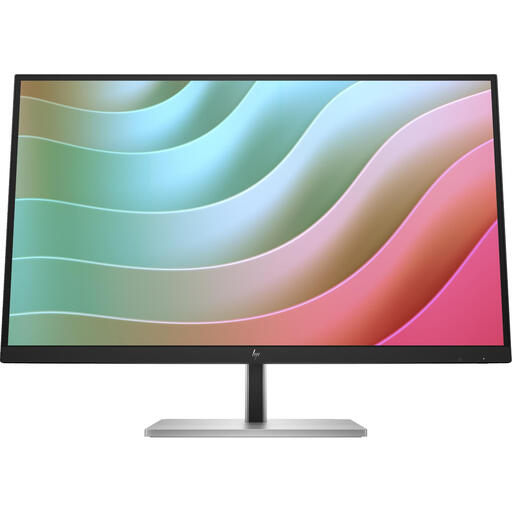
Why It Stands Out The HP E27k G5 brings the sharpness of 4K Ultra HD to your desk. On its spacious 27-inch screen, details come to life, which is ideal for creative work, data analysis, or managing multiple applications at once. The USB-C connection provides 65W Power Delivery, sufficient for most modern laptops.
Key Features
Who Is It For? For the creative professional, data analyst, or multitasker who needs maximum screen real estate and pixel density. If you work with large spreadsheets, design software, or videos, the 4K resolution offers a noticeable productivity boost.
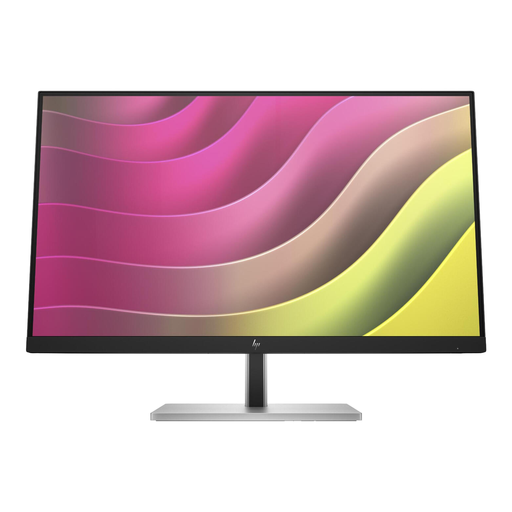
Why It Stands Out This HP monitor adds an extra dimension to your workflow: touch. The Full HD touchscreen makes interacting with applications intuitive and fast. The monitor is equipped with HP Eye Ease, a built-in, always-on blue light filter that doesn't affect color accuracy. The 75Hz refresh rate provides smoother visuals than standard 60Hz screens.
Key Features
Who Is It For? For users who value an interactive experience, such as designers who want to sketch directly on the screen, educators, or anyone who prefers touch navigation. Note: this monitor does not have a USB-C video input but does function as a USB hub when connected to your PC.
Is your ideal model not listed here, or do you want to compare more options? There are countless monitors available with different specifications, sizes, and functionalities.
1. Can any laptop with a USB-C port connect to a USB-C monitor? Not always. Your laptop's USB-C port must support DisplayPort Alternate Mode to transmit a video signal. Most modern laptops have this, but with older or budget models, it's wise to check the specifications. Also, verify that the monitor's Power Delivery wattage matches what your laptop requires.
2. What is the advantage of a monitor with a built-in docking station? The biggest advantage is convenience and a clutter-free desk. You only need one cable to connect your laptop. This single cable handles charging the laptop, transmitting the video signal, connecting to the internet (if an RJ45 port is present), and connecting to all your peripherals plugged into the monitor's USB ports.
3. Is a 4K office monitor worthwhile for working from home? This depends on your tasks. For general office work like email and word processing, a Full HD (1080p) monitor is often sufficient. However, if you work with detailed visual content (photo editing, graphic design, video editing) or often have multiple windows open side-by-side (programming, data analysis), the extra sharpness and screen real estate of a 4K monitor can significantly enhance your productivity and comfort.