
Vandaag of morgen in huis

Kwaliteit gegarandeerd
Download de app
Categorieën

A new laptop often feels like an upgrade, until you realise you have nowhere to plug in your old mouse, external monitor, or wired network cable. Modern laptops, like a MacBook Pro or a slim ultrabook, often only feature USB-C ports. A USB-C hub, also known as a multiport adapter, is the solution. But it's easy to make the wrong choice: a hub that doesn't drive your 4K monitor at the correct refresh rate, or one that can't charge your laptop. This guide will help you understand the specifications, so you can choose a model that perfectly matches your setup.
To avoid a bad purchase, it's crucial to focus on the technical specifications. The following criteria determine the functionality of a USB-C hub or docking station.
Take inventory of the devices you want to connect. The most common ports are:
A USB-C hub with HDMI is standard, but the details are crucial. A 4K@30Hz output is sufficient for static images but can result in a choppy display when moving your mouse or scrolling. For a smooth experience, comparable to your laptop screen, 4K@60Hz is the recommended standard. Some advanced hubs even support 8K resolution or multiple 4K monitors simultaneously. Always check if your laptop supports this output (via DisplayPort Alternate Mode).
With USB Power Delivery (PD), you can charge your laptop through the hub itself. You connect your laptop's charger to the hub's PD port, and the hub passes power through to your laptop while the other ports are in use. A 100W PD rating is a common specification that can provide sufficient power for most modern laptops, including high-performance models.
Most hubs work with Windows, macOS, and Linux. However, there can be differences, particularly in how multiple displays are handled. Windows often supports Multi-Stream Transport (MST), allowing you to display multiple different (extended) images. On macOS, this can sometimes result in two mirrored external displays. Check the product description for specific information about compatibility with your operating system, especially if you're looking for a MacBook Pro hub.
Based on the criteria above, we've highlighted several models with different specifications for various use cases.
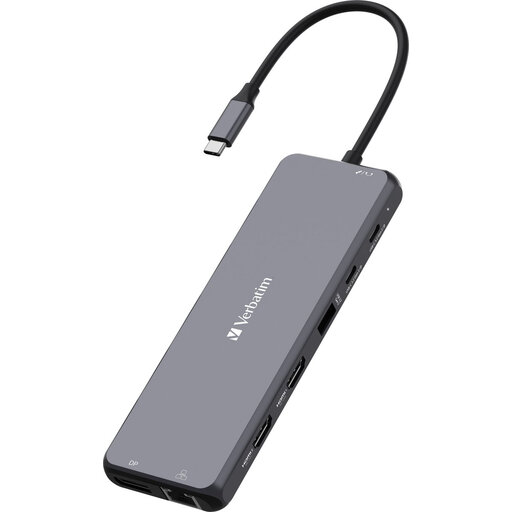
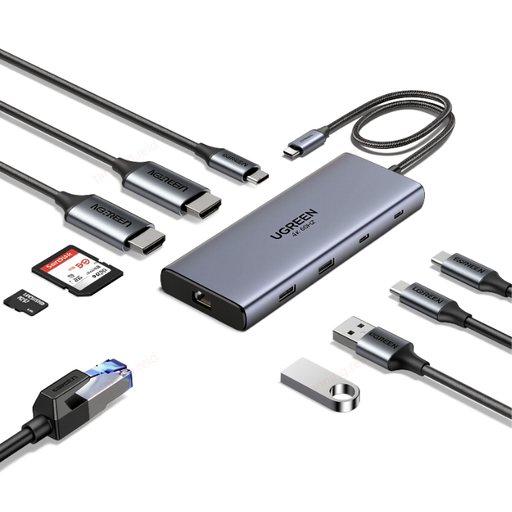
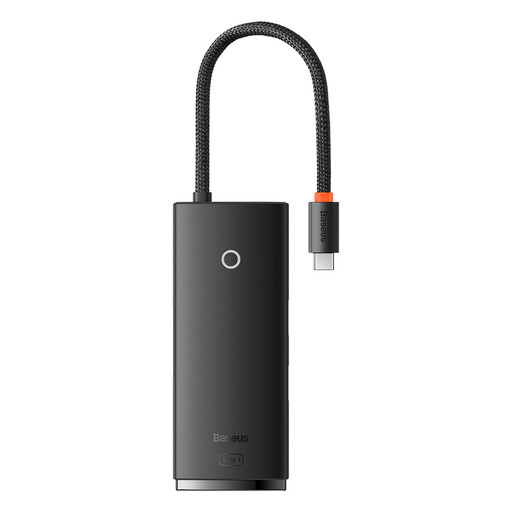
Every setup is different, and the ideal hub depends entirely on your specific equipment and needs. If the perfect combination of ports for your setup isn't listed here, you can browse our full category for a broader selection of multiport adapters and docking stations.
What is the difference between a USB-C hub and a docking station? A USB-C hub is typically more compact, lighter, and bus-powered (drawing power from the laptop). A USB-C docking station is larger, often has its own power adapter, and is designed for a permanent desk setup, usually offering more ports and extensive functionality.
Can I charge my laptop through a USB-C hub? Yes, this is possible if the hub has a USB-C port that supports Power Delivery (PD). Check the maximum wattage (e.g., 100W) of the PD port to ensure it's powerful enough for your laptop.
Does every USB-C hub work with a MacBook Pro? Most hubs are compatible, but functionality can vary. Especially when driving multiple external displays, it's important to check the specifications. Some hubs that can drive two separate (extended) displays on Windows will only show two identical (mirrored) displays on macOS. Read the product information for details on macOS compatibility.