Vandaag of morgen in huis

Kwaliteit gegarandeerd

Welkomstaanbiedingen ontgrendelen: GRATIS bezorging | Tot 80% korting | Gratis 30 dagen JoyPlus-proefperiode
Download de app
Modern laptops are thin, light, and powerful. But these minimalist designs come with a drawback: a shortage of ports. If you own a MacBook or Dell XPS, you know the feeling. You want to connect two monitors, a wired mouse, a keyboard, and a stable internet connection, but you only have one or two USB-C ports. A USB-C docking station seems like the solution, but the market is flooded with models that overpromise and underdeliver.
Before you invest in a central hub for your workspace, it's crucial to understand the common pitfalls that lead to buyer's remorse.
Many specifications look impressive on paper, but the reality is often different. Pay attention to these three points to avoid wasting money on a device that only causes frustration.
laptop docking station with 100W PD (Power Delivery) sounds powerful, but not every hub that claims "PD" delivers enough juice. A 60W model might charge your high-performance laptop when it's idle, but under load, you'll find the battery still drains. The hub itself also consumes power, leaving less for your laptop.USB-C hub with ethernet can provide an unreliable internet connection that constantly drops. Furthermore, USB-A ports are sometimes labeled as "fast," when in reality they use the outdated USB 2.0 standard. This creates a bottleneck when transferring large files.To make the right choice, focus on the specifications that truly matter. These are the non-negotiable requirements for a productive and stable workspace.
If you plan to use a docking station for 2 monitors, the video output is the most important factor. Check if the docking station explicitly supports dual 4K@60Hz. This requires both the docking station and your laptop's USB-C port to support DisplayPort Alt Mode (DP Alt Mode). Thunderbolt 3 and 4 ports support this by default, but for regular USB-C ports, it's essential to verify this in your laptop's specifications. A 60Hz refresh rate ensures a calm and fluid image, which is essential for preventing eye strain during a long workday.
Power Delivery is more than just a charger. A powerful docking station acts as the powerhouse for your entire desk. A model with 100W PD provides enough power to charge your laptop at full speed while simultaneously powering all connected peripherals, such as external hard drives, webcams, and smartphones. Pay attention to the pass-through power: if a hub receives 100W but consumes 15W itself, it delivers 85W to your laptop. This is more than sufficient for most professional laptops.
A good multiport adapter offers the right balance of different ports.
Based on these objective criteria, we have selected a number of models that suit different user profiles.
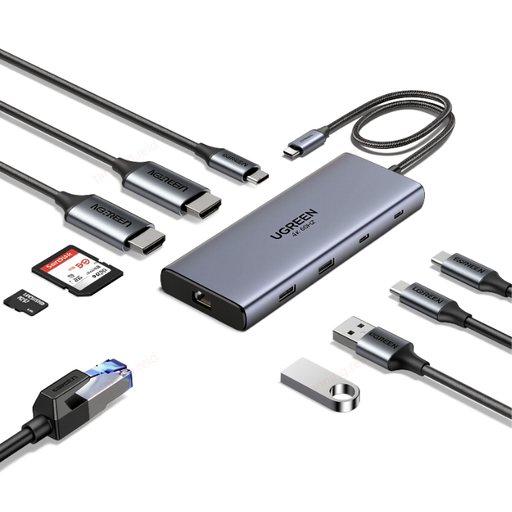
Why This Fits Their Persona: This is the all-in-one solution for the demanding remote worker or creative professional who wants to create a complete and powerful workstation with a single cable.
This model tackles all the pitfalls: it offers dual 4K@60Hz video output via HDMI, delivers a solid 100W Power Delivery, and includes a reliable Gigabit Ethernet port.
Its 10-in-1 functionality with support for two 4K 60Hz monitors and fast 10 Gbps USB ports makes this a very complete and future-proof choice.
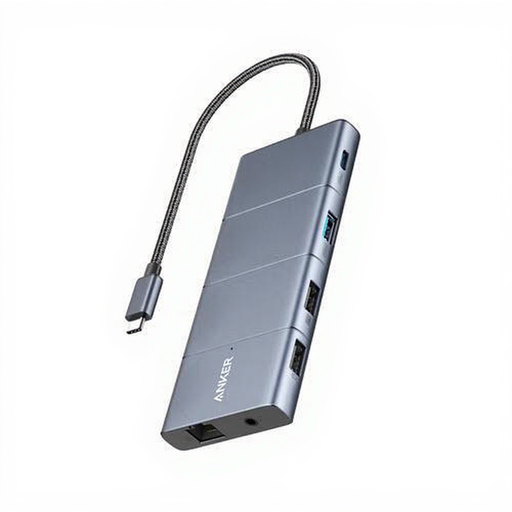
Why This Fits Their Persona: Ideal for video editors, programmers, or data analysts who need maximum connectivity and the highest transfer speeds for their demanding workflow.
This model bypasses the speed trap with USB 3.2 Gen 2 ports that offer transfer speeds up to 10,000 Mbit/s. The presence of both HDMI and DisplayPort provides flexibility for various monitor setups.
With 11 ports, including high-speed data ports and both MicroSD and SD card readers, this is a comprehensive hub for users who refuse to compromise on connectivity.
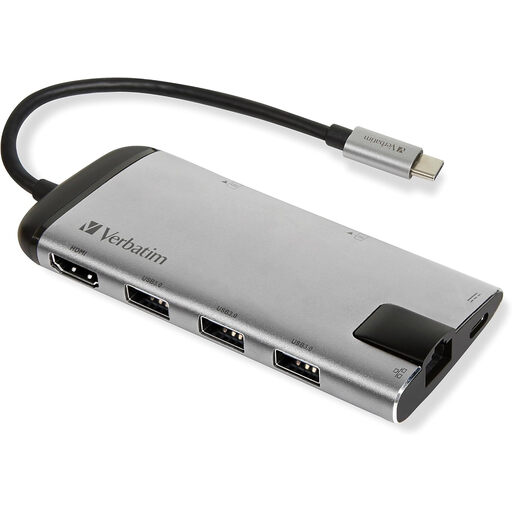
Why This Fits Their Persona: Perfect for the user who is often on the go or works from multiple locations. This compact hub fits easily into a laptop bag and provides the most essential ports without taking up much space.
While not a powerhouse, this model provides a reliable foundation. It includes a Gigabit Ethernet port for stable internet and pass-through charging, avoiding the most basic frustrations of cheap hubs.
Its compact, lightweight design combined with a surprisingly complete port selection (including HDMI, Ethernet, and an SD card reader) makes it a highly practical travel companion.
Do you need a different port configuration, such as a simple hub for extra USB-A ports? We have a complete overview of products that meet strict selection criteria.
No, compatibility is not guaranteed. Always check if your laptop's USB-C port supports DisplayPort Alt Mode for video output and Power Delivery for charging through the port. Laptops with Thunderbolt 3 or 4 ports are generally fully compatible with high-quality docking stations. When in doubt, consult your laptop manufacturer's specifications.
The terms are often used interchangeably, but there is a functional difference. A USB-C hub is typically smaller, portable, and draws its power from the laptop (bus-powered). A docking station is often larger, has its own external power adapter, and is designed for a fixed workstation. Docking stations can therefore deliver more power and handle more demanding tasks, such as driving multiple 4K monitors.
A docking station from a reputable brand that complies with official USB-IF standards is safe to use. Problems usually arise with very cheap, uncertified products that do not manage power correctly. Always choose a model with a Power Delivery (PD) rating that matches your laptop to ensure safe and efficient charging.