
Vandaag of morgen in huis

Kwaliteit gegarandeerd
Download de app
Categorieën

Modern laptops often come with just a few ports. This becomes a problem when you need to connect an external monitor, a mouse, a keyboard, and a network cable, all while charging your laptop. A USB-C docking station solves this by consolidating all these connections into a single cable. However, buying the wrong model can lead to frustration: a monitor that won't display at the desired resolution, a laptop that doesn't charge, or a shortage of the right ports. This guide will help you understand the specifications and choose a model that perfectly matches your equipment and workflow.
Choosing the right docking station depends on technical specifications. Here are the most important parameters to consider.
Not all USB-C ports are created equal. The foundation is USB-C, a versatile connector. Thunderbolt (3, 4, or 5) is a protocol that runs over the same USB-C connector but offers much higher bandwidth.
Check which port your laptop has. A Thunderbolt dock will work on a standard USB-C port, but with reduced performance.
Look at the number and type of video connections (HDMI, DisplayPort) and the maximum supported resolution and refresh rate.
A docking station with Power Delivery can charge your laptop through the same USB-C cable used for data and video. Check two things:
Choose a dock with a PD wattage equal to or higher than what your laptop requires to prevent the battery from draining slowly during use.
Most docking stations work with both Windows and macOS, but there are exceptions. Support for multiple external displays, in particular, can vary. Standard MacBooks (non-Pro/Max) often only support a single external display via USB-C. A MacBook docking station with special DisplayLink technology can bypass this limitation, but always check the product page for specific compatibility information.
Based on the criteria above, we have selected models with clear specifications for different types of users.
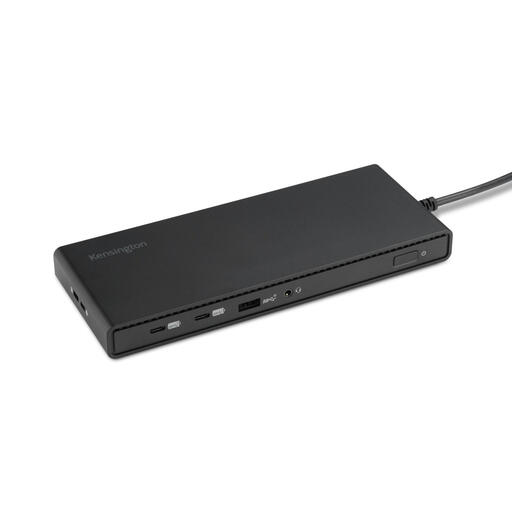
Why We Chose It This docking station is a plug-and-play solution for Windows users looking to boost their productivity with multiple screens. It supports up to three external Full HD monitors without requiring any driver installation. With 100W Power Delivery, it's powerful enough for most business laptops. A notable feature is that, according to the manufacturer, its plastic housing is made from 73% post-consumer recycled (PCR) material.
Key Features
Who Is It For? This model is ideal for professionals and remote workers with a Windows laptop who want to create an efficient triple-monitor workspace. Its straightforward setup makes it a practical choice for office environments.
View the Kensington SD4842P EQ on Joybuy.nl
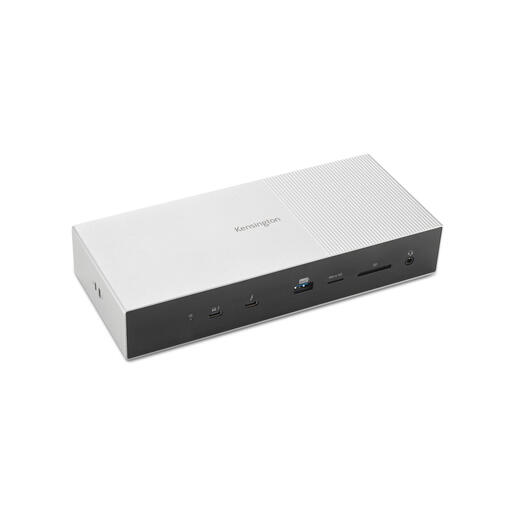
Why We Chose It This is a docking station for users who demand maximum performance. Thanks to Thunderbolt 5 technology, it offers up to 80 Gbps of bandwidth, with a boost up to 120 Gbps for video. This allows it to drive multiple 4K monitors at very high refresh rates. Its 140W Power Delivery is suitable for the most demanding laptops from both Windows and macOS.
Key Features
Who Is It For? This is a solution for power users like video editors, graphic designers, and developers working with the latest Thunderbolt laptops. It's designed for those who need a no-compromise setup with the highest possible resolutions and speeds.
View the Kensington SD5000T5 EQ on Joybuy.nl
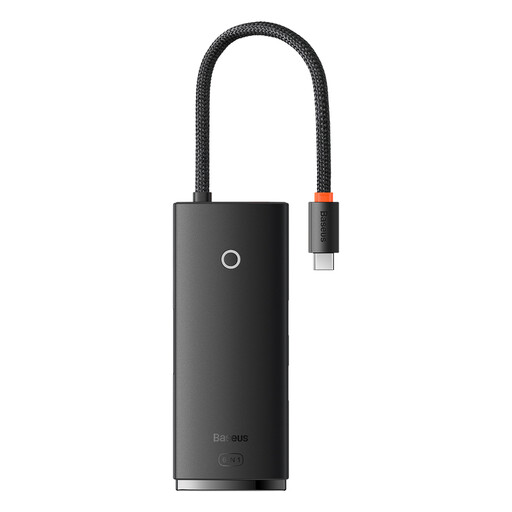
Why We Chose It This isn't a traditional docking station, but rather a compact and portable USB-C hub. It's a 6-in-1 adapter that adds the most essential ports to a laptop or even a tablet. It supports 4K video output, fast data transfer, and pass-through charging up to 100W. The aluminum casing helps with heat dissipation.
Key Features
Who Is It For? This hub is perfect for students, traveling professionals, and anyone looking for a simple, budget-friendly, and portable solution. It's an excellent multi-port USB-C adapter for basic connectivity expansion.
View the Baseus Lite Series 6-Port HUB on Joybuy.nl
The right choice depends on your specific laptop, monitors, and peripherals. If the models above don't fully meet your requirements, a wider range of options is available. Explore more options to find the perfect match for your setup.
Discover all docking station accessories
What is the difference between a USB-C hub and a docking station? A USB-C hub is typically smaller, more portable, and powered by the laptop itself (bus-powered). A laptop docking station is larger, has its own power adapter, and generally offers more ports, higher video specifications, and more charging power (Power Delivery).
Do I need a docking station with Power Delivery? If you want to keep your desk clutter-free and charge your laptop with the same cable you use for your monitors and accessories, then Power Delivery (PD) is an extremely useful feature. Just make sure the dock's wattage matches your laptop's requirements.
Does every USB-C docking station work with a MacBook? Not always. While most docks are compatible, support for multiple external displays can be a key issue. Standard M1/M2/M3 MacBooks natively support only one external display. For a setup with two or more screens, you need a dock that uses DisplayLink technology. Always check the product specifications for explicit MacBook docking station compatibility.
By the Joybuy Product Recommendation Officer Positioning: An objective, practical shopping assistant focused on facts and product parameters, without the marketing hype.