Choose a card reader with a slot that fits the SD or microSD card from your trail camera, and a connector for the device you want to view your photos on. A compact reader is enough if you just want to open your photos; extra slots, USB-A or UHS-II matter mainly if you’ll actually use those features. Test the combination before you set off, and copy any important photos before deleting or formatting anything.
Who is this guide for?
Traveller using a phone with a trail camera card
You want to view photos on the go using a USB-C phone. Check that your phone can access external storage and open the files on the card, and test the combination beforehand. Apple Support and Files by Google explain the requirements for accessing external storage on their devices.
User with different types of card
You switch between SD and microSD cards and don’t want to carry a different reader for each one. Check that the reader has the right slots; UGREEN and StarTech.com describe models that support both card types.
Traveller who wants to keep a copy of their photos
You want to save photos to a second device before using the card again. Check that the copy opens, and only delete or format files once you’ve made sure they’re safe.
What should you look for?
Compact single-slot reader
Choose this option: if you always use the same type of card and want to connect directly to a compatible USB-C device.
Keep in mind: you’ll need a suitable adapter or a separate reader for the other card type.
Reader with SD and microSD slots
Choose this option: if you switch between full-size SD and microSD cards, or want the option to use USB-A too.
Keep in mind: UHS-I support is not the same as UHS-II transfer.
USB-C hub with card readers
Choose this option: if you need other connections as well as a card reader when using a compatible laptop.
Keep in mind: a hub adds extra hardware, and pass-through charging only works when a power source is connected.
UHS-II SD reader
Choose this option: if you have a UHS-II SD card and regularly transfer lots of photos to a compatible USB-C computer.
Keep in mind: the card, reader and receiving device all affect transfer speeds; the SanDisk model described requires an adapter for microSD cards.
| What to consider |
What should you check? |
Who is this important for? |
| Whether your device recognises it |
Check whether your device can access external storage and open the file format; test the reader with your own card. |
If you want to view photos on your phone, tablet or laptop on the train, recognition is the first requirement. Around 25% of consumers say this is their main concern when buying. |
| The right card slot |
Check whether your camera card is SD or microSD and compare it with the reader’s slots. |
If you don’t want to set off with a reader that has the wrong slot, choose one that fits the card in your trail camera. For around 25% of consumers, card size is the top priority. |
| Keeping your photos safe |
Check how your device copies files, and verify the copy before deleting any photos. |
If you want to keep a second copy while travelling, first check that it opens. Keeping photos safe is the main concern for around 20% of consumers. |
| Ease of use on the go |
Check the shape of the reader, whether it has a protective cap and how much room there is around the USB-C port. |
If you want to use the reader on a train seat or fold-down table, a simple, compact connection may be more practical. For around 20% of consumers, portability is the main consideration. |
| Transferring lots of photos |
Compare the card’s speed class with the reader and your device’s connection; quoted maximum speeds are not measured transfer speeds. |
If you regularly transfer large files or lots of photos, speed class may matter more than it would when viewing just a few pictures. Around 10% of consumers say transfer speed is their main concern. |
Common pitfalls
-
Focusing only on USB-C
A connector that fits doesn’t automatically mean the card will fit the reader or that your device can open the files.
Check that your card and receiving device are compatible with the listed slots and connections. Test the combination with a photo before you set off.
If they’re not compatible, you may still need a suitable adapter or a different reader.
-
Assuming a high USB number means photos will appear quickly
The USB specification and an SD card’s speed class describe different things. SanDisk also notes that results depend on the host device and the files.
Consider the card, reader and receiving device together. Choose UHS-II mainly if you genuinely need that level of transfer performance.
-
Formatting the card as soon as it isn’t visible
Formatting can erase existing photos. Apple Support warns that this will delete images from the SD card.
Reconnect the reader or try another device. Make sure important files are safe before you consider formatting.
-
Choosing a hub just to view a few photos
You don’t need a hub’s extra connections if you only want to read the card.
Choose a hub if you’ll use its other ports or pass-through charging; otherwise, a suitable compact card reader may be all you need.
A hub means extra hardware to carry if you don’t use its additional ports.
Brands to consider
UGREEN
UGREEN describes model 50706 as a card reader with SD and microSD slots, plus USB-C and USB-A.
- UGREEN states that it can read two cards simultaneously and offers speeds of up to 104 MB/s with a UHS-I card. These are manufacturer claims, not independently measured performance figures.
- Check the capacity limit listed for the specific product.
StarTech.com
According to StarTech.com, model SDMSDRWU3AC is a USB-powered reader with SD, microSD, USB-C and USB-A connections.
- StarTech.com lists protective caps and UHS-I support.
- UHS-I support does not guarantee UHS-II transfer; the product specification is not an independent speed measurement.
Kingston
Kingston describes the MobileLite Duo 3C as a compact microSD reader with USB-C and USB-A.
- Its dual connector is useful if you want to use microSD cards with devices that have different types of port.
- According to the specifications, this model does not read a full-size SD card directly.
SanDisk
According to SanDisk, the Extreme PRO SD UHS-II USB-C Reader, model SDDR-409-C46, is designed for full-size SD cards and USB-C computers.
- SanDisk lists UHS-II support and backwards compatibility with other SD cards.
- SanDisk says an adapter is required for microSD cards, and that results may vary depending on the host device and files.
Belkin
Belkin describes the 7-in-1 adapter INC009btSGY as a USB-C hub with SD and microSD slots and additional connections.
- Belkin lists pass-through charging of up to 100 W.
- The extra connections may be unnecessary if you only need to read cards; pass-through charging requires a connected power source. These are manufacturer claims.
Joybuy products
These products are designed for SD and/or microSD cards: a card reader for use with USB-C, and a hub with card readers and additional connections.
 No image available
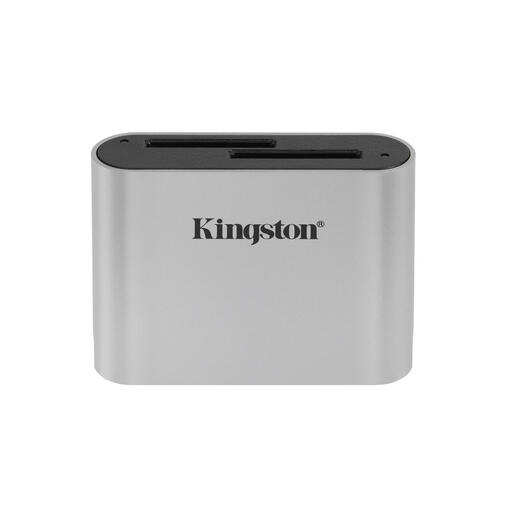
Kingston Technology USB3.2 Gen1 Workflow Dual-Slot SDHC/SDXC UHS-II Card Reader
Suitable for using SD or microSD cards with a USB-C device; the product information lists SDHC/SDXC, UHS-II and a USB-C cable.
Joybuy
 No image available
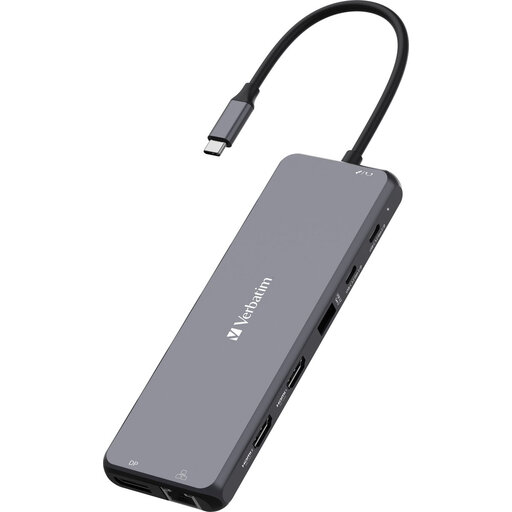
Verbatim CMH-13 USB Type-C 10000 Mbit/s Silver
A good option if you’re looking for a USB-C hub with extra connections as well as card-reading capabilities. The product name lists USB Type-C and 10000 Mbit/s; check the full product specifications for the connections and features you need.
Joybuy
Frequently asked questions
How can I view photos from my trail camera on my phone?
Connect a suitable reader and card, then open the files using an app that supports external storage. Apple explains how to view cards in Files and import compatible photos using Photos; Files by Google explains how to access USB storage on compatible Android devices. Test beforehand to make sure your card and phone work together.
What can I do if my iPhone doesn’t show the card?
Check the connection, then reconnect the reader and card. Apple says external storage must meet certain requirements, including a supported file format and a single data partition; an incompatible media file system can prevent importing. Don’t format the card until you’ve made sure your important photos are safe.
Do I need to delete photos from the card after importing them?
No, you don’t need to delete the photos. Apple explains that after importing, you can choose whether to keep or delete the media. First check that the copy opens; Apple says formatting will erase the images on the card.
Does a CE marking prove that a card reader is suitable for my phone?
No. According to information from the Dutch government, CE marking is not a quality mark. You should also check that the card slot, connection and product specifications suit your phone and card.


