Choose a reader that explicitly supports your camera’s card type: SD, microSD, or CFexpress Type A or Type B. Then compare UHS and USB support to find the import speed you need, and check that the connection and software are compatible with your laptop, tablet or phone. A stated maximum speed doesn’t guarantee a particular import time.
Who is a USB-C card reader for importing photos in the field for?
Photographers using several types of camera card
If you use, for example, SD alongside microSD or CFexpress, check that the reader supports every type of card you carry. Sony describes the MRW-G2 as a reader for CFexpress Type A and SD, while Lexar lists support for SD and microSD on specific models.
Photographers importing large batches
If you take lots of photos during a break, it’s worth comparing the capabilities of your card, reader and receiving device. The SD Association distinguishes between formats including UHS-I and UHS-II. Lexar cautions that actual results also depend on the card and system.
Photographers importing on the move
If you want to transfer photos to a tablet or phone, check not only the USB-C connection but also whether the exact reader model and device are supported. Sony lists support for iOS, iPadOS and Android, among others, for the MRW-G3. Always check that this model information matches your card type and workflow.
What should you look for when buying?
Start with your camera’s card type, then check which connection and device support suit your importing needs on the go.
| What to consider |
What should you check? |
Who is this important for? |
| Card compatibility |
Compare the exact card type used by your camera with the slots explicitly listed for the reader: SD, microSD, or CFexpress Type A or Type B. |
If I carry different cards on a trip, I want to be sure the reader supports the right formats. Around 33% of consumers put card compatibility first. |
| Import speed |
Compare UHS-I or UHS-II for SD, as well as the USB specifications of the reader and receiving device. The SD Association describes UHS-II as an interface capable of higher bus speeds than UHS-I. |
When I have a large selection of photos, I want to reduce waiting time without treating a stated maximum as a guaranteed transfer speed. Around 27% of consumers make import speed their top priority. |
| Safe transfer |
Check the copied files before erasing your camera card, and follow your device’s instructions for ejecting it. Microsoft advises Windows users to safely remove removable hardware. |
When I import photos on the go, I want to check that they’ve transferred properly before erasing the card. Around 20% of consumers prioritise a careful workflow in the field. |
| Mobile importing |
Check the connector, the exact receiving device and the reader model’s stated support for the mobile operating system. |
If I want to import photos without a laptop, the combination needs to work with my phone or tablet. Around 20% of consumers put mobile importing first. |
Common mistakes when choosing a card reader
-
Assuming USB-C means it will fit every camera card
USB-C describes the connection between the reader and the receiving device, not the type of card that fits in the reader.
First, check the card type printed on the card or in your camera manual, then check the slots on the exact reader model.
If the reader doesn’t have the slot you need, you may need a second reader for that card.
-
Taking a maximum speed as a guaranteed import time
An interface specification doesn’t automatically tell you how quickly your photos will transfer. The card and the rest of the connection also play a part.
Compare the interfaces supported by the card and reader, and don’t treat stated maximums as a measure of how quickly your files will transfer.
-
Erasing the camera card as soon as copying appears to be finished
A copy window closing doesn’t confirm that the files you need are on the receiving device.
Check the imported photos and eject the reader as instructed by your device before disconnecting it or erasing the card.
Brands to compare
Lexar
Compare specific Lexar models by card type. The range includes readers for SD and microSD, as well as separate models for CFexpress Type B or Type A and SD.
- For the Professional USB-C Dual-Slot Reader, Lexar lists support for SD and microSD cards with UHS-II, with backwards compatibility for UHS-I.
- According to Lexar, the stated read speed depends on the card and system. Don’t assume the RW510 supports SD; check the slots on the exact model.
Sony
Sony’s MRW-G2 combines CFexpress Type A and SD support; the separate MRW-G3 is designed for CFexpress Type A.
- Sony lists support for UHS-I and UHS-II SD cards and USB 10 Gbps for the MRW-G2.
- According to Sony, the MRW-G3 is designed for CFexpress Type A and has USB 40 Gbps. This interface specification doesn’t guarantee that every card and connection will reach that speed.
Anker
Anker offers compact USB-C card readers with SD and microSD slots. Check the exact model name carefully.
- According to Anker, the USB-C 2-in-1 Card Reader supports UHS-I for SD and microSD.
- For UHS-II, Anker lists a different model: the PowerExpand 2-in-1 SD 4.0 Card Reader. Don’t confuse the model names.
SanDisk Professional
According to SanDisk, the PRO-READER CFexpress is an option for CFexpress Type B when used with a USB-C device.
- SanDisk lists a 10 Gbps USB-C port for this model.
- The reader described is for CFexpress Type B; the model description doesn’t mention an SD or Type A slot. Check your card type before choosing.
Joybuy products for SD and microSD
These Joybuy products combine a USB-C hub with SD or microSD card reading. Check which card type your camera uses.
 No image available
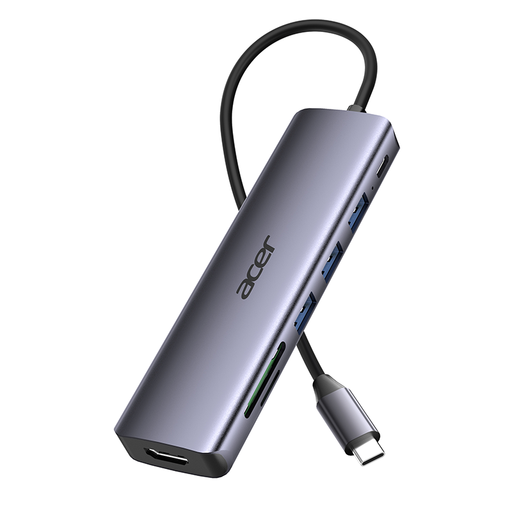
Acer ODK6V0 7-in-1 USB-C hub
Worth comparing if your camera uses SD and you also need a USB-C hub when you’re out and about.
The product title lists SD/TF card reading and 4K@30Hz HDMI.
Joybuy
 No image available
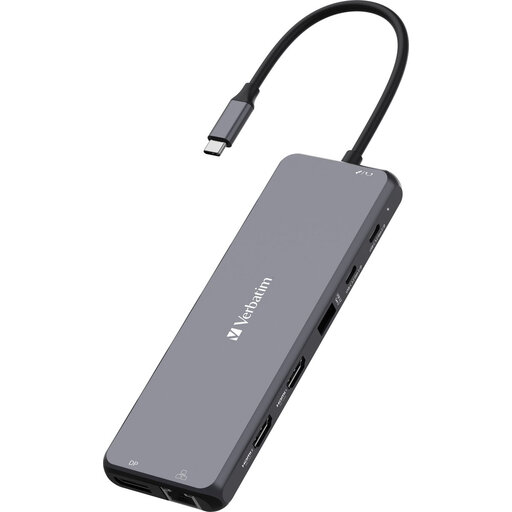
Verbatim CMH-13 USB Type-C multiport hub
Worth comparing if your camera uses SD or microSD and you’re happy for your card reader to be part of a multiport hub.
The product information lists SD and microSD card reading.
Joybuy
Frequently asked questions
Can I use any USB-C SD reader to import a CFexpress card?
No. Check that the reader explicitly supports your camera’s card type. SD, CFexpress Type A and CFexpress Type B are different card types. USB-C describes the connection to the receiving device, not the card slot.
What should I do before disconnecting the reader after importing?
First, check that the files you need are on the receiving device. Microsoft advises Windows users to safely remove removable hardware before disconnecting it. Only erase the camera card after you’ve checked the transferred files.
Is the standard warranty on a card reader in the Netherlands only two years?
No. According to the Government of the Netherlands, there is no fixed statutory warranty period in the Netherlands. You’re entitled to a product that does what you can reasonably expect it to do; if something is wrong, the seller must provide a solution. Any manufacturer’s warranty is separate from this.
Can I return a card reader bought online if it isn’t suitable?
According to the Government of the Netherlands, distance purchases are often covered by a 14-day cooling-off period, although exceptions may apply. Check the terms that apply to your order. This is separate from your statutory rights if a product is faulty.
Do privacy rules apply when I import nature photos?
A photo of an animal doesn’t in itself create any special obligations for a card reader. If people are recognisable in the images, they may contain personal data; according to the Dutch Data Protection Authority, the GDPR applies to its processing. Consider sharing or publishing the images separately.


