
Photographer using SD cards
You import photos from SD cards between appointments and want a reader that suits your card and USB-C device, without extra card slots you won’t use.


Start by choosing a card reader that supports your camera’s exact card format. Then decide whether a faster interface matters for your card, computer and available time. An SD reader is enough if you only use SD, while a model with extra slots is worthwhile mainly if you need those card types too. A card reader transfers files, but it doesn’t automatically create a verified backup or protect client photos.
You import photos from SD cards between appointments and want a reader that suits your card and USB-C device, without extra card slots you won’t use.
You regularly transfer lots of photos and want to check that both your card and reader support the faster SD interface.
You use different camera cards and need a reader that supports the exact type of CFexpress card used by your camera, as well as SD.
Start with your camera’s card format, then check the speed and connections that suit your import window and workflow.
| What to consider | What should you check? | Who should pay more attention to this? |
|---|---|---|
| Compatible card format | Check whether your camera uses SD, microSD or CFexpress Type A or Type B. Check which card types the exact reader model supports. | I want to be sure my camera card can be read before setting off, without paying for extra slots I don’t need. Around 33% of consumers put card compatibility first. |
| Import time | Check the UHS version of your card and reader, and the data speeds of your computer, port and cable. Stated maximum speeds don’t guarantee copying speeds. | If I transfer lots of images between appointments, I want to know whether the whole connection is suitable for my card. Around 27% of consumers prioritise import speed. |
| Connecting on the go | Check that your device can receive data through the USB-C port you plan to use, and that the cable or connector suits your equipment. | I want a compact reader that connects to the device I’m taking with me, without having to search for a missing cable while I’m out. Around 20% of consumers prioritise mobile connectivity. |
| Careful file transfer | Check whether write protection would be useful for your imports. Verify files after copying and arrange storage security separately; a reader is no substitute for a backup. | When handling client photos, I want to avoid transfer errors and treat files carefully. The Dutch Data Protection Authority notes that identifiable people in photos may constitute personal data; around 20% of consumers prioritise careful file transfer. |
USB-C describes the connector. The card interface and the data speeds of the reader, computer and connection also affect what’s possible during an import.
Compare the full specifications of your card, reader and host device, and don’t treat stated maximum speeds as promised copying speeds.
Multi-format readers may offer different combinations, such as Type A with SD or Type B with SD. The wrong slot won’t fit the card you need to use.
Use your camera’s full card designation when comparing models. You may need a second reader if you use both types.
A reader transfers files, but it doesn’t automatically check that your copy is complete or secure your storage. According to the Dutch Data Protection Authority, identifiable people in photos may constitute personal data.
Wait until the transfer is complete, check the imported files, and decide on suitable storage and security measures for client photos.
A failed transfer could mean lost images or extra recovery work.
The Lite Series WKQX060113 combines SD and microSD slots with USB-A and USB-C.
Lexar offers separate models for SD and microSD cards, as well as a model combining CFexpress Type B and SD.
The Card Reader PKT SD is designed for SD cards and has a USB-C connection.
The PRO-READER SD and microSD is a USB-C reader for importing SD and microSD cards.
The MRW-G2 is designed for workflows using CFexpress Type A and SD.
This selection focuses on importing SD and microSD cards via USB-C. Check that the card types and UHS-II support listed for each model suit your camera.
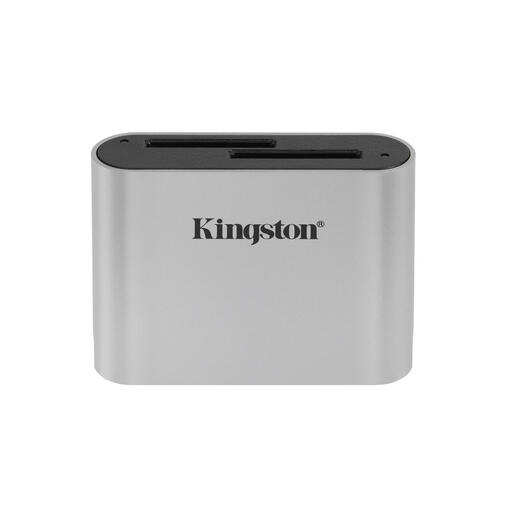 Image unavailable
Suitable for importing from SDHC or SDXC cards when the stated UHS-II support matches your card.
The product information lists USB 3.2 Gen 1 and an included USB-C cable.
Don’t disconnect the reader while transferring files.
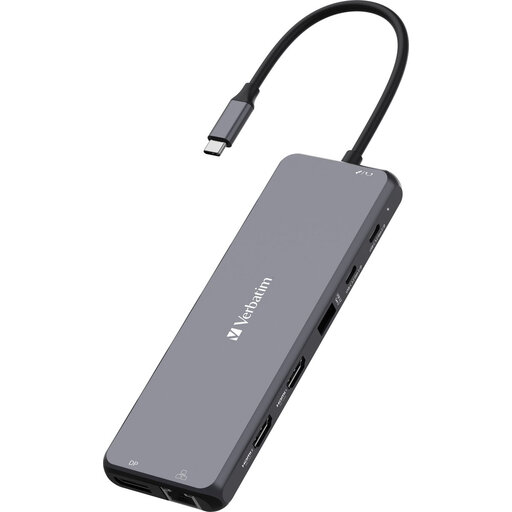 Image unavailable
Could suit a USB-C workflow where you want to import SD or microSD cards.
The product specifications list SD and microSD as supported card types.
Before buying, check that the connection and card types suit your device and camera.
No. A UHS-II reader may also support UHS-I cards; Lexar lists this support for the Professional USB-C Dual-Slot Reader. If you want to make use of the UHS-II interface, check that both your card and reader support it. The final speed also depends on the rest of the connection.
Wait for the copy to finish and eject the card or drive using your device’s usual process before disconnecting it. Check the imported files before using the camera card again; Joybuy product information warns against removing the card or reader during file transfers.
According to the Dutch Government, there’s no fixed statutory warranty period for consumers; if a product is faulty, contact the seller to find a solution. For distance purchases, a 14-day cancellation period applies in many cases. As client visits may indicate professional use, these consumer rules don’t necessarily apply to a business purchase; check the terms that apply to your purchase.
Yes. Identifiable people in photos may constitute personal data, and the GDPR may apply, according to the Dutch Data Protection Authority. Organisations that process personal data must protect it appropriately. A card reader doesn’t provide this protection automatically; decide on suitable measures for storing and processing the photos.