
Editor with a long timeline
Wants to see lots of tracks and editing panels at once, without a screen bezel interrupting the timeline. Adobe explains how to display parts of the Premiere interface on a second monitor.


An ultrawide suits editors who want to keep their timeline and panels on one continuous screen. Two separate monitors make more sense if you need to keep the video separate from the timeline at all times. Adobe describes both ways of working in Premiere. Also check the vertical resolution, your computer’s connections and whether the stated colour features suit your workflow: a wide screen isn’t automatically a separate preview monitor.
Wants to see lots of tracks and editing panels at once, without a screen bezel interrupting the timeline. Adobe explains how to display parts of the Premiere interface on a second monitor.
Wants to view the video separately from the timeline, so may choose between two separate monitors or an ultrawide with a second monitor. Adobe also describes video output to a second screen in Premiere.
Needs to consider stated colour modes and the role of a separate preview, as well as screen space. BenQ lists Rec.709 and P3 modes, among others, for the PD3420Q; these specifications are not, by themselves, an assessment of your entire colour workflow.
Choose this if: you want to keep your timeline and tool panels on one continuous screen.
Bear in mind: the preview remains part of the same desktop; also check how much vertical space you need.
Choose this if: you want to keep the timeline on one screen and view panels or video on the other. Adobe describes this workflow for Premiere.
Bear in mind: a timeline stretched across both monitors will be interrupted by the bezel between them; check that your computer can handle the setup you want.
Choose this if: you want both a continuous timeline and a separate video screen.
Bear in mind: this is still a setup with two physical screens; check your computer’s connections and whether the exact model supports daisy chaining.
| What to consider | What should you check? | Who should pay particular attention? |
|---|---|---|
| Timeline space | Compare the full resolution and aspect ratio; consider how much vertical space remains for panels and the preview. | If I want to see long timelines and panels without interruption, I prioritise usable workspace. Around 31% of consumers put timeline visibility first. |
| Separate preview | Check whether your editing software can send video to a second screen and whether your computer supports the setup. Adobe describes this for Premiere. | If I want to view the video separately from the timeline and tools, a separate screen is an important requirement. Around 25% of consumers prioritise a separate preview. |
| Colour workflow | Check the colour modes of the exact model and decide whether your workflow requires a separate preview. | If colour settings and how I assess the preview are the main priorities, I consider these alongside screen space. Around 19% of consumers give colour workflow top priority. |
| Connecting to your computer | Check the video output, compatible ports and whether the power delivery suits your laptop. BenQ lists USB-C with 65 W for the PD3420Q; LG states up to 90 W power delivery for the 34WQ73A-B. | If I want to handle video and, where applicable, laptop charging through the chosen connection, it needs to suit my computer. Around 13% of consumers prioritise connectivity. |
| A workspace that fits | Compare the dimensions of the screen and stand with your desk, and check the height adjustment. | If the monitor needs to fit my workspace and be easy to adjust, that matters more than extra width. Around 12% of consumers make workspace fit their top priority. |
A wide desktop doesn’t automatically give you a separate physical screen for your preview. This distinction can be crucial if you need to view the video separately from the timeline at all times.
First decide whether you need a separate video screen, then choose between one wide screen and two monitors.
The 34-inch models mentioned have 1440 vertical pixels; the 40-inch 5K2K models cited have 2160. This affects how much vertical space you can share between the timeline, panels and preview.
Compare both resolution dimensions and see how your own workspace layout will fit on screen.
The video connection and power delivery need to suit your computer and the connection you choose; a port on the monitor alone doesn’t guarantee this.
Check your computer’s port, video output, power requirements and any connection for a second monitor separately.
A product listing may differ from the manufacturer’s specifications for the exact model, which could lead you to misjudge a feature that matters to your decision.
Check the full model number and key specifications with the manufacturer and retailer before deciding.
The PD3420Q is a 34-inch ultrawide for editors who want to combine a continuous timeline with stated colour modes.
The U4025QW is a larger 5K2K option; the U3425WE is a separate 34-inch hub model.
The 34WQ73A-B is a 34-inch 21:9 model with USB-C and an Ethernet port.
The ViewFinity S95UF LS49F950UAUXEN is designed for an extra-wide 32:9 desktop.
According to Philips, the 40B1U6903CH/00 combines a 5K2K workspace with a stated Thunderbolt daisy-chaining feature.
This selection includes ultrawide options for arranging your timeline and editing panels on one screen, including 34-inch models and wider 49-inch models.
 No image available
An option for anyone looking for a wide workspace on one screen and needing a webcam.
The product name lists 34.1 inches, WQHD, IPS, a USB-C hub, webcam, 100Hz and 90W Power Delivery.
USB-C video and charging require a compatible laptop with DisplayPort Alt Mode and USB Power Delivery; the actual charging capacity depends on the connected device.
 No image available
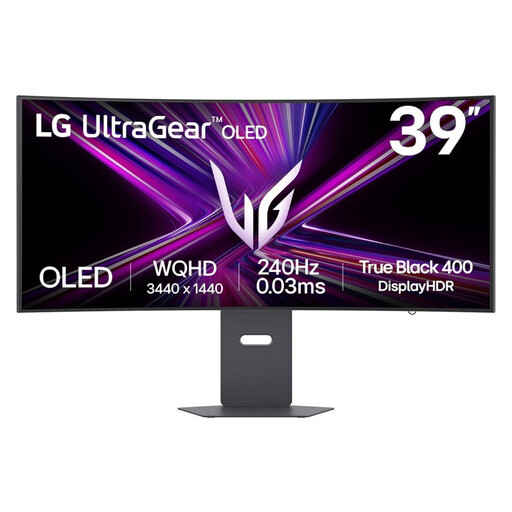
A 39-inch option for anyone looking for a large screen for their timeline and editing panels.
The product name lists a 39-inch gaming monitor.
The product information recommends avoiding exceptionally long periods displaying static images to help reduce image retention.
 No image available
An option for anyone considering a curved 34-inch ultrawide with two stated display modes.
The product name lists a 34-inch curved dual-mode business monitor. The two stated modes have different resolutions and refresh rates; check which mode suits your work.
 No image available
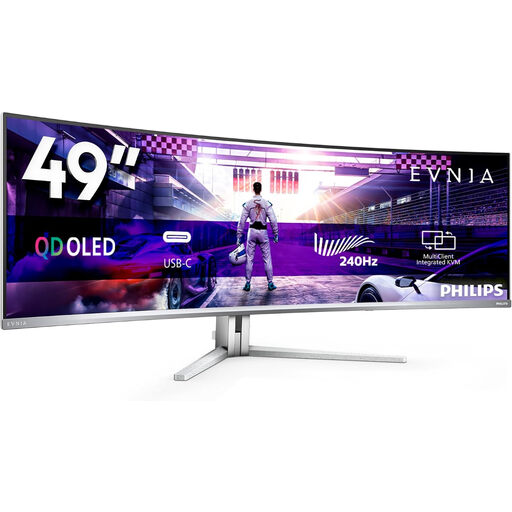
An option for anyone who wants plenty of horizontal space for a timeline and multiple windows.
The product name lists 49 inches, DQHD, 240Hz, FreeSync Premium Pro and QD-OLED. This is one physical screen; its width does not make it a separate preview monitor.
The product information recommends avoiding exceptionally long periods displaying static images to help reduce image retention.
 No image available
An option for anyone looking for horizontal space for a timeline and multiple windows on one screen.
The product name lists 49 inches, 32:9, 5120 × 1440, 165Hz and a 1500R VA panel.
The safety information recommends using a desk or VESA mount that can support at least 15 kg, and having two people install it.
Yes. Adobe explains how to display the Program Monitor output on a connected second computer monitor in Premiere using playback preferences and Mercury Transmit. This confirms the feature in Premiere, but not necessarily in other editing software.
No. BenQ specifies PIP/PBP as display features on a single screen for the PD3420Q. A separate screen for video output in Premiere is a different setup. Check which sources and window layout you need.
Check that your laptop can output video at the resolution you want through the connection you’ve chosen, and that the power delivery is sufficient. BenQ lists USB-C with DisplayPort Alt Mode and 65 W power delivery for the PD3420Q; LG states up to 90 W power delivery for the 34WQ73A-B.
According to ACM ConsuWijzer, online consumer purchases generally come with a statutory cooling-off period of up to 14 days after delivery. Check the applicable exceptions and conditions for trying out and returning the product.
For employees who work with screens for more than two hours a day, Arboportaal states that the screen and keyboard must not be attached to each other, and the screen must be height-adjustable. Whether this applies depends on the working situation; it is not a model specification for every private buyer.