
Someone working with a dashboard and report
You use two windows on one computer and want to read them at the same time without a screen bezel running down the middle of your work.


For two windows on one computer, a 21:9 ultrawide is a practical option if your dashboard and report are readable side by side at your chosen resolution. If you want to position two screens independently, need much more width or want to view images from two computers at once, compare two monitors, a 32:9 model or a monitor with explicit Picture-by-Picture support respectively. Also check the connections, desk space and adjustability.
You use two windows on one computer and want to read them at the same time without a screen bezel running down the middle of your work.
You may want to view images from two computers at once or share one keyboard and mouse. So check Picture-by-Picture and KVM separately: a wide screen alone is not enough.
You’re comparing one wide screen with two separate monitors and need to consider readability, the space available and whether you can position the screens independently.
Best for: a dashboard and report as regular windows on the same computer, with one continuous workspace.
Bear in mind: two windows side by side are not the same as two separate QHD screens. Check that everything is readable at your text size, and check your computer’s video output.
Best for: two wide work areas on one panel, if you have enough desk space.
Bear in mind: the 49-inch models reviewed offer 5120 × 1440 pixels, but take up more physical width than the 34-inch models reviewed.
Best for: two screens that you want to position or rotate independently, or continue using separately.
Bear in mind: you’ll have a bezel between the images, and need to check that your computer supports the required display outputs.
Best for: viewing images from two computers on one screen at the same time.
Bear in mind: check for Picture-by-Picture if you want to see both images at once, and check KVM separately if you want to share peripherals.
| What to consider | What should you check? | Who is this important for? |
|---|---|---|
| Dashboard and report readability | Check the resolution and try displaying both applications side by side at the text size you actually use. | If I want to read charts and report text at the same time, I make sure both windows have enough space. Around 31% of consumers put readability first. |
| Positioning two screens separately | Decide whether you need two physical screens or just two windows. Also check video outputs and desk space. | If I want to position my dashboard and report independently, I may prefer two separate screens to one continuous panel. Around 19% of consumers prioritise being able to position screens separately. |
| Viewing images from two computers at once | Check Picture-by-Picture and KVM separately on the page for the exact model. | If I use two computers and want to see their images at the same time, I check the model’s input features. Sharing a keyboard and mouse also means checking for KVM. Around 19% of consumers put two sources at the top of their list. |
| Connecting a laptop with one cable | Compare your laptop’s video output and charging needs with the exact model’s USB-C video features and Power Delivery; check the cable too. | If I want to connect and charge my laptop through the monitor, I check that the connections are compatible with my computer. Around 19% of consumers make this their main priority. |
| Reading comfort and workspace | Measure the available space and check adjustability, reflections, text size and positioning in relation to light sources. | If I want to position the screen well and read comfortably, I consider the whole workspace, not just the panel. Around 12% of consumers prioritise fit and adjustability. |
Arranging windows side by side works on one computer. Viewing images from two computers requires model-specific features.
First, work out how many computers will be supplying a video signal, then check Picture-by-Picture and KVM separately.
If the required source feature is missing, you may need additional switching equipment or a different monitor model.
The 34-inch models reviewed have 3440 horizontal pixels; the 32:9 models reviewed have 5120. So these screen formats don’t offer the same horizontal pixel space.
Compare the space your dashboard and report actually need, rather than looking only at the screen’s diagonal measurement.
USB-C connections can differ in charging power and supported video signals.
Check your laptop’s video output, charging needs and cable specifications against the exact monitor model.
Depending on the combination you choose, you may still need a separate charger, compatible cable or dock.
A 49-inch screen takes up more physical space than the 34-inch models reviewed. Readability also depends on your setup and any reflections.
Measure the available width and check adjustability and readability before choosing between 34 inches, 49 inches and two separate screens.
You may need a different stand, arm or desk layout to position the screen properly.
The models mentioned range from a 34-inch 21:9 workspace to a 49-inch model with Picture by Picture.
The LG 34WR55QC-B is a 34-inch 21:9 model for using windows side by side, and also lists 2PBP.
The models mentioned include a business-focused 34-inch 21:9 option and a 49-inch 32:9 alternative.
The ViewFinity S95UF, with full model number LS49F950UAUXEN, is a 49-inch 32:9 option for a wide workspace and multiple sources.
This selection includes 21:9 and 32:9 ultrawides for using windows side by side, with models for one or more computer sources.
 No image available
An option to compare if you want a wide workspace for windows and to view images from multiple sources.
The product name lists 5K, IPS, 100 Hz, PIP and PBP, plus USB-C PD65W.
 No image available
A 32:9 option to compare if you want to use two wide work areas on one panel.
The product name lists 49 inches and 5120 × 1440 pixels. Bear in mind the desk width you’ll need.
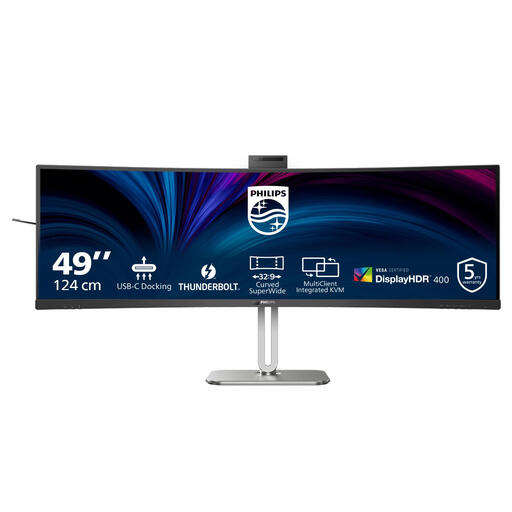 No image available
A 32:9 model to compare if your dashboard and report need plenty of horizontal workspace together.
The product name lists 49 inches and 5120 × 1440 pixels. Measure the space available before choosing this size.
 No image available
A 21:9 option to compare if you want to place your dashboard and report side by side from one computer.
The product name lists a USB-C dock, LAN and KVM. Check that the connections and features suit your devices.
 No image available
A 34-inch ultrawide to compare if you want to use two windows from one computer across a wide workspace.
The product name lists 3440 × 1440 pixels.
Not if they’re two windows on the same Windows computer: Windows can snap windows side by side. If the images come from two computers, check Picture-by-Picture for the exact monitor model.
Windows has settings for identifying and arranging multiple connected monitors. First check that your computer can drive the external screens you want; the monitor itself doesn’t guarantee this.
Choose a readable text size and suitable contrast, minimise glare and consider how the screen is positioned in relation to light sources. Arboportaal notes that small symbols and a reflective image can affect readability; an ultrawide alone won’t prevent discomfort.
For employees, Arboportaal explains that employers must ensure screen work is regularly alternated with other work or a break. Its guidance also covers workplace requirements, including height adjustment and avoiding reflections. This applies to relevant work situations and is not a general product specification or a ban on consumer purchases.
The European Commission classifies computer monitors as electronic displays that require an energy label; compare the label for the exact model. For online consumer purchases in the Netherlands, there is generally a statutory cancellation period of up to 14 days after delivery, subject to legal exceptions. According to ACM ConsuWijzer, statutory warranty also covers what you can reasonably expect from the product under normal use; a manufacturer’s warranty does not replace this right.