Which setup is right for you?

Comparing documents on one computer

You want to read two versions at the same time and currently switch between windows. The space available at your chosen text size is therefore important. Microsoft Support explains how to snap windows side by side in Windows.

Using two computers

You compare documents from separate computers, so you need to check the monitor’s inputs and PBP function. MSI describes PBP on the Modern MD342CQP as displaying different sources side by side.

Working at an adjustable workstation

You spend long periods reading at a screen and take readability, adjustability and monitor positioning into account. Arboportaal recommends adjusting the workstation to the user’s body measurements.

What should you look for when choosing?

One ultrawide, one computer

Best suited to: opening both document versions on the same computer and comparing them on one continuous workspace. Microsoft Support explains how to snap windows to the left and right.

Consider: a wide screen isn’t the same as two independently adjustable screens. Check that both documents are comfortable to read at your chosen text size.

One ultrawide, two computers

Best suited to: keeping the documents on separate computers and viewing both images on one screen at the same time. Check PBP and the video inputs for the exact model.

Consider: PBP displays different sources side by side; KVM is a separate function for switching your keyboard and mouse. MSI describes both functions on the Modern MD342CQP.

Two separate monitors

Best suited to: positioning the two screens separately or using a suitable second screen you already own. Windows supports arranging multiple displays.

Consider: allow for desk space and the video connections needed for both monitors.

What to consider What should you check? Who is this important for?
Keeping two documents readable View your own documents side by side at the resolution and text size you’re considering. LG lists 3440 × 1440 pixels for the 34WP85C-B. If I’m reading two versions at the same time, I want to be able to see them at my usual text size; around 39% of consumers would reportedly make readability their top buying priority.
Connecting a laptop Check that both your laptop and the USB-C port on the exact monitor model support video and the required charging power. Dell lists USB-C power delivery of up to 90 W for the P3425WE. If I connect my laptop often, I want to make sure the cables and connections are compatible; around 23% of consumers would reportedly make easy connectivity their top priority.
Displaying two computers Check for PBP and two suitable video inputs. Also check separately how the keyboard and mouse are switched between devices. MSI describes PBP and KVM on the Modern MD342CQP. If my documents are on two computers, I want to see both sources at the same time; around 15% of consumers would reportedly make support for two computers their top priority.
Workstation and positioning Check adjustability, desk space, reflections and readability where you work. Arboportaal recommends paying attention to text size, lighting and workstation setup, among other things. If I’m reading for long periods, I want to position the screen and workstation to suit me; around 23% of consumers would reportedly make workstation setup their top buying priority.

Common buying mistakes

  • Choosing PBP for two windows on one computer

    For two windows from the same computer, you can use the window layout. PBP is designed to display different input sources side by side.

    Before buying, work out whether the documents are on one computer or on separate computers.

    PBP may be unnecessary if you only want to place two windows from the same computer side by side.

  • Looking only at the screen’s diagonal measurement

    The diagonal measurement alone doesn’t tell you whether two documents will fit side by side and remain readable at your chosen text size. Screen layout and workstation setup matter too.

    Check the model’s full resolution and view your own documents at the size you use every day.

  • Assuming USB-C always supports video and laptop charging

    Features and charging power vary by model. Your laptop must also support the required USB-C video function.

    Compare your laptop’s connection options with the specifications for the exact monitor port, and check the charging power you need.

    If the combination doesn’t meet your needs, you may need a separate video or power connection.

Brands to compare

LG

The 34WP85C-B is worth considering if you’re looking for a wide workspace with USB-C.

  • LG lists 3440 × 1440 pixels, 96 W USB-C power delivery and 2PBP for this model.
  • PBP isn’t needed to place two windows from the same computer side by side. These are manufacturer specifications, not an independent readability test.

MSI

The Modern MD342CQP is worth considering if you want to compare images from two computers or other input sources.

  • MSI lists PBP, KVM, 3440 × 1440 pixels and USB-C with DP Alt Mode and 98 W Power Delivery for this model.
  • Check that the connections on both computers are compatible; PBP and KVM are different functions.

Dell

The Pro 34 Plus P3425WE is an option to compare if you’re looking for an ultrawide workstation with a USB-C hub.

  • Dell lists 3440 × 1440 at 100 Hz, height and tilt adjustment, USB-C power delivery of up to 90 W and RJ45 for this model.
  • Don’t assume it has PBP without checking this for the exact model.

Philips

The 34B2U5600C/00 is worth considering if switching between devices and a network connection over USB-C are important to you.

  • Philips lists a Smart KVM switch and USB-C-to-RJ45 connectivity for this model.
  • These features alone don’t confirm PBP support or provide an independent performance comparison.

Samsung

The ViewFinity S6 S65UC is a 34-inch model with a 21:9 format and a pronounced curve.

  • Samsung lists a 1000R curve and Ultra-WQHD for the LS34C652UAUXEN.
  • A manufacturer’s claim that it may reduce eye fatigue doesn’t prove an individual benefit; judge the curve and readability for yourself.

Ultrawide monitors on Joybuy

This selection includes ultrawide monitors for viewing documents side by side, with options for one computer and for displaying two input sources.

LG UltraWide 34U601B-B WQHD VA monitor, 34 inch

LG UltraWide 34U601B-B WQHD VA monitor, 34 inch

An option for viewing two document windows side by side on one computer.

34 inch; 21:9; 3440 × 1440 pixels; 1800R curve; 120 Hz.

View on Joybuy
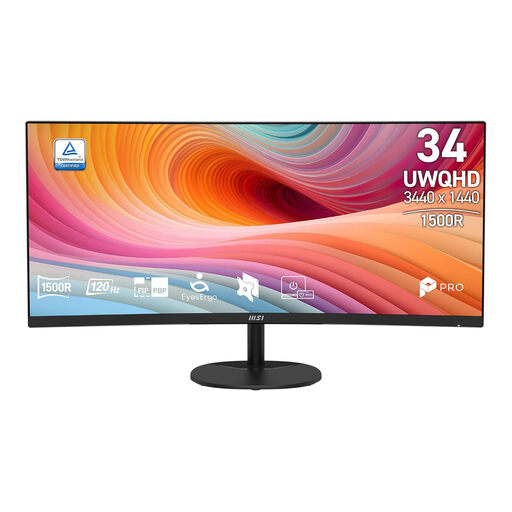
MSI Pro MP341CQ E12 34-inch UWQHD curved VA monitor

MSI Pro MP341CQ E12 34-inch UWQHD curved VA monitor

An option if you want to view several document windows side by side on one computer.

34 inch; 21:9; 3440 × 1440 pixels; VA panel; 1500R curve; 120 Hz.

View on Joybuy

Dell Pro P3426WEV 34.1-inch curved WQHD USB-C hub monitor

Dell Pro P3426WEV 34.1-inch curved WQHD USB-C hub monitor

An option for viewing documents side by side if you’re also looking for a USB-C hub and an adjustable setup.

21:9; 3440 × 1440 pixels; IPS; 100 Hz; USB-C with 90 W Power Delivery; webcam.

The product description lists height, tilt, swivel and slant adjustment.

View on Joybuy
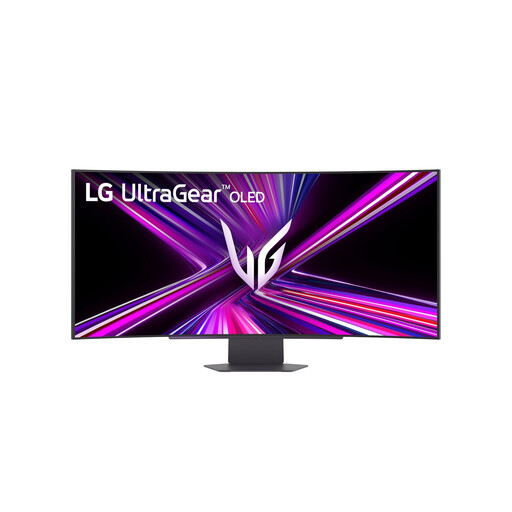
LG 45GX900A-B 44.5-inch ultrawide OLED monitor

LG 45GX900A-B 44.5-inch ultrawide OLED monitor

The product description lists Picture-by-Picture for displaying images from two input sources side by side.

44.5 inch; 21:9; 3440 × 1440 pixels; OLED.

The product description lists height, tilt and swivel adjustment.

View on Joybuy

CRUA 49-inch curved ultrawide gaming monitor, DQHD

CRUA 49-inch curved ultrawide gaming monitor, DQHD

An extra-wide screen for arranging several document windows side by side; the listed format is 32:9.

49 inch; 5120 × 1440 pixels; 1500R VA panel; 165 Hz; 2 × HDMI 2.1 and 2 × DP 1.4.

The product description says the desk or VESA mount must support at least 15 kg and recommends installation by two people.

View on Joybuy

Frequently asked questions

Do you need PBP to compare two document versions on one computer?

No. In Windows, you can snap two windows to the left and right, as Microsoft Support explains. PBP is useful when you want to display images from different input sources on one monitor at the same time.

How do you set up two separate monitors in Windows?

Arrange the displays in the display settings to match their physical positions on your desk. Then check that the mouse moves from one screen to the other in the expected place.

What should you consider when working with documents for long periods?

Arboportaal recommends adjusting your workstation to suit your body measurements, keeping text readable and taking reflections and distracting light sources into account. This workstation advice doesn’t prove that a particular monitor model prevents discomfort.

What are your rights when buying a monitor online as a consumer in the Netherlands?

According to ACM ConsuWijzer, online purchases generally come with a statutory cooling-off period that ends 14 days after delivery; check which exceptions and returns terms apply to your purchase. The Netherlands Authority for Consumers and Markets also states that there is no fixed term for the statutory guarantee: what you can expect depends, among other things, on the product and the information provided.

Are there rules on screen work or information about energy use?

For employees, the Dutch Working Conditions Decree places obligations relating to safe screen work and workstation setup on the employer; it doesn’t require private buyers to choose a particular type of monitor. EU energy labelling rules also cover monitors: check the applicable label and product information sheet for a specific product.
