
Writer working with two documents
You want to view a draft and, for example, rental terms at the same time. Microsoft Support explains how to snap windows side by side; the usable width also depends on your documents and text scaling.


If you often want to keep a draft beside terms and conditions or source material while writing, a 34-inch ultrawide monitor with a resolution of 3440 × 1440 pixels gives you more horizontal space than the 27-inch QHD monitors mentioned here. An adjustable 27-inch monitor may be a better fit for a compact desk, or if you don’t often use two wide windows side by side. Whichever you choose, check that the screen layout, text scaling, workspace and laptop connections suit your needs.
You want to view a draft and, for example, rental terms at the same time. Microsoft Support explains how to snap windows side by side; the usable width also depends on your documents and text scaling.
You want a clear, adjustable setup without putting a wide monitor on your desk. Dell Netherlands lists height adjustment for the U2724D; check that the available window width suits your writing.
You want to check whether a suitable connection can carry the picture and, if needed, power. Philips describes USB-C connectivity for a compatible notebook with the 34E1C5600HE/00; check your own laptop’s capabilities too.
A good fit if: you often want to read a draft and source material side by side, and have room for a wide monitor.
Consider: a wider setup needs enough desk space; check the adjustability of the specific model too.
A good fit if: you have limited desk space or usually work with one document.
Consider: the Dell U2724D mentioned here has 2560 × 1440 pixels, fewer horizontal pixels than the 34-inch 3440 × 1440 models mentioned here.
A good fit if: you want to keep documents on separate physical screens and your computer supports the setup you need.
Consider: you’ll need room for two screens; Windows lets you arrange multiple displays in its settings.
| What to consider | What to look for when buying | Who is this important for? |
|---|---|---|
| Documents side by side | Compare the resolution and aspect ratio, and try your usual windows at a text size that’s easy to read. | If I often want to read a draft and source material at the same time, I need enough width to avoid constantly switching between windows; around 36% of consumers prioritise space for two documents. |
| Reading and working comfort | Check the height adjustment, positioning and readability at your chosen text size. Arboportaal sets out specific workplace requirements for employees who use a screen for more than two hours a day. | If you write for long periods, you’ll want a screen and workspace that can be adjusted to suit your sitting position; around 29% of consumers prioritise this adjustability and readability. |
| Desk space | Measure the available space and compare it with the screen’s dimensions, including the stand; then consider the window width. | If my desk has limited space, I want the monitor to fit and may accept less width for two windows; around 21% of consumers start by considering their limited workspace. |
| Laptop connection | Check that your laptop port supports video, and check the connections and charging capacity of the exact monitor model. | If you want to connect a laptop with as few cables as possible, check video support and whether the monitor can power it; around 14% of consumers prioritise this connection. |
A larger diagonal doesn’t automatically tell you how much room two documents will take up side by side. The 27-inch QHD and 34-inch ultrawide models mentioned here also differ in aspect ratio and horizontal resolution.
Compare the resolution and aspect ratio, and test your intended window layout at a text size you find comfortable to read.
The combination of picture and power over USB-C described by Philips applies to a compatible notebook; the connection alone doesn’t tell you whether your laptop will charge.
Compare the video support of your laptop port and your laptop’s power requirements with the specifications of the exact monitor model.
A manufacturer’s claim doesn’t replace setting the screen at a suitable height and position, or varying your work. Specific workplace requirements may apply to employees who use a screen for more than two hours a day.
Assess the setup as a whole and check which requirements apply to your working situation.
The 34U650A-B is an example of a 34-inch ultrawide setup for working with windows side by side.
The UltraSharp U2724D is an example of an adjustable 27-inch QHD setup for a more compact desk.
The 34E1C5600HE/00 is an example of an ultrawide setup with a built-in webcam and USB-C.
This Joybuy selection focuses on 34-inch ultrawide monitors for viewing documents side by side. Check each model’s resolution, laptop connection and desk space requirements.
 No image available
The 21:9 format and resolution are worth comparing if you want to view two documents side by side.
34 inches, 3440 × 1440 pixels, VA panel and 1800R curvature.
The product name lists a 120 Hz refresh rate.
 No image available
The ultrawide format is useful if you want to place two windows side by side while writing; check for yourself that the windows remain easy to read.
3440 × 1440 pixels, VA panel and 1500R curvature.
The product name lists a 144 Hz refresh rate.
 No image available
This model may suit you if you’re considering an ultrawide screen and a USB-C laptop connection; check that its power output meets your laptop’s requirements.
34 inches, 21:9 and USB-C with power delivery up to 140 W; the stand is adjustable.
Dual Mode offers WUHD 5120 × 2160 at 120 Hz or WFHD 2560 × 1080 at 240 Hz. The selected mode determines the resolution.
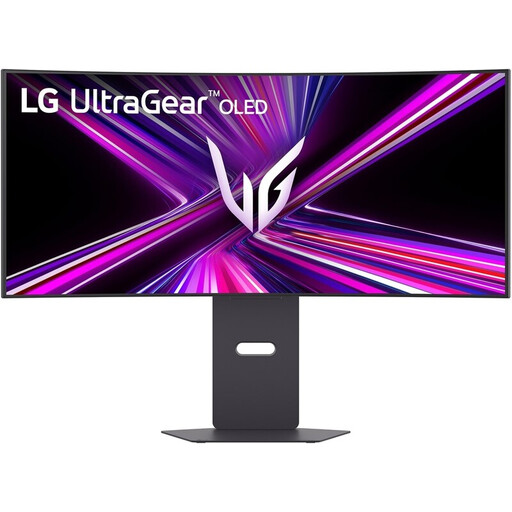 No image available
The stated 21:9 format and resolution are useful to compare with your preferred layout for viewing documents side by side.
34 inches and 3440 × 1440 pixels, with a height-adjustable stand.
The product name lists an OLED screen and a 240 Hz refresh rate.
 No image available
The ultrawide format may be useful for viewing documents side by side; check the usable window width at your chosen text size.
3440 × 1440 pixels and 21:9; the description lists USB-C with power delivery up to 65 W.
According to the product information, the stand offers height, swivel and tilt adjustment.
No, you can snap windows side by side on a standard screen too. Microsoft Support explains the Snap feature in Windows; the 34-inch ultrawide models mentioned here have more horizontal pixels at 3440 × 1440 than the 27-inch monitor mentioned here, which has 2560 × 1440 pixels. Whether the documents remain easy to read also depends on text scaling and window width.
In Windows, use Snap to position two windows, and arrange multiple physical screens in the display settings to match their position on your desk. Make sure your workstation is set up properly too. Arboportaal lists specific workplace requirements for employees who use a screen for more than two hours a day.
Only if both the laptop and monitor support the features you need. For the 34E1C5600HE/00, Philips describes picture, data and power over USB-C with a compatible notebook. Before buying, check that your laptop port supports video and that the power supply is suitable for your laptop.
For consumer purchases, the seller is responsible for the statutory guarantee if a product is faulty, according to the Netherlands Authority for Consumers and Markets (ACM). ACM ConsuWijzer explains that online consumer purchases generally come with a statutory cooling-off period of up to 14 days after delivery, with some exceptions. A purchase made on behalf of a studio isn’t necessarily the same as a consumer purchase; check the terms that apply to your purchase.
The information from Arboportaal mentioned here concerns the working situation, not a prescribed screen size. Arboportaal states that for employees who use a screen for more than two hours a day, the screen and keyboard must not be attached to each other. Check how the requirements apply to your specific working relationship and workplace.