
Developer working with lots of windows
Wants to keep the meal planner, documentation and preview visible at the same time, so focuses mainly on usable horizontal space.


A 34-inch ultrawide monitor suits a workspace with enough room where you regularly want to view several windows side by side. An adjustable 27-inch QHD monitor is an alternative if your desk is more compact or you want to adjust the screen position. Two separate screens are another option if you prefer to keep your editor and preview on different displays. Whichever you choose, check that your own window layout is easy to read and, if you’re using a laptop, make sure the video connection and any USB-C power delivery are suitable.
Wants to keep the meal planner, documentation and preview visible at the same time, so focuses mainly on usable horizontal space.
Reads and edits text for extended periods and wants to adjust the screen position and text display to suit their workspace.
Wants to connect an external screen and checks that video, USB-C power delivery and the required cables are compatible with their laptop.
Choose this option if: you regularly use your editor, documentation and preview at the same time and have room for a wide screen.
Bear in mind: the physical width and adjustment options of the specific model.
Choose this option if: you mainly use two key windows, have less room for a wide screen or want to be able to adjust the screen position.
Bear in mind: the available width for each window. Test whether your editor panels remain easy to read at your preferred text size.
Choose this option if: you’d rather put your editor and preview on separate screens and your computer supports the setup you want.
Bear in mind: the space needed for two screens and the connections available on your computer.
| What to consider | What should you check? | Who is this important for? |
|---|---|---|
| Windows side by side | Compare the screen resolution and width with the space your editor, documentation and preview need. Windows can arrange separate windows side by side, but it doesn’t split panels within an editor. | When I’m building something and often switch between windows, I’d rather be able to see them all at once. Around 36% of consumers say space for multiple windows is their main purchase concern. |
| Readability | Try your own window layout at your preferred text size; having more windows may mean that each one is narrower. | When I’m editing long passages of text, I want enough room for each panel without making the text uncomfortably small. Around 29% of consumers prioritise editor panels that are easy to read. |
| Connecting a laptop | Check that your laptop can output video through the connection you’ve chosen, and that the USB-C power delivery and cable meet its requirements. | When I connect my laptop at a permanent workstation, I want to know that the connection and power supply are suitable for it. Around 21% of consumers prioritise a simple laptop connection that works for their device. |
| Screen position | Compare the adjustment options of the exact model with your desk and preferred screen height; tilt adjustment isn’t the same as height adjustment. | When I want to adjust my screen position at my workstation, I check which adjustments the stand actually offers. Around 14% of consumers prioritise adjustability. |
A large screen doesn’t guarantee that your preferred window layout and text size will work well together. The 27-inch and 34-inch models reviewed differ in resolution and aspect ratio.
Compare the width of your editor, documentation and preview windows with the resolution of the exact model. Windows Snap can arrange separate windows.
USB-C on a monitor doesn’t automatically mean that your laptop can output video through that port or receive enough power.
Compare your laptop’s video output and charging requirements with the monitor model’s connections, stated power output and required cable.
If they aren’t compatible, you may need a separate power connection or a suitable cable.
LG lists a tilt-adjustable stand for the LG 34U601B-B, while Dell also lists height adjustment for the Dell P2725DE. These features apply to these models and aren’t automatically available on other screens from the same brands.
Check the adjustment options for the exact model and compare them with your desk and preferred screen position.
If the stand doesn’t reach your preferred height, you may need a different stand or a suitable monitor arm.
The UltraWide range includes wide monitors for anyone who wants to place separate windows side by side. The LG 34U601B-B is a 34-inch 21:9 model.
The Pro Plus P2725DE is a 27-inch QHD monitor with a USB-C hub for a laptop workstation.
Philips lists a 34-inch 3440 × 1440 screen with USB-C and a KVM switch for the Business Monitor 34B2U5600C/00.
The GW2790QT is a 27-inch QHD USB-C monitor for a laptop workstation where a more compact screen width is enough.
These models are for anyone who wants to arrange several editor windows side by side while building a meal planner. Compare the desk space you’ll need and check that the listed connections and adjustment options suit your workspace.
 No image available
A 34-inch ultrawide option for anyone who wants to use several windows side by side. LG lists a 21:9 aspect ratio, 3440 × 1440 pixels and a tilt-adjustable stand for this model.
The product name lists WQHD, VA, 1800R and 120 Hz. Check whether tilt adjustment is enough to achieve your preferred screen height.
 No image available
A curved 34-inch Dual Mode monitor for anyone who wants a wide screen for multiple windows. Check which resolution and refresh rate combination suits your needs.
The listed modes are WUHD 5120 × 2160 at 120 Hz or WFHD 2560 × 1080 at 240 Hz.
 No image available
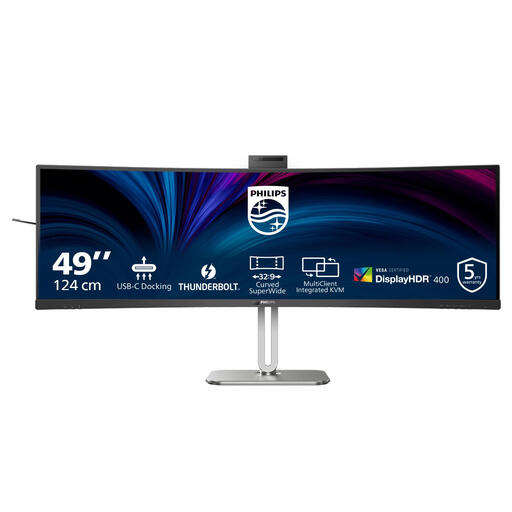
A 49-inch monitor for anyone looking for plenty of horizontal space for multiple windows. The stated width is 121,49 cm; measure your desk before choosing a screen this size.
The product name lists a resolution of 5120 × 1440 pixels and LCD.
 No image available
A 49-inch Dual QHD monitor for anyone who needs plenty of side-by-side workspace. Bear in mind the stated width of 1193 mm and check that it will fit your desk.
The product name lists 5120 × 1440 pixels.
 No image available
A 34-inch ultrawide option for using several applications side by side. The product name lists a USB-C dock, LAN, KVM and a height-adjustable stand.
The product name also mentions 15 cm of height adjustment. Check that the connections and adjustment range suit your workspace.
No. Windows can also arrange separate windows side by side on a standard screen. Choose based on the usable width your windows need at your preferred text size; Windows Snap doesn’t split panels within an editor, as Microsoft Support explains.
First check that your computer supports the screens and connections you want, then set up the display in Windows. Support for multiple displays doesn’t in itself tell you how many display outputs your laptop has, according to Microsoft Support.
Compare your laptop’s video output and charging requirements with the capabilities of the exact monitor model and the cable you need. USB-C alone doesn’t confirm that your laptop can output video or receive enough power.
When you buy as a consumer, you’re entitled to a product that conforms to the contract; according to the Dutch government, the Netherlands has no fixed statutory warranty period. If a product is faulty, contact the seller. Any manufacturer’s warranty is in addition to this right and doesn’t replace it.
For many eligible consumer purchases made at a distance, you have a 14-day cooling-off period, according to the Dutch government. Check who the seller is and which terms apply to your specific purchase; some situations don’t count as distance selling.