What should you look for when choosing?
First check whether your game supports the format and how much space you have. Then compare the display and connections with what your PC can actually handle.
| What to consider |
What to look for |
Who this matters to |
| Cockpit view |
Check 21:9 support and how the HUD is displayed in your game; also measure the space available for the screen. |
I want to see more of my surroundings from my usual seat without losing cockpit information. Around 31% of consumers choosing between these options put a wider view and cockpit layout first. |
| Smooth motion |
Check the achievable frame rate at your chosen resolution, the refresh rate supported by each connection, and model-specific tests for motion and VRR flicker. |
If I want to track moving targets smoothly, I look at what my PC and connection can actually deliver. Around 25% of consumers choosing between these options put motion display first when buying. |
| Dark scenes and HUD |
Weigh your room lighting and how long the same HUD stays visible against the risk of OLED burn-in. Also check the warranty terms for the exact model. |
I care about deep blacks, but I also want to know what long periods with cockpit information on screen mean for my choice of display. Around 25% of consumers choosing between these options put image quality in dark scenes first. |
| Set-up and connections |
Measure the available space and check that the connections support your preferred resolution and refresh rate. |
If I want to use the screen with my existing equipment, its size and connections need to suit my set-up. Around 19% of consumers choosing between these options put practical fit and device connections first. |
Joybuy products
These product choices focus on ultrawide gaming monitors for PC use. Check that the aspect ratio and cockpit display suit your needs in each game.
 No image available
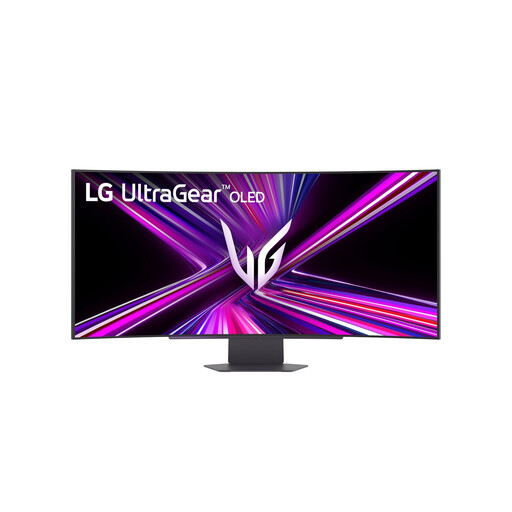
LG 45GX900A-B 44.5-inch OLED gaming monitor
An OLED option for anyone who values extra horizontal space and dark scenes. Bear in mind the risk of burn-in if static cockpit information stays visible for a long time.
44.5 inches; 3440 × 1440 pixels; OLED.
View at Joybuy
 No image available
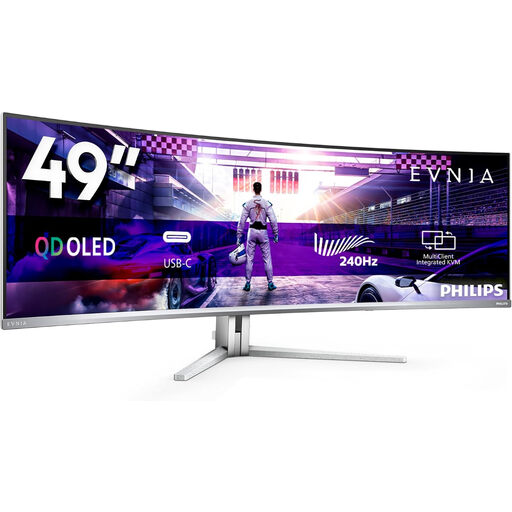
Philips Evnia 49M2C8900/00 49-inch QD-OLED gaming monitor
A very large QD-OLED screen for anyone looking for plenty of horizontal space. Measure up first to make sure it will fit your desk and viewing position. OLED carries a risk of burn-in if static cockpit information stays visible for a long time.
49 inches; DQHD; 240 Hz; QD-OLED.
View at Joybuy
 No image available
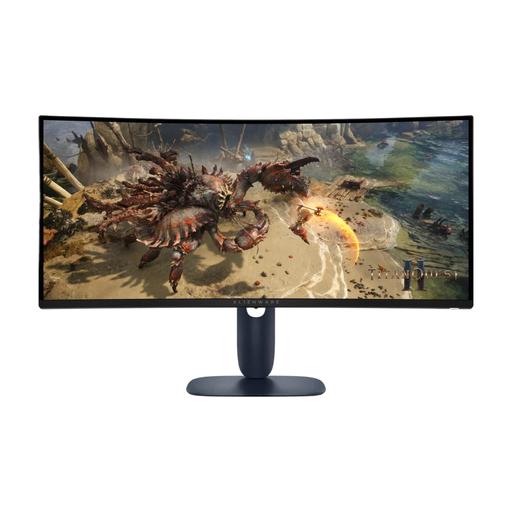
Alienware AW3425DWM 34-inch gaming monitor
An ultrawide option for PC gamers looking for a wider field of view. Check that your game supports the aspect ratio properly.
34 inches; 3440 × 1440 pixels; LCD.
View at Joybuy
 No image available
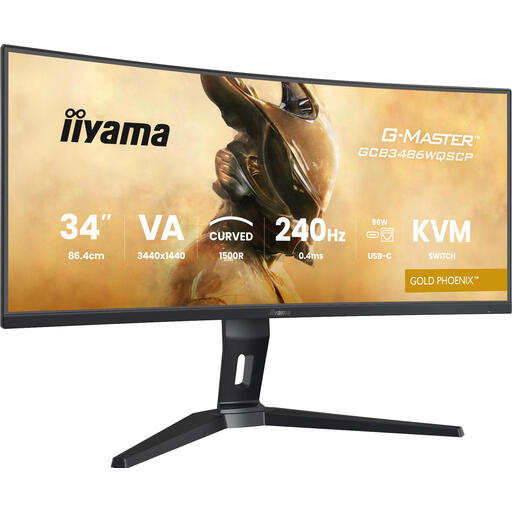
iiyama G-MASTER GCB3486WQSCP-B1 Gold Phoenix
An ultrawide option for PC gaming. Check whether your PC can make the most of your chosen refresh rate at your preferred resolution.
240 Hz; 0.4 ms response time; KVM switch.
View at Joybuy
 No image available
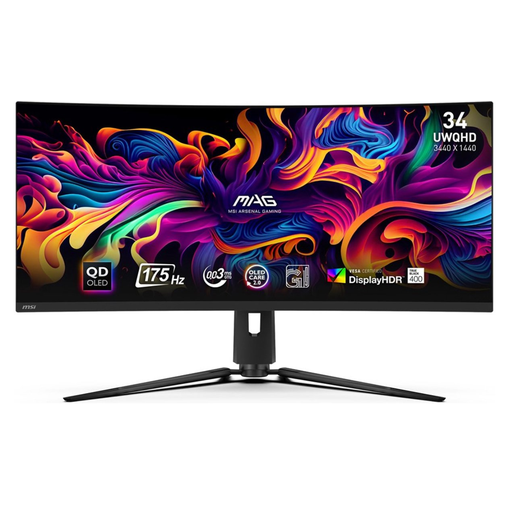
MSI MAG 341CQP 34-inch QD-OLED monitor
A QD-OLED ultrawide for anyone looking for extra horizontal space. Check game support and weigh the risk of burn-in if static cockpit information stays visible for a long time.
34 inches; 3440 × 1440 pixels; QD-OLED.
View at Joybuy
Frequently asked questions
Can I use an ultrawide monitor with my console?
If you mainly play on a console, 16:9 is likely to be a better fit: according to RTINGS.com, consoles do not support ultrawide aspect ratios. Check which output mode is available for your console and game.
Why can’t I always get the maximum refresh rate?
The maximum refresh rate can vary between inputs. For example, ASUS specifies a maximum of 180 Hz via DisplayPort and 100 Hz via HDMI for the VG34VQL3A. So check the exact monitor, connection and output from your PC.
What should I check after connecting the monitor?
Set a supported resolution and refresh rate on your PC, then check that VRR works properly with your graphics card. Position the screen to suit your viewing position. If you use a screen for long periods, it’s also worth paying attention to your posture and taking breaks.
How can I compare monitors’ energy consumption?
Compare the European energy labels for the specific models. The European Commission says the label includes an efficiency class and separate information for HDR display. The panel name alone does not tell you how much energy a monitor uses.
What are my rights when buying online in the Netherlands?
When you buy online from a business, you generally have a 14-day cooling-off period, according to the Dutch government. The Netherlands has no fixed statutory warranty period: you are entitled to a product that works properly, and the seller is your point of contact if there’s a problem. Check any additional manufacturer terms, such as OLED coverage, separately.


