
Editor working with long timelines
Wants to spread clips, tracks and tools across more horizontal space while still being able to see the preview. Adobe explains that Premiere lets you move interface panels to a second monitor.


Start by working out how much horizontal space you need to view your timeline and preview at the same time. Then check that the screen can be adjusted comfortably for both sitting and standing. For colour grading, the right colour mode and colour space matter. If you use a laptop, make sure the video connection and charging capacity are suitable too. An ultrawide isn’t automatically the most convenient choice if you mainly need extra screen height or a separate preview screen.
Wants to spread clips, tracks and tools across more horizontal space while still being able to see the preview. Adobe explains that Premiere lets you move interface panels to a second monitor.
Needs suitable colour modes and control over the colour space in use, as well as room for the timeline. Stated screen coverage is a specification, not a measurement of your individual unit; Adobe describes the colour management options available in Premiere.
Changes working height, so should look for adjustability, a stable setup and suitable video and power connections. Arboportaal includes a height-adjustable screen among the requirements it describes for computer workstations.
First compare the timeline space you need with the space available on your desk. Then consider colour settings, adjustability and laptop connections that suit your workflow.
| What to consider | What to look for | Who this matters to |
|---|---|---|
| Horizontal timeline space | Compare resolution, aspect ratio, screen width and the layout of your editing software. | If I want to see clips, tracks and the preview at the same time, width matters most to me. Around 33% of consumers prioritise timeline space. |
| Colour for video output | Check colour modes and the evidence behind accuracy claims; match the settings to SDR or HDR output. | When I’m grading footage for a specific colour space, I want to know which mode suits my output. Around 25% of consumers prioritise colour grading. |
| Set-up for sitting and standing | Compare height adjustment, tilt, screen and stand dimensions, and any VESA mounting options, with both desk positions. | I want to position the screen properly when sitting and standing, so I look at the adjustment range and how stable the setup is. Around 25% of consumers prioritise a sit-stand set-up. |
| Laptop connection | Check that your laptop can output video through the connection you plan to use, and compare its charging needs with the monitor’s power output. | If I want to connect my work laptop with as few cables as possible, a suitable video connection and enough charging power are essential. Around 17% of consumers prioritise laptop connectivity. |
LG lists the 34U650A-B as having a resolution of 3440 × 1440 pixels. That gives you horizontal workspace, but the screen is still 1440 pixels high.
Decide whether you mainly want to see more of a long timeline or need extra vertical space for tracks and the preview.
Colour coverage, colour modes, HDR10 support and DisplayHDR levels don’t all describe the same thing. A specification alone doesn’t prove that a screen is accurate enough for your workflow.
Check which colour mode and colour space suit your output, and look at what any calibration or accuracy claims are based on. Don’t treat HDR support as proof that a screen is suitable for HDR mastering.
The models listed have different adjustment ranges: BenQ specifies 150 mm for the PD3420Q, while ASUS lists up to 115 mm for the PA348CGV.
Measure the screen position you need at both desk heights and compare it with the adjustment range and stand dimensions. If you use a monitor arm, check its mount and weight capacity too.
A USB-C connection on a screen doesn’t guarantee that your laptop can output video through that port, or that the charging power will suit your laptop.
Compare your laptop’s video output and power requirements with the connections and stated power output of the exact monitor model.
LG describes the 34U650A-B as a 34-inch IPS monitor with a resolution of 3440 × 1440 pixels and a 100 Hz refresh rate.
BenQ positions the PD3420Q for creative work, with features including Rec.709 and P3 modes, USB-C and an adjustable stand.
ASUS describes the ProArt PA348CGV as having a resolution of 3440 × 1440 pixels, colour modes, USB-C and an adjustable stand.
Dell describes the UltraSharp U3425WE as a 34.1-inch IPS Black monitor with 3440 × 1440 pixels and a Thunderbolt hub.
Philips describes the E Line 346E2CUAE/00 as a 34-inch VA monitor with 3440 × 1440 pixels, USB-C and an ergonomic stand.
This selection includes ultrawide monitors for wide timelines, with 34-inch models and one 49-inch model. As well as horizontal workspace, compare vertical resolution, the width available on your desk and the adjustment range you need.
 No image available
The wide 21:9 aspect ratio is designed for anyone who wants to view a video timeline alongside other windows.
WQHD; VA panel; 1800R curve; 120 Hz; 34 inch.
 No image available
A 34-inch ultrawide option for anyone looking for timeline space and considering a USB-C hub as part of their workstation set-up.
34 inch; USB-C hub; conferencing monitor.
 No image available
This 34-inch ultrawide is an option if you want to view a wide timeline alongside other windows.
UWQHD 3440 × 1440; 144 Hz; 1500R curve; no speakers.
 No image available
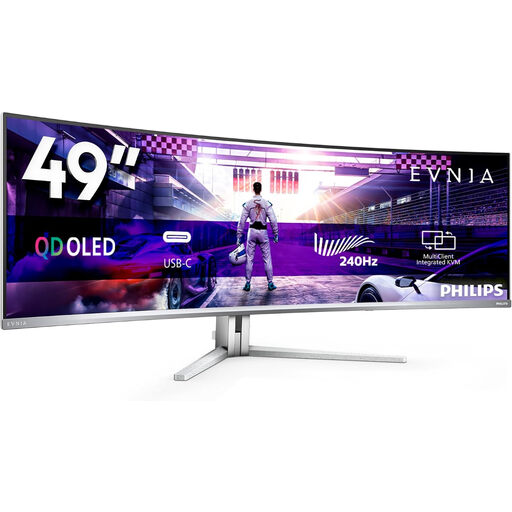
This 49-inch model is designed for anyone looking for extra-wide workspace; check that it will fit on your desk before buying.
DQHD; QD-OLED; 240 Hz; FreeSync Premium Pro; curved screen. The stated weight is 13,96 kg: use a stable surface and move or install the monitor with two people.
 No image available
A 34-inch ultrawide option if you’re looking for timeline space; check the screen position you need at both desk heights.
Fast VA; WQHD 3440 × 1440; DisplayPort up to 180 Hz; HDMI up to 100 Hz; 300 cd/m²; 2 × HDMI and DisplayPort; tilt-adjustable.
If you mainly want more width, 3440 × 1440 pixels is a useful resolution to compare: the 34-inch models reviewed have 1440 vertical pixels. If you mainly need more screen height, compare a different resolution or screen set-up too.
Compare the stand’s adjustment range with both desk positions, and check that the screen, stand or a suitable monitor arm can be positioned securely. Break up long periods of screen work; standing still doesn’t remove the risks of a static working posture.
Only if the laptop supports video through that connection and the monitor’s charging power is suitable for the laptop. BenQ lists 65 W for the PD3420Q and ASUS lists 90 W Power Delivery for the PA348CGV.
No. HDR10 support and DisplayHDR levels describe different features. Match your screen choice and colour settings to your output workflow, and don’t treat a logo as proof that a screen is suitable for HDR mastering.
When you buy as a consumer, you’re entitled to a product that is fit for purpose. According to the Dutch government, there is no fixed statutory warranty period in the Netherlands, and the retailer is your point of contact if something is wrong. Computer monitors carry the EU energy label, with ratings from A to G; compare the label for the exact model.
Arboportaal describes requirements for screen-based workstations that include a height-adjustable screen. If you work at a screen for more than two hours a day, laptop use is also subject to a requirement for a separate screen or keyboard. In certain circumstances, an employer may depart from these requirements if health and safety are still protected; this is not automatically a universal buying requirement for every private shopper.