
Editor working next to a bright window
You want to be able to read your timeline during the day without distracting reflections. So, think first about where to position the screen and how to manage sunlight.


Start by managing the light: the Arboportaal advises positioning your viewing direction parallel to the window and using blinds or curtains if needed. Then choose an ultrawide monitor based on your main task: timeline space, suitable colour settings or a connection that works with your laptop. A quoted HDR peak brightness does not prove that reflections from the window will disappear. Check too that the monitor and stand will fit on your desk and that it connects to your laptop.
You want to be able to read your timeline during the day without distracting reflections. So, think first about where to position the screen and how to manage sunlight.
You want to arrange clips, the preview and tools clearly, so you’re comparing screen space and resolution.
You work in a particular colour space or want to connect a laptop. Check which colour settings, video connection and power supply your workflow requires.
Start with the light and your workspace, then compare the screen space, colour settings or laptop connection that best suits your main task. The Arboportaal advises positioning your viewing direction parallel to the window and using blinds or curtains if needed.
| What to consider | What to check before buying | Who is this important for? |
|---|---|---|
| Readability next to a window | Check the screen coating and adjustability. Also see whether you can reposition the screen or use blinds or curtains. | If I’m setting up next to a window during the day, I want to reduce distracting reflections first. Around 36% of consumers say reflections are their main concern. |
| Timeline space | Compare the resolution and screen dimensions; measure to make sure the monitor and stand will fit on your desk. | If I want to see clips, the preview and panels side by side, I focus on usable workspace. Around 29% of consumers put timeline space first. |
| Assessing colour | Check the colour modes for your workflow and exactly what any calibration report covers. | When I’m assessing colour in a particular colour space, I want to be able to choose the right settings. Around 21% of consumers name colour assessment as their main concern. |
| Connecting a laptop | Compare the monitor’s video connection and power delivery with your laptop’s requirements; also check the stand and adjustability. | If I’m connecting a laptop at my workspace, I want to know whether the intended connection will carry both the picture and power. Around 14% of consumers say their laptop setup is their main concern. |
A typical brightness figure and an HDR peak value don’t directly tell you how much light from a window will reflect off your screen.
Check the screen coating and whether you can reposition the monitor; try using blinds or curtains if needed.
The screen’s resolution and the selected playback or paused resolution are two different things.
Check both the screen resolution and the preview settings in your editing software.
The video connection and stated charging power vary by monitor model, so check them against your laptop’s requirements.
Compare your laptop’s video output and power requirements with the monitor’s exact specifications.
If the laptop and monitor aren’t fully compatible, you may need a separate power or video cable.
The Dell U3425WE listing gives 3440 × 1440 in the title but 3440 × 1400 in the description, and the page says the product is unavailable.
Check the model, specifications and current availability on the product detail page before making your choice.
The PD3420Q is a 34-inch ultrawide with stated modes for sRGB, Rec.709 and P3.
The 34U650A-B is a 34-inch IPS ultrawide with a resolution of 3440 × 1440.
Dell describes the UltraSharp U3425WE as a 34.1-inch ultrawide with a Thunderbolt hub and height adjustment.
Tweakers covered the 34-inch ViewFinity S65VC in a review of all-round models.
The 34B2U6603CH/00 is a business-focused 34-inch ultrawide with Thunderbolt 4 and features for switching between sources.
These models are designed to give you extra room for a video timeline and work windows. Some also list features for colour settings or connecting a laptop.
 No image available
This 34-inch ultrawide is designed to give you a wide workspace for your timeline and windows.
WQHD, 3440 × 1440, VA panel, 1800R curvature and 120 Hz.
 No image available
This 34-inch ultrawide is designed to give you a wide workspace for your timeline and windows.
3440 × 1440, 21:9, VA panel, 120 Hz and 4 ms response time.
 No image available
This 34.1-inch ultrawide is designed to provide timeline space and a laptop setup via USB-C.
3440 × 1440, 21:9, IPS, 100 Hz and USB-C with DisplayPort Alt Mode and up to 90 W Power Delivery. The description also mentions an anti-glare screen, 99% sRGB and an adjustable stand.
 No image available
This 34-inch ultrawide is designed to provide a wide workspace and a laptop setup.
3440 × 1440, 21:9, 100 Hz and 99% sRGB. The description mentions an integrated webcam, USB-C with up to 90 W Power Delivery, KVM and RJ45.
 No image available
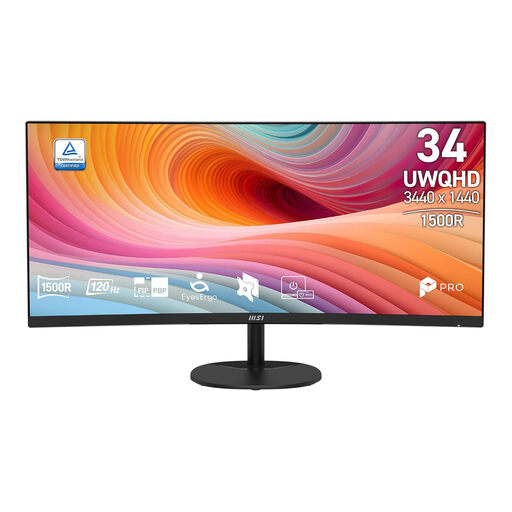
This 34-inch ultrawide is designed to give you a wide workspace for your timeline and windows.
3440 × 1440, 144 Hz, 1500R curvature and VA panel. The product name lists 100% sRGB and says that speakers aren’t included.
Try positioning your viewing direction parallel to the window and use blinds or curtains if needed; that’s the practical advice from the Dutch Arboportaal. An anti-glare coating doesn’t remove the need for a suitable setup.
In Adobe Premiere, you can move interface panels to a connected second monitor and save the layout as a workspace. Check that your editing software and computer support this.
In Adobe Premiere, you can set playback and paused resolution separately. Adobe describes using a lower playback resolution with full paused resolution as a way to check still frames for detail. During playback, the picture is then shown at a lower resolution.
For distance purchases from a business in the Netherlands, you’ll often have a 14-day cooling-off period, according to the Dutch government. Check the terms for your order; an online purchase from a private individual isn’t covered by the same definition of a distance purchase.
According to the European Commission, computer monitors are covered by energy labelling for electronic displays. For the exact model, compare the energy label and model details in EPREL; the label includes information on efficiency, screen size and resolution.