What should you consider when choosing?
An ultrawide gives you room to arrange windows on your own screen. For keeping private notes separate from slides shown to an audience, separate screens and the right sharing settings are still essential. Microsoft Support explains the options for Presenter View and for sharing a window or the entire screen.
Ultrawide as your personal workspace
Choose this when: you want to place notes and other windows alongside slides on your own screen.
Keep in mind: to show a separate view to your audience, you’ll also need a second, separately detected screen and the right presentation settings.
Two separate screens
Choose this when: separating Presenter View from the slides shown to your audience is your main priority.
Keep in mind: check that your computer can drive the screens you need; this setup won’t automatically give you the same wide workspace as a single ultrawide.
Picture-by-Picture for two sources
Choose this when: you want to view two connected devices or video sources on one panel at the same time.
Keep in mind: Picture-by-Picture divides the panel between different sources. It isn’t the same as displaying two windows from one computer, and it doesn’t replace a separate presenter screen.
| What to consider |
What should you check? |
Who should consider this? |
| Private notes and the audience view |
Check whether your computer supports two screens and test what appears on each one before you present. |
If I need to keep my notes private, I want to test the screen assignments and sharing options in advance. An estimated 36% of consumers put this separation first. |
| Room for windows |
Compare the aspect ratio and resolution of the exact model, and test whether slides and notes fit side by side and remain readable. |
If I want to see slides and notes together on my own screen, I look for a layout that works with my text size. Around 29% of consumers prioritise this room for windows. |
| Laptop connection |
Compare your laptop’s video output and charging requirements with the features explicitly listed for the exact monitor model. |
If I present from a dedicated laptop workspace, I want to know whether the connection is suitable and whether the monitor can power my laptop. An estimated 21% of consumers choose mainly on the basis of this connection. |
| A workspace that fits |
Check that the monitor fits on your desk and that its stand is adjustable enough for your preferred setup. |
If I use the monitor regularly, I want to be able to position and adjust it properly on my desk. Around 14% of consumers prioritise this workspace consideration. |
Joybuy monitors for a wider workspace
These models are designed for a broad personal workspace where you can arrange windows side by side. An ultrawide won’t automatically replace a separate screen for slides shown to your audience.
 No image available
LG UltraWide 34U601B-B WQHD VA monitor
The wide aspect ratio is designed for a workspace with several windows side by side; check that the layout keeps your presentation readable.
34 inches; WQHD; VA panel; 1800R curved; 120Hz.
Joybuy
 No image available
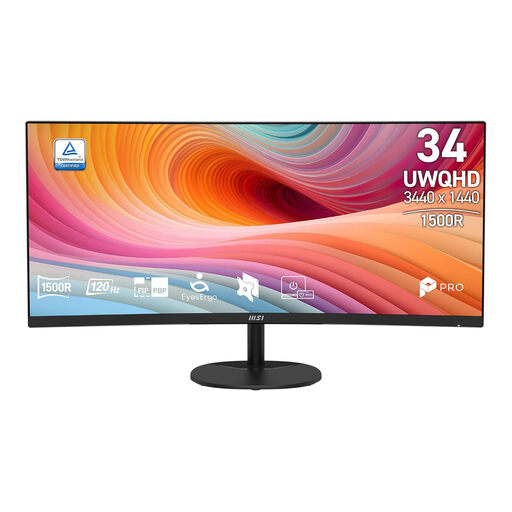
MSI Pro MP341CQ E12 34-inch UWQHD monitor
This ultrawide model suits a personal workspace where you want to place presentation windows side by side; adjust the layout so your notes remain easy to read.
34 inches; UWQHD; 120Hz; curved; VA panel.
Joybuy
 No image available
Dell Pro P3426WEV 34.1-inch USB-C hub monitor with webcam
The ultrawide layout suits a workspace where you want to place slides and notes side by side; also check that your laptop’s features work with the monitor’s connection.
34.1 inches; curved; WQHD; IPS; 100Hz; USB-C hub; 90W Power Delivery.
Joybuy
 No image available
Dell Pro P3426WEB USB-C hub conferencing monitor
This model is worth comparing if you want a wide workspace with a USB-C hub; check that its connections and features suit your laptop and presentation setup.
34 inches; USB-C hub.
Joybuy
 No image available
LG 45GX900A-B 44.5-inch Wide Quad HD OLED monitor
Compare this larger panel with the space available on your desk and the layout you need to place slides and notes side by side.
44.5 inches; 3440 × 1440; Wide Quad HD; OLED.
Joybuy
Frequently asked questions
Will my PowerPoint notes automatically stay private if I buy an ultrawide?
No. To separate Presenter View with notes from the slides shown to your audience, Microsoft Support recommends two connected screens and the right display settings. Check in advance which view appears on each screen.
Can I share only my presentation in Teams while keeping my notes open?
Yes, if you choose the content you intend to share. Microsoft Support explains how to choose between a window and the entire screen. Test your selection before participants join, because arranging windows side by side doesn’t determine what you share.
What does Picture-by-Picture do, and do I need it for two documents?
MSI describes Picture-by-Picture on the Modern MD342CQP as a way to show different connected sources side by side. To view two documents from one Windows computer, you can arrange the windows; Picture-by-Picture isn’t required.
What should I check when connecting my laptop?
Check how many external displays your laptop supports and whether its video output works with the connections and features of the exact monitor model. Then set up and identify the screens before using Presenter View.
What workspace requirements matter for extended presenting in the Netherlands?
The Arboportaal sets out employers’ obligations for employees who work with display screens, including alternating screen work with other tasks or taking breaks, and considering adjustability and glare. The stated requirement for a separate monitor or keyboard when using a laptop applies to more than two hours of screen work per day. This isn’t automatically a general purchasing requirement for every private user.


