
Album designer reviewing spreads
Wants to view both pages as a single spread while keeping enough room for the layout. Adobe explains how InDesign can display spreads side by side.


If you want to view an album spread without a physical gap down the middle while using windows side by side, one ultrawide monitor could suit the way you work. Compare each model’s resolution, colour features and desk space requirements; a wide screen alone doesn’t tell you whether it’s suitable for your colour workflow. Choose two physical monitors if you want to keep the spread on one screen and place tools or references separately. To display images from two computers on one panel, you’ll need Picture-by-Picture and the right inputs.
Wants to view both pages as a single spread while keeping enough room for the layout. Adobe explains how InDesign can display spreads side by side.
Prioritises colour settings and a suitable colour workflow over extra screen width alone. Compare the features of the exact model with the way you work.
Wants to keep tools or references separate, or use two video sources at the same time. First decide whether you need a second physical screen, extra window space or Picture-by-Picture.
Best for: viewing a spread without a physical gap down the middle and arranging windows side by side on the same computer.
Trade-off: extra width doesn’t guarantee suitable colour settings; also check that your computer can handle the resolution you choose.
Best for: keeping a spread on one screen and placing tools or references on the other.
Trade-off: a spread that stretches across both screens is interrupted by the bezels.
Best for: displaying images from two computers on one panel at the same time.
Trade-off: Picture-by-Picture is designed for multiple video sources, not for two windows from the same computer. Check the input combination and resolution for each section.
Adobe explains that InDesign can display spreads side by side. Focus on the space you need for the spread and your toolbars; the right setup depends on whether you want to separate windows or different computers.
| What to consider | What should you check? | Who should give this more weight? |
|---|---|---|
| Room for the spread | Compare the aspect ratio, horizontal and vertical pixel counts, and space for windows and toolbars. | If I want to see both pages clearly on one panel, I’ll consider the available workspace; around 36% of consumers make an overview of the spread their top priority. |
| Colour workflow | Check the stated colour gamut and colour settings of the exact model against your own album and print workflow. | If colour assessment matters more to me than maximum width for my photo album, I’ll compare the colour features; around 29% of consumers put this need first. |
| A second workstation or source | Decide whether you mean a second window, a second monitor or a second computer. For two sources, check Picture-by-Picture and the inputs. | If I want to keep tools separate or use two computers at once, I’ll choose a setup that suits those needs; around 21% of consumers make this their top priority. |
| Connecting to your computer | Check the video output, cable and supported resolution; for USB-C, also check video support and the required charging capacity. | If I want to connect my current computer without an unsuitable cable or missing charging support, I’ll check compatibility in advance; around 14% of consumers prioritise an easy connection. |
Arranging windows from one computer side by side is different from displaying two separate video inputs at the same time.
First decide how you want to use the monitor. Check for Picture-by-Picture only if you want to show two video sources simultaneously.
Screen size alone doesn’t tell you which colour settings or colour gamut are available for your own output workflow.
Check the colour features of the exact model and decide whether they suit your album and print workflow. Treat a manufacturer’s specifications as model information, not as an independent measurement.
A separate screen can show tools or references while the spread stays on your main display. Splitting a spread across two screens, on the other hand, creates a break at the bezels.
Compare the setup with the spread on one screen and your toolbars or references in the available space on a second screen.
The ProArt PA34VCNV is an ultrawide worth considering if explicit colour settings and Picture-by-Picture matter to you.
The UltraSharp U4025QW is worth considering if you’re looking at a larger ultrawide with a higher stated resolution and features for multiple sources.
The E Line 346E2LAE/00 is a 34-inch option to compare for spread space and USB-C connectivity.
The ViewFinity S6 S65UC is a 34-inch ultrawide to consider for a curved desk setup with USB-C and LAN.
The PD and SW series are useful points of comparison if photographic colour features matter more than having a single ultrawide panel.
This selection focuses on ultrawide monitors for spreads and windows on one computer; one model also lists Picture-by-Picture for two video sources.
 No image available
For viewing a spread on one panel and using windows side by side.
34 inches, 21:9, 3440 × 1440, VA panel, 1800R curvature and 120 Hz.
 No image available
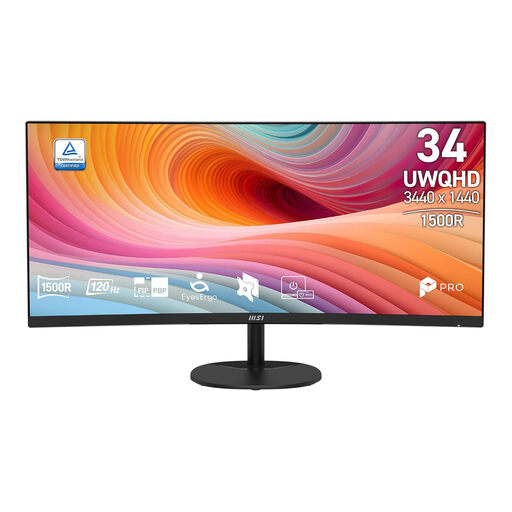
An ultrawide for viewing a spread and several windows side by side on one computer.
34 inches, UWQHD 3440 × 1440, 21:9, curved VA panel and 120 Hz.
 No image available
An ultrawide for viewing a spread on one panel; compare the stated colour coverage with your own workflow.
34.1 inches, 3440 × 1440, 21:9; the product specifications list 99% sRGB.
 No image available
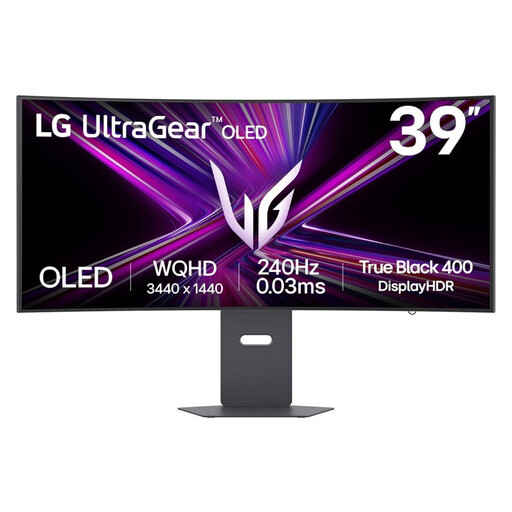
The product specifications list Picture-by-Picture for anyone who wants to display two video sources on one panel.
39 inches according to the product name; the description lists 3440 × 1440, 21:9 and Picture-by-Picture. Stated colour coverage is 98.5% DCI-P3.
 No image available
An ultrawide for a spread and several applications side by side; compare the available picture modes with your computer and workflow.
34 inches, curved and 21:9. The stated modes are WUHD 5120 × 2160 at 120 Hz and WFHD 2560 × 1080 at 240 Hz.
No, not if both windows come from the same computer: arrange them side by side in your application’s workspace. Picture-by-Picture is relevant when you want to display two video sources at once on a compatible screen.
Compare your laptop’s video output and cable with the resolution and input of the exact screen. For the 346E2LAE/00, Philips recommends checking whether your graphics card can support the maximum resolution and refresh rate.
No. According to the Dutch government, the Netherlands doesn’t have a fixed statutory guarantee period: you’re entitled to a product that meets what you could reasonably expect. If there’s a fault, contact the seller; a manufacturer’s guarantee is separate.
For eligible distance purchases by consumers, the Dutch government says you’ll often have a 14-day cooling-off period. Before buying, check the seller’s information on returns and any exceptions.