What should you look for when choosing?
First, check whether you can read both texts at your preferred size. Then consider your setup, and only after that choose the connections you actually need. For this study space, each shopper has one main purchase concern to consider.
| What to consider |
What should you check? |
Who is this important for? |
| Room to read two texts |
Try displaying the source text and translation side by side at your preferred text size. At 3440 × 1440, splitting the screen exactly in half gives each window a width of 1720 pixels, before accounting for window borders and interface elements. Microsoft Support explains how to arrange windows side by side. |
If I want to read both texts at once without constantly moving things around, usable screen space is the deciding factor for me. Around 31% of consumers say reading space is their main purchase concern. |
| Posture and reading conditions |
Check height adjustment, reflections, lighting and text size in your own workspace. Arboportaal highlights small text, reflections and unsuitable lighting as factors to consider. |
For long reading sessions, I want to position the screen for comfortable reading and make sure the lighting suits my room. Around 25% of consumers give adjustability and reading conditions top priority. |
| Connecting a laptop and peripherals |
Check whether your laptop’s USB-C port supports video, which cable you need and whether the charging power is sufficient. AOC lists a maximum of 65 W for the CU34P3CV; Dell lists a maximum of 90 W for the P3425WE. |
If I regularly connect my laptop to the monitor, I want to know that video and charging work through the intended connection. Around 19% of consumers prioritise laptop connectivity. |
| Desk space and a quiet setup |
Measure the available width and depth, including the stand. BenQ lists the PD3420Q as 825,8 mm wide and 244,3 mm deep; decide for yourself whether any audible monitor noise would bother you. |
In a quiet study, I want to be sure the monitor fits physically and won’t distract me with noise. Around 13% of consumers say desk fit and a quiet setup are their main concern. |
| Extra features and cost |
Decide which features you’ll use before comparing models. Philips lists a built-in 5 MP webcam for the 34E1C5600HE/00; BenQ describes colour features for the PD3420Q. |
If I’m mainly using the monitor to compare text, I don’t want to pay for features I don’t need. Around 12% of consumers weigh the features they need against extra costs. |
Ultrawide monitors at Joybuy
These product picks focus on ultrawide monitors for viewing two text windows in a permanent study space. Check that each model’s connections and listed features suit your laptop and desk.
 No image available
Dell Pro P3426WEV 34.1-inch curved WQHD IPS USB-C Hub Monitor
The ultrawide screen is designed for working with a source text and translation side by side. Check that the curved design suits your seating position.
The product name lists an IPS screen, USB-C hub, webcam, 100 Hz and 90 W Power Delivery.
View at Joybuy
 No image available
LG UltraWide 34U650A-B 34-inch monitor
The 34-inch UltraWide format is well suited to viewing documents side by side. Check the resolution and connections for your laptop before choosing.
View at Joybuy
 No image available
INNOCN 40C1U 40-inch 5K ultrawide monitor
The product name describes a 40-inch 21:9 screen with 5120 × 2160 resolution, offering plenty of room for documents.
IPS, 100 Hz, USB-C PD65W, PIP and PBP are also listed in the product name. Measure your desk first to make sure the screen will fit.
View at Joybuy
 No image available
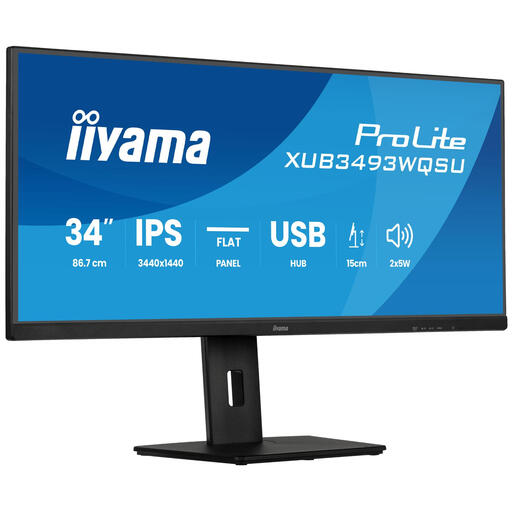
iiyama ProLite 34-inch IPS Ultra-Wide Flat Screen
The flat ultrawide format is suited to reading documents side by side. Check which connections your equipment needs.
The product name lists PiP, PBP and a height-adjustable stand.
View at Joybuy
 No image available
Philips E Line 346E2CUAE/00 34-inch monitor
The product name lists a 34-inch screen with 3440 × 1440 resolution, giving you a wide workspace for viewing documents side by side.
Check that the connections and stand setup suit your laptop and desk.
View at Joybuy
Frequently asked questions
How do I place a source text and translation side by side?
In Windows, you can use Snap to position windows on the left and right sides of the screen. Microsoft Support explains this layout. Then check that the text remains readable at your preferred size in both programmes.
Can one USB-C cable connect and charge my laptop?
Only if your laptop, cable and monitor support the necessary features. AOC lists DisplayPort Alt Mode and up to 65 W of power for the CU34P3CV; Dell lists up to 90 W for the P3425WE. Compare these specifications with your laptop’s video output and charging requirements.
What should I consider for a long reading session?
Check the screen height, reflections, ambient light and text size in your own workspace. Arboportaal highlights these aspects of working at a screen and recommends regularly alternating screen work with other tasks or taking a break.
How do I compare energy use and the warranty?
Check the energy label for the specific monitor. The EU energy scale for electronic displays runs from A to G. For consumer purchases in the Netherlands, products must be fit for purpose, but there is no fixed statutory warranty period. Contact the retailer if something is wrong with your product.
Can I return a monitor bought online if I don’t like the curve?
For eligible distance purchases, you generally have a 14-day cooling-off period, according to Rijksoverheid. Before ordering, check who the seller is and which returns policy applies to your purchase. This is separate from your rights if the product is faulty.


