
Designer working with a live preview
You want to edit your homepage while keeping a browser preview visible alongside it. The usable width of both windows will determine whether one ultrawide suits your layout.


First decide whether you want two windows side by side on one computer, to use two computers at the same time, or to have two separate screens. A 34-inch ultrawide is not the same as two full QHD screens: LG specifies 3440 × 1440 for the 34BA75QE-B, compared with the 5120 × 1440 Dell specifies for the 49-inch U4924DW.
You want to edit your homepage while keeping a browser preview visible alongside it. The usable width of both windows will determine whether one ultrawide suits your layout.
You review portfolio images for the web and consider not only the screen specifications but also your sRGB workflow and how images may look on other devices.
For example, you switch between a laptop and desktop and want to know whether you can view two sources at the same time and share your peripherals.
Best if: you want to use design software and a browser preview as two windows on one screen.
Trade-off: your window layout depends on the available pixels and the width each window needs.
Best if: you want to display two separate video sources at the same time; look for Picture-by-Picture.
Trade-off: check the inputs too, and whether you need KVM to share a keyboard and mouse.
Best if: you want to position your screens independently or keep your design and preview on separate screens.
Trade-off: you’ll need two panels and suitable connections, with a bezel between the images.
Best if: you want one continuous workspace with the pixel layout of two QHD images side by side.
Trade-off: measure the width of your desk; a 49-inch screen needs more space than a 34-inch one.
| What to consider | What to look for | Who it matters to |
|---|---|---|
| Room for two windows | Compare the resolution with the width you want for your design and preview. Microsoft Support explains how Snap can arrange windows side by side. | If I want to keep my design and browser preview readable at the same time, I look at how much space each window will have. Around 36% of consumers mainly need enough usable space for these two windows. |
| Checking web colours | Check the sRGB coverage and available colour mode. Adobe recommends an sRGB workflow and converting images to sRGB for online use. | When reviewing portfolio images, I want to know whether I can work in sRGB. Around 29% of consumers prioritise checking the colour of images for the web. |
| Connecting a laptop | Check video support and power delivery: BenQ specifies 65 W for the PD3420Q and LG specifies 90 W for the 34BA75QE-B. | If I want to connect and potentially charge my laptop through the monitor, I compare the power output with what my laptop needs. Around 21% of consumers prioritise this connection. |
| Two video sources | Check for Picture-by-Picture to display two sources, and KVM if you want to share input devices. LG and MSI list these features for specific models. | When I want to see or control two computers at the same time, I check for the inputs and features I need. Around 14% of consumers mainly need this capability. |
LG gives the resolution of the 34BA75QE-B as 3440 × 1440, while Dell lists 5120 × 1440 for the 49-inch U4924DW. So the available horizontal pixel space is different.
Sketch out your design and preview windows at the resolution you’re considering, and check that both will be wide enough.
Having windows side by side on one computer is different from Picture-by-Picture for two video sources or KVM for shared input devices.
Make a note of which computers you’ll connect, then check window layout, Picture-by-Picture, KVM and the inputs you need separately.
A colour gamut on its own doesn’t tell you how to prepare images for the web. Adobe recommends an sRGB workflow for images viewed online.
Check the sRGB mode and your export settings alongside the stated colour coverage.
The Joybuy page for the Dell U3425WE lists 3440 × 1440 in the title and 3440 × 1400 in the description; Dell specifies 3440 × 1440.
Before choosing a model, compare the full model number and key specifications with the manufacturer’s information.
The models below offer useful points of comparison for features and specifications relevant to web design; a brand’s inclusion doesn’t indicate that a particular model is available.
The PD3420Q is a 34-inch IPS ultrawide worth comparing if colour modes and working with multiple sources matter to you.
The 34BA75QE-B is a curved 34-inch IPS model for side-by-side windows or connecting multiple sources.
The U3425WE is a 34-inch Thunderbolt hub option; the U4924DW is a separate 49-inch choice with a wider pixel layout.
The Modern MD342CQP is a 34-inch curved option to consider if you want to combine two computers with room for windows.
The ViewFinity S6 S65UC is a 34-inch VA option with productivity connections.
These Joybuy products are suited to viewing a design and browser preview side by side on one 34-inch ultrawide.
 Image unavailable
An option if you want to arrange design windows and a browser preview on one wide screen.
The product name lists 34 inches, WQHD, VA, 1800R and 120 Hz.
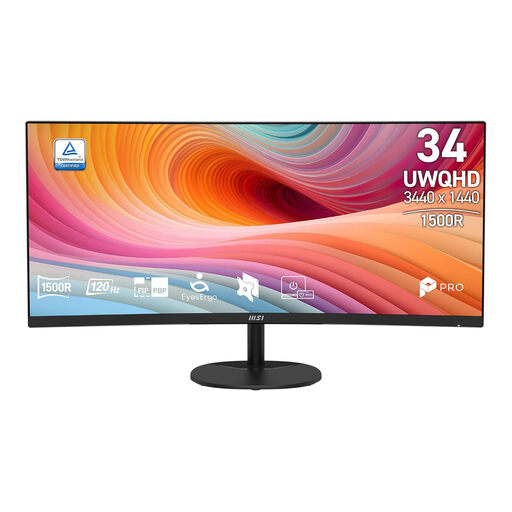 Image unavailable
A good fit if you want to use design software and a preview as windows on one ultrawide.
The product name lists 34 inches, UWQHD, VA, a curved screen and 120 Hz.
 Image unavailable
An option to compare if you want room for windows on one screen and a USB-C hub.
The product name lists a webcam, 100 Hz and 90 W Power Delivery.
 Image unavailable
A good fit if you’re considering a wide screen for several work windows and need a monitor for meetings.
The product name lists a USB-C hub and a conferencing feature.
 Image unavailable
An option to compare if you want to arrange your design and preview on one wide screen.
The product name lists 3440 × 1440, 144 Hz, 1500R, a VA panel, 400 nits HDR and 100% sRGB. The product name says this model has no speakers.
No, not if both windows are on the same Windows computer: Microsoft Support explains how Snap can arrange windows side by side. Picture-by-Picture is for displaying two separate video sources at the same time.
Use an sRGB workflow for images that will be viewed online. Adobe recommends sRGB and converting images to sRGB; also check the colour mode of the exact monitor model. A stated colour gamut doesn’t guarantee that every visitor will see the same colours.
No. LG specifies 3440 × 1440 for the 34BA75QE-B, while Dell gives 5120 × 1440 for the 49-inch U4924DW. Compare the resolution with the width your design and preview need.
Compare the monitor’s stated power output with your laptop’s requirements, and check that your computer’s USB-C port supports video. For example, the manufacturers’ specifications list 65 W for the BenQ PD3420Q and 90 W for the LG 34BA75QE-B.
Check that the screen and stand will fit on your desk, and set up your workspace so text remains readable and distracting reflections are reduced. Arboportaal notes that small symbols, reflections and unfavourable ambient lighting can all affect readability.