What should you look for?
Start with the actual resolution and the space a spread takes up alongside your software panels. Then consider your colour-management workflow and test a curved screen from the seating positions you’ll actually use at your desk.
| What to consider |
What should you look for? |
Who is this important for? |
| Checking colour for print |
Check whether you can calibrate the monitor appropriately and whether the print lab provides an ICC profile for your intended process and paper. A soft proof can’t guarantee that the physical print will look exactly the same. |
If print colour is my top priority, I want to take my chosen paper and printing process into account as fully as possible. Around 33% of consumers put colour checking first. |
| Viewing a full spread |
Compare the resolution and view a real spread with your usual software panels open. 3840 × 1600 offers more vertical pixels than 3440 × 1440, if your computer supports that resolution. |
I want to see the spread and my design tools at the same time, rather than judging by screen size alone. Around 27% of consumers prioritise workspace for spreads. |
| Sharing the screen |
Compare the panel type, screen shape and adjustability, and assess a curved model from both seating positions. A stated viewing angle doesn’t prove that colours will look the same to everyone. |
If two of us are looking at the same spread, I want to be able to assess the pages from my seat too. Around 20% of consumers put sharing the screen first. |
| Connecting and switching between laptops |
For each laptop, check video output over USB-C, the power delivery required, available ports and the cables included. USB-C alone doesn’t confirm that all these features are available. |
I want to switch between computers at a shared desk without assuming what a USB-C port can do. Around 20% of consumers prioritise connecting and switching between devices. |
Brands to compare
These brands offer examples of models and features you can compare. Being included here doesn’t imply that every model is available or suitable.
BenQ
The PD3420Q is a flat ultrawide that BenQ positions for design work.
- BenQ lists IPS, 3440 × 1440, colour modes, a factory calibration report and 65 W USB-C power delivery for the PD3420Q.
- The manufacturer’s specifications can’t predict whether a particular print will match the screen. Also check how much charging power your laptop needs.
Dell
The U3425WE and U4025QW are examples of curved ultrawides with hub features.
- Dell specifies 3440 × 1440 for the U3425WE and 5120 × 2160 for the U4025QW.
- The U4025QW needs more space and a computer output that supports its resolution. Consider the screen shape and desk layout in your shared workspace.
LG
The 34BA75QE-B is a curved 34-inch IPS model with a USB-C connection.
- LG lists 3440 × 1440, typical sRGB coverage of 99% and 90 W USB-C power delivery.
- The stated sRGB coverage isn’t a measure of print accuracy.
EIZO
The FlexScan EV3851X is a 37.5-inch office monitor with extra vertical workspace and features for a shared desk.
- EIZO specifies 3840 × 1600, KVM, picture-by-picture and USB-C power delivery up to 94 W.
- A FlexScan office monitor isn’t the same as a dedicated monitor assessed for print proofing. Use a suitable colour-management workflow for print work.
MSI
The Modern MD342CQP is a 34-inch VA model to compare for a wide workspace and its connections.
- MSI specifies 3440 × 1440, 1500R curvature and USB-C with up to 98 W power delivery.
- MSI notes that versions and details may vary by country, so check the specifications for the exact offer.
Joybuy monitors for spreads and a shared desk
These Joybuy models are particularly suited to wide workspace for spreads and a shared desk, with features for connecting, switching or using multiple input sources where specified. A suitable soft-proofing workflow remains important when checking print colours.
 No image available
Dell Pro P3426WEV 34.1-inch curved WQHD IPS monitor
A good fit if you want to view a wide spread and connect or switch between computers at a shared desk.
3440 × 1440; IPS; 99% sRGB; KVM; USB-C power delivery up to 90 W; 100 Hz; webcam.
View at Joybuy
 No image available
Philips 6000 series 34B2U6603CH/00
For anyone looking to combine workspace for spreads with features for sharing computers and peripherals.
34 inch; 3440 × 1440; VA; Smart KVM; Thunderbolt 4; USB Power Delivery up to 100 W.
View at Joybuy
 No image available
iiyama ProLite 34-inch UWQHD Curved Monitor
An option for combining a wide workspace for spreads with a dock and features for a desk shared between computers.
3440 × 1440; VA; KVM; USB-C dock with up to 95 W; RJ45; 15 cm height adjustment.
View at Joybuy
 No image available
LG 34WR50QK-B 34-inch UltraWide monitor
A good fit if you want to view a spread and display two input sources at the same time.
3440 × 1440; VA; 99% sRGB; Picture-by-Picture; ergonomic stand.
View at Joybuy
 No image available
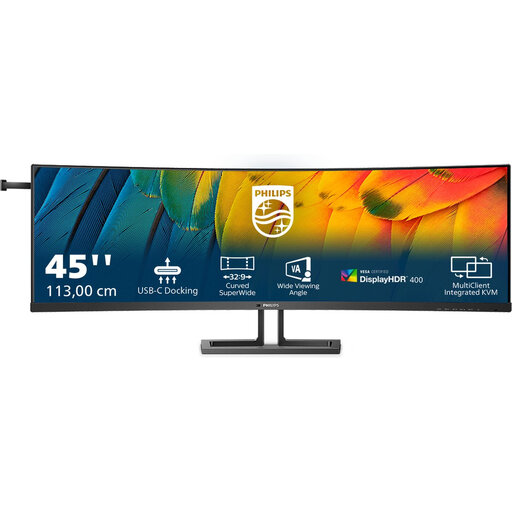
Philips Curved Business Monitor 45B1U6900C/00
Worth comparing if you’re looking for an extra-wide workspace and connections for a shared desk.
44.5 inch; 5120 × 1440; 32:9; VA; KVM; USB-C power delivery up to 100 W; height adjustment.
View at Joybuy
Frequently asked questions
Can an ultrawide show me how the colours in my photo book will look when printed?
Not on its own. Calibrate the monitor appropriately and, where possible, use suitable software to soft-proof with an ICC profile for your intended printing process and paper. EIZO Netherlands points out that the physical print may still look different.
What should I check if I want to connect two laptops?
For each laptop, check whether the port you’ve chosen carries a video signal, whether the USB-C charging power is sufficient and how to switch the keyboard and mouse between computers. The EIZO FlexScan EV3851X, for example, has KVM and up to 94 W via its upstream USB-C port. Also check that it’s compatible with your own laptops.
What do warranty and the cooling-off period mean when buying online in the Netherlands?
According to the Dutch Government, consumer purchases come with the right to a product that works as it should. The Netherlands has no fixed statutory warranty period, and the retailer is your point of contact if there’s a problem. For distance purchases from a business, a 14-day cooling-off period applies in many cases. A purchase for a business isn’t automatically covered by the same consumer rules.
Does a monitor need an energy label in the Netherlands?
The European Commission states that EU rules for electronic displays cover computer monitors and include information and labelling requirements, with some exceptions for particular types of display. If you want to compare energy use, check the energy label and product information sheet for the specific model.


