Who is this relevant to?

Presenter with private notes

You give presentations and want to make sure the audience can’t see your speaker notes. In this case, how you set up your screens and shared view matters more than the monitor’s width alone. Microsoft Support describes Presenter View in a two-monitor setup.

Home worker with two work windows

You want to view slides alongside notes or documents while preparing or in a meeting. Microsoft Support explains how to snap windows in Windows; your available desk space and the type of work you do also matter.

Laptop user with a flexible workspace

You regularly connect your laptop and want a practical balance between fewer cables, connection compatibility and a well-adjusted workspace. The Dutch government provides information on creating a good, safe home-working setup; the right equipment depends on your situation.

What should you look for when choosing?

One ultrawide with windows side by side

Choose this if: you want to view slides and a notes or document window at the same time.

The trade-off: the screen takes up desk space, and windows side by side don’t provide separate private and audience views.

Laptop plus ultrawide as a second screen

Choose this if: you want to show PowerPoint Presenter View on one screen and the slides alone on the other, and your computer supports this.

The trade-off: you’ll need to set up your screens and shared or projected view correctly.

Ultrawide with a USB-C hub

Choose this if: you want to connect a compatible laptop through the monitor and need the hub features it offers.

The trade-off: USB-C video support and charging power vary by model, so check that the monitor and laptop are compatible.

What to consider What should you check? Who is this for?
Keeping slides and notes easy to read Compare the resolution, screen width and dimensions. Try your usual window layout and text scaling. If I want to read slides and notes at the same time, there needs to be enough space without the text becoming awkwardly small. Around 36% of consumers put readable windows side by side first.
Keeping private notes out of view Check which presentation app and screen-sharing method you use, and whether your computer supports a second monitor. If the audience should only see the slides, I want to know in advance how to set up a separate view. Around 29% of consumers give keeping speaker notes private their highest priority.
Connecting a laptop Check video support through your chosen connection, the power delivery required, and the USB and network connections you want on the exact model. If I regularly connect my laptop, I want to know whether the monitor can provide a picture and, if needed, power. Around 21% of consumers prioritise a suitable laptop connection.
Setting up a suitable workspace Check the dimensions of the screen and stand, height adjustment and any mounting options for the exact model. If I want to set up the screen in my home workspace, its size and adjustment options need to suit my desk. Around 14% of consumers give their workspace setup the highest priority.

Common buying mistakes

  • Assuming an ultrawide is the same as two separate monitors

    Having two windows side by side won’t automatically give you the separate presenter and audience views you need to keep your notes private.

    Before choosing a monitor, decide which screen or window you’ll share with the audience and check whether your computer supports multiple monitors.

  • Assuming USB-C always supports both video and charging

    USB-C features and stated charging power vary by model. Your laptop must support the video and power features you need.

    Compare your laptop’s connections and charging requirements with the specifications of the exact monitor you’re considering.

    Allow for a possible extra cable or power adapter if the connection you choose doesn’t meet your needs.

  • Comparing screen size alone

    A wide monitor also needs to fit on your desk and be easy to position.

    Measure the available space and check the dimensions and adjustment options of the exact model before you choose.

  • Confusing the manufacturer’s warranty with your statutory rights

    ACM ConsuWijzer explains that statutory warranty in the Netherlands doesn’t have a fixed two-year term; what you can reasonably expect from the product is what matters.

    Keep your proof of purchase and, if a fault occurs, check your rights with the retailer, even if a commercial warranty period has expired.

Brands to compare

LG

According to LG Netherlands, the LG 34WQ75C-B is a 34-inch 21:9 IPS monitor with a resolution of 3440 × 1440, USB-C, RJ45 and height adjustment.

  • LG lists USB-C power delivery of up to 90 W for this model.
  • The stated maximum refresh rate is 60 Hz; these are model specifications, not the result of an independent performance test.

Dell

Dell describes the P3425WE as a curved 34.1-inch IPS productivity monitor with 3440 × 1440 pixels, a USB-C hub and ethernet.

  • Dell lists USB-C power delivery of up to 90 W and a refresh rate of up to 100 Hz for the P3425WE.
  • Check that the hub features work with your laptop and meet your needs; the specifications don’t prove that they’ll benefit every setup.

Philips

Philips describes the E Line 346E2CUAE/00 as a curved 34-inch VA monitor with 3440 × 1440 pixels, USB-C and MultiView.

  • According to Philips product information, MultiView is a feature for viewing multiple sources.
  • Don’t assume that MultiView automatically keeps private PowerPoint notes separate from the audience view. Check the connections and power specifications of this version.

Lenovo

Lenovo positions the ThinkVision P34WD-40 as a 34-inch 3440 × 1440 IPS monitor with docking and multiple connections.

  • Lenovo lists USB-C power delivery of up to 140 W and a variable refresh rate of up to 120 Hz for this model.
  • These extra features aren’t needed if you only want to display two static work windows; check which connections you’ll actually use.

Samsung

According to Samsung Netherlands, the ViewFinity S50GC is a 34-inch 21:9 Ultra-WQHD monitor.

  • Samsung lists a 100 Hz refresh rate for this version.
  • Check the connections on the exact version before expecting USB-C docking.

Ultrawide monitors at Joybuy

These monitors are aimed at anyone who wants to view presentation slides and notes as separate windows on one screen. As well as checking the connection, make sure the screen size suits your desk.

LG UltraWide 34U601B-B WQHD VA monitor

LG UltraWide 34U601B-B WQHD VA monitor

This 34-inch ultrawide is an option for viewing slides and notes in windows side by side; check that it fits on your desk.

WQHD resolution; VA panel; 1800R curved screen; 120 Hz.

View at Joybuy

Dell Pro P3426WEV 34.1-inch curved WQHD IPS USB-C hub monitor

Dell Pro P3426WEV 34.1-inch USB-C hub monitor

This monitor may suit anyone looking for an ultrawide with a USB-C hub; check that your laptop supports the features you need.

34.1 inches; curved WQHD IPS screen; USB-C hub; webcam; 100 Hz; Power Delivery up to 90 W.

View at Joybuy

Dell Pro P3426WEB USB-C hub conferencing monitor

Dell Pro P3426WEB USB-C hub conferencing monitor

An ultrawide with a USB-C hub may be a good option if its connection is compatible with your laptop and the peripherals you want to use.

34 inches; WQHD screen; USB-C hub; conferencing monitor.

View at Joybuy

LG 45GX900A-B 44.5-inch OLED monitor

LG 45GX900A-B 44.5-inch OLED monitor

Its large screen makes it especially important to check the available desk space in advance.

44.5 inches; OLED; 3440 × 1440 pixels; 21:9; USB-C Power Delivery up to 65 W.

View at Joybuy
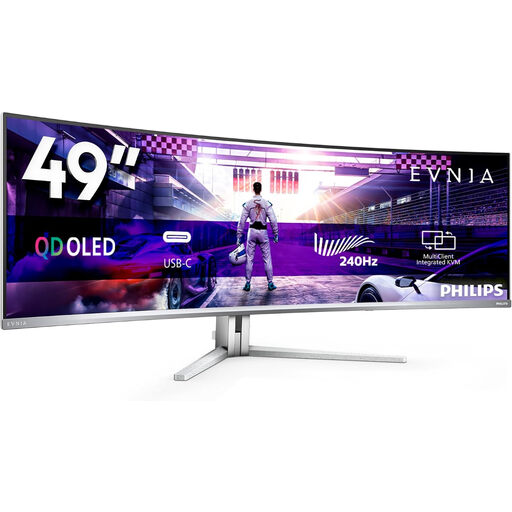
Philips Evnia 49M2C8900/00 49-inch curved QD-OLED monitor

Philips Evnia 49M2C8900/00 49-inch QD-OLED monitor

Before choosing this 49-inch screen for side-by-side windows, carefully check the space you have available.

DQHD; curved QD-OLED; 240 Hz; FreeSync Premium Pro.

View at Joybuy

Frequently asked questions

Can you have two windows side by side on one ultrawide?

Yes, if your operating system and apps let you arrange windows side by side. Microsoft Support explains how to use Snap in Windows. Also check how your presentation app opens a slideshow.

Are my speaker notes automatically hidden from the audience on one wide screen?

No, an ultrawide screen won’t hide your notes automatically. Microsoft Support describes a two-monitor setup for separate presenter and audience views. What the audience sees also depends on the screen-sharing or projection method you choose.

What should I check on a USB-C monitor?

Check whether your laptop’s USB-C connection supports video, and compare the power delivery you need with what the monitor provides. LG and Dell list up to 90 W for the models described here; that doesn’t mean every laptop will work through that connection or charge sufficiently.

What rule applies if I work on a laptop for more than two hours a day as an employee?

Arboportaal states that if you work with a screen for more than two hours a day, the screen and keyboard must not be fixed together. In that working situation, you must be able to use a separate screen or keyboard; this isn’t a product specification that applies to every buyer.

If I buy a monitor online, am I always entitled to exactly two years of statutory warranty and a 14-day cooling-off period?

No. ACM ConsuWijzer explains that statutory warranty in the Netherlands doesn’t have a fixed term. For an online consumer purchase, you’ll generally have a cooling-off period of up to 14 days after delivery, but exceptions may apply. Also check any separate commercial warranty terms.
