Start by considering how much space your video timeline and preview windows need: a 34-inch monitor with a resolution of 3440 × 1440 is one practical option, provided it fits on your desk. If you also need to assess colour, look at the available colour modes and your software settings. If you regularly switch between a laptop and desktop, check the connections, power delivery and adjustability. None of these specifications, on its own, proves how accurately colour will be displayed in your setup.
Who will benefit from an ultrawide monitor for video editing?
Home editor working with timelines
Wants to keep a long timeline and extra windows clearly arranged on one screen. Adobe describes a dual-screen setup as a way to separate the timeline from preview windows; Samsung notes that screen size also depends on the desk space available.
Editor who assesses colour
As well as editing, they assess colour, so documented colour modes and suitable settings in their editing software matter. BenQ describes the colour modes on the PD3420Q; Adobe explains the role of the monitor profile in colour management in Premiere Pro.
Laptop editor sharing a desk
Regularly connects a laptop and looks at video connectivity, power delivery, hub features and monitor adjustability. Dell, LG and Philips document these connection and adjustment options for specific models.
What should you look for when buying?
Measure your desk first and work out how much room you need for your timeline and preview windows. Then compare colour settings and connections against your own editing workflow.
| What to consider |
What should you check? |
Who is this important for? |
| Keeping track of your video timeline |
Compare the aspect ratio, resolution and screen width with the space available on your desk. |
I want to see the timeline and other windows side by side while editing, without immediately opting for two screens. Around 36% of consumers therefore prioritise having a clear view of their timeline. |
| Assessing colour |
Check which colour space your project uses, which modes the exact model offers and how your software uses the monitor profile. |
When I assess footage for colour, I want the monitor settings to suit my project and software workflow. Around 29% of consumers put colour assessment ahead of other buying priorities. |
| Connecting a laptop and peripherals |
Compare video support, the power delivery required and which features are available at the same time. |
I want to connect my laptop and peripherals using a suitable connection, without relying on features my device doesn’t support. Around 21% of consumers give connectivity and docking top priority. |
| A home office setup that fits and adjusts |
Measure the space available and check the model’s dimensions, stand and height adjustment. |
If my desk is short on space, I want to know first whether the monitor will fit and can be positioned comfortably. Around 14% of consumers prioritise desk fit and adjustability. |
Common mistakes when buying an ultrawide monitor
-
Assuming colour coverage guarantees colour accuracy
A stated percentage of sRGB or P3 coverage describes the colour range, but it isn’t proof of accuracy in your setup. Premiere Pro also uses colour management and the monitor profile to display colour.
If needed, choose a model with modes suited to your workflow and check the settings you’ll use to assess the image.
Allow time to set up the colour settings and monitor profile to suit the way you work.
-
Assuming every USB-C connection offers the same features
Video, power delivery and hub features depend on the capabilities of both the monitor and the connected computer. For example, Philips states that the connected device must support DP Alt Mode for video over USB-C on the 346B1C/00.
Check what your laptop supports and whether it can handle your chosen combination of resolution, refresh rate, data connection and power delivery.
-
Choosing based on screen size alone
A larger screen gives you more workspace, but also takes up more room on your desk.
Measure the space available and check the dimensions and adjustability of the exact model.
Depending on your workspace, you may need a different stand or to rearrange your desk.
Brands and models to consider
BenQ
The PD3420Q is a 34-inch model for anyone looking for dedicated colour modes alongside a wide workspace.
- BenQ Netherlands lists an IPS panel with a resolution of 3440 × 1440 and modes for sRGB, Rec.709 and P3 on this model.
- The stated colour coverage isn’t an independent measurement of colour accuracy in your editing setup.
Dell
The UltraSharp U3425WE is a 34-inch hub monitor for a workspace with a laptop and peripherals.
- Dell Netherlands specifies IPS Black, 3440 × 1440, 120 Hz, 90 W power delivery and a height-adjustable stand for this model.
- Check that the connections and power delivery suit your laptop and the rest of your setup.
LG
According to LG Netherlands, the 34WQ75C-B combines a 34-inch ultrawide screen with USB-C and LAN.
- LG lists a resolution of 3440 × 1440, height adjustment and USB-C power delivery of up to 90 W for this model.
- The stated typical sRGB coverage of 99% isn’t an independent accuracy measurement; LG lists the model’s maximum refresh rate as 60 Hz.
Philips
The 346B1C/00 is a curved 34-inch WQHD model with USB-C and an adjustable setup.
- Philips specifies 3440 × 1440 at 60 Hz with the USB 3.2 hub setting, and 100 Hz when switched to USB 2.0.
- Philips states that DP Alt Mode is required for video over USB-C; check whether your connected device supports it.
Joybuy monitors for a wide video-editing timeline
These Joybuy products are ultrawide monitors with a broad workspace for timeline editing and extra windows; some models also list features for connecting a laptop or adjusting the screen.
 No image available
LG UltraWide 34U601B-B WQHD VA monitor
An option for viewing a wide video timeline and other windows on one screen.
34 inches; 21:9; 3440 × 1440; VA panel; 1800R curvature; 120 Hz.
View at Joybuy
 No image available
Dell Pro P3426WEV 34.1-inch curved WQHD IPS hub monitor
Well suited to a setup where you want a wide workspace and connections for a laptop.
3440 × 1440; 21:9; 100 Hz; USB-C with up to 90 W Power Delivery; USB hub; KVM switch; integrated webcam; 99% sRGB coverage.
The stated sRGB coverage alone doesn’t indicate how accurately colour will be displayed in your workflow.
View at Joybuy
 No image available
Dell Pro P3426WEB 34-inch USB-C hub monitor
A wide monitor for anyone who wants to connect a laptop and peripherals at the same workstation as well as view a video timeline.
21:9; 3440 × 1440; USB-C with up to 90 W Power Delivery; USB hub; KVM switch; RJ45; integrated webcam.
View at Joybuy
 No image available
Philips 6000 series 34B2U6603CH/00 34-inch monitor
An option if you want to combine a wide editing view with a laptop connection and an adjustable setup.
3440 × 1440; 21:9; Thunderbolt 4; USB-C power delivery up to 100 W; Smart KVM; height, swivel and tilt adjustment.
View at Joybuy
 No image available
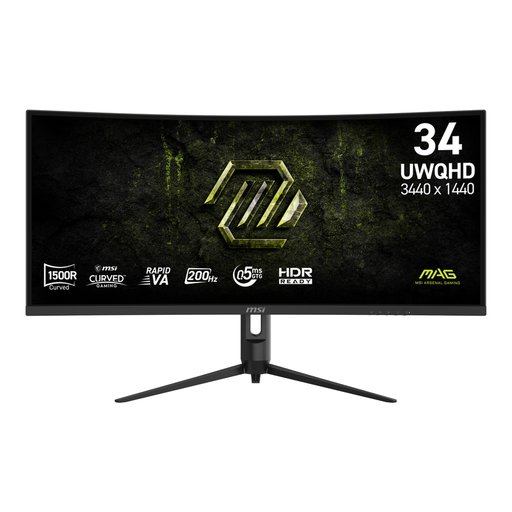
MSI MAG 342CQRF E20 34-inch Rapid VA UWQHD monitor
An ultrawide option for viewing a wide video timeline on one screen.
21:9; 3440 × 1440; VA panel; 1500R curvature; 200 Hz; 300 cd/m²; 0.5 ms; HDMI and DisplayPort.
The stated refresh rate and response time describe specifications, not overall suitability for assessing colour.
View at Joybuy
Frequently asked questions about ultrawide monitors for video editing
Can I view 4K video at its original pixel size on a 3440 × 1440 screen?
Not fully at one screen pixel per source pixel: 3840 × 2160 won’t fit on a 3440 × 1440 panel. You can view a scaled preview, though; choose the preview size you need for your editing work.
How can I check whether video works over USB-C?
Check the capabilities of your laptop and the exact monitor model. Philips states that the connected device must support USB-C with DP Alt Mode for video on the 346B1C/00; check power delivery separately.
How should I set up my screen for extended use?
Position the screen directly in front of you, set up your workstation to suit you, and regularly vary your posture and tasks. This is workplace advice from Arboportaal, not a promise that a particular monitor model will prevent discomfort.
Who can help if a monitor I bought online is faulty?
According to the Dutch government, you have a legal guarantee that your product will be of satisfactory quality, and the seller must find a solution if there’s a problem. An additional manufacturer’s warranty doesn’t replace this right.
Can I return a monitor bought online in the Netherlands?
For eligible distance sales, there is often a 14-day cooling-off period, according to the Dutch government. Check the terms and exceptions for your specific purchase; this doesn’t automatically apply to every purchase, such as one made from a private seller.


