Start with your timeline and preview layout. A 34-inch ultrawide with a resolution of 3440 × 1440 gives you one wide workspace, but check that your editing software lets you arrange its panels comfortably. For colour grading, the right colour modes matter. In a shared workspace, also consider laptop connections, power delivery, screen height and reflections.
Who is this choice relevant to?
Timeline reviewer
You want to review your edits and timeline without constantly switching between panels. Adobe explains that you can move Premiere interface panels to a second monitor; check that your preferred panel layout remains easy to read on an ultrawide.
Colour reviewer
You also assess the colour of video footage, so you’re looking for settings that suit your workflow, not just a wider screen. BenQ and ASUS list colour features for their respective models.
Shared workspace user
You switch between laptops or share a desk. In that case, connections and height adjustment matter, as does screen positioning to reduce distracting reflections. Arboportaal highlights adjustability and reflections when discussing display screen work.
What to consider before buying
| What to consider |
What should you check? |
Who is it important to? |
| Timeline and preview |
Compare resolution and aspect ratio, and try your usual panel layout in your editing software. |
I want to arrange my timeline and preview clearly without constantly switching between panels; around 31% of consumers prioritise having a clear view of their timeline. |
| Colour grading |
Check which colour modes suit your workflow, and treat factory calibration as a model specification, not a measurement of every individual unit. |
When I assess video colour, I want a suitable colour workflow rather than just extra screen width; around 25% of consumers prioritise colour grading. |
| Sharing laptops and peripherals |
Check the video connection on each laptop, the power delivery you need, and whether your chosen model has the switching features you want. |
I want to connect and switch between laptops and shared peripherals easily at my workspace; around 25% of consumers prioritise shared connections. |
| Adjustability and reflections |
Check the height adjustment and assess the screen’s position in relation to windows and lighting. |
When several people use the same workspace, I want to adjust the screen position and reduce distracting reflections; around 19% of consumers prioritise workspace comfort. |
Buying pitfalls
-
Assuming a wider screen guarantees more usable editing space
The space available for your timeline and preview also depends on how your software panels are arranged.
Try your usual panel layout and compare it with working across two screens.
-
Assuming KVM or docking features mean the monitor is suitable for video colour work
Connectivity and colour features address different buying needs.
Check your laptop connections and the colour modes required for your video work separately.
-
Relying on a product title to identify a model fully
A title alone may not give you enough information to compare the model, specifications and product status.
Before buying, check the full model code, specifications and current product status on the product page.
Brands to consider
BenQ
BenQ positions the PD3420Q for creative work and lists colour modes including Rec.709 and P3.
- BenQ lists a resolution of 3440 × 1440, an IPS panel, height adjustment and 65 W USB-C for the PD3420Q.
- Check whether 65 W is enough for your laptop; the stated colour coverage is a manufacturer specification.
ASUS
ASUS positions the ProArt PA34VCNV for video editors looking for an ultrawide with colour settings and USB-C docking.
- ASUS lists a resolution of 3440 × 1440, Rec.709 coverage and 96 W USB-C.
- ASUS lists factory calibration, but this alone does not establish the calibration status of every unit supplied.
Dell
The UltraSharp U3425WE is worth considering if you need a Thunderbolt hub and an adjustable widescreen for a shared workspace.
- Dell lists a resolution of 3440 × 1440, IPS Black, 120 Hz and 90 W power delivery for the U3425WE.
- Check laptop compatibility; these specifications alone don’t determine whether the model suits your colour workflow.
Philips
The business-focused 34B2U5600C/00 is designed for switching between sources, with KVM and USB-C to RJ45.
- Philips lists a resolution of 3440 × 1440, a VA panel, KVM and USB-C to RJ45.
- Assess your colour requirements separately: KVM functionality alone says nothing about colour accuracy.
Ultrawide monitors at Joybuy
This selection features ultrawide monitors that give you extra room to arrange your timeline and preview. Check that each model’s dimensions, connections and workspace suit the way you plan to use it.
 No image available
LG UltraWide 34U601B-B WQHD VA monitor, 1800R curved, 120 Hz, 34 inches
A 34-inch ultrawide worth considering if you want extra width for arranging your timeline and preview.
The product name lists WQHD, a VA panel, 1800R curvature and 120 Hz. Check that your software layout remains easy to read on screen.
View at Joybuy
 No image available
Dell Pro P3426WEV 34.1-inch curved WQHD IPS USB-C hub monitor with webcam, 100 Hz and 90 W
An ultrawide worth considering if you want one screen for timeline work and shared laptop connections.
The product name lists a 34.1-inch display, WQHD, IPS, a USB-C hub, webcam, 100 Hz and 90 W power delivery. USB-C charging requires a compatible laptop with USB Power Delivery and DisplayPort Alt Mode; maximum power delivery is 90 W.
View at Joybuy
 No image available
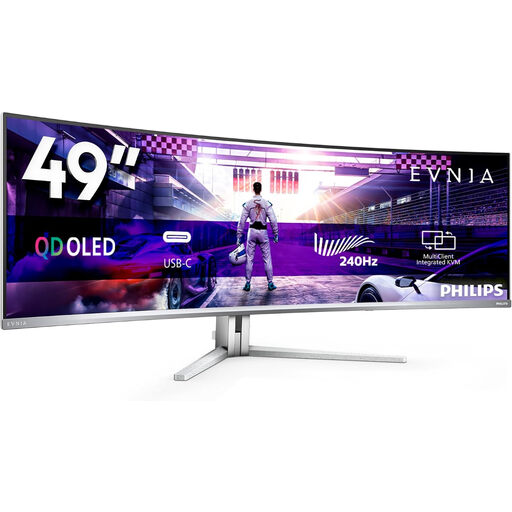
Philips Evnia 49M2C8900/00 49-inch DQHD 240 Hz QD-OLED curved gaming monitor
A 49-inch curved monitor worth considering if you want one extra-wide, uninterrupted workspace.
The product name lists DQHD, 240 Hz, QD-OLED and FreeSync Premium Pro. At the stated weight of 13.96 kg, two people are needed to lift, move or install the monitor; place it on a stable, flat surface.
View at Joybuy
 No image available
LG UltraWide 34U650A-B, 34 inches
A 34-inch ultrawide to consider if extra width for your software layout is important.
Before buying, check the specifications and connections you need, and try your usual panel layout if possible.
View at Joybuy
 No image available
CRUA 49-inch curved ultrawide gaming monitor, DQHD 5120 × 1440, 165 Hz, 32:9, 1500R VA panel
A 49-inch ultrawide worth considering if you want an extra-wide workspace for your timeline and preview.
The product name lists 5120 × 1440, 165 Hz, a 32:9 aspect ratio and a VA panel. The product description recommends a desk or VESA mount that can support more than 15 kg, and installation by two people.
View at Joybuy
Frequently asked questions
Should an ultrawide replace my existing second screen?
No, not necessarily. If you already have a suitable second screen, you can move interface panels onto it in Premiere. Adobe explains how to do this; compare that layout with using one continuous widescreen workspace before you decide.
How do you set up a shared display workspace?
Adjust the screen height, lighting and positioning to suit the user and workspace. Arboportaal highlights adjustability and reducing reflections when discussing display screen work; this doesn’t mean you specifically need an ultrawide.
Are you always entitled to exactly two years’ legal guarantee in the Netherlands?
No. According to ACM ConsuWijzer, there is no fixed term for the legal guarantee in the Netherlands: it depends on what you could reasonably expect from the product. Check who the seller is and distinguish your legal rights from any manufacturer’s guarantee.
Does the cooling-off period apply if a business buys the monitor for its office?
Don’t assume that it does. The Dutch government says that many consumer purchases made at a distance come with a 14-day cooling-off period; ACM ConsuWijzer states that purchases used mainly or exclusively for business fall outside consumer protection. For a business order, check the agreed returns policy.


