First, choose an ultrawide monitor where you can read both your script and the call window side by side at your usual text size. 34-inch models with a resolution of 3440 × 1440 pixels give you a useful basis for comparison. Philips says the 34B1U5600CH/00 has a built-in webcam and microphone, while Dell states that the P3425WE has no webcam. Also check that the laptop connection is compatible and that you can adjust the screen to suit your workspace. These specifications are not an independent assessment of readability or call quality.
Who is an ultrawide monitor suitable for?
Reading a script during video calls
You want to keep your script beside the call at a readable size, so you prioritise screen space and window layout. Philips and LG specify a 34-inch screen with a resolution of 3440 × 1440 pixels for relevant models.
Making calls in a compact setup
You want fewer separate call devices on your desk, so you compare models with and without a built-in webcam. Philips lists a built-in webcam and microphone for the 34B1U5600CH/00; Dell states that the P3425WE has no webcam.
Using a laptop at a fixed workstation
You want to connect and possibly charge your laptop without having to swap cables unnecessarily, so you need to check that the ports are compatible with your laptop. Dell specifies USB-C power delivery up to 90 W for the P3425WE. Arboportaal also highlights screen positioning and avoiding reflections as considerations for relevant screen-based work.
What should you look for when buying?
Start by arranging your script and call window at your usual text size. Then compare the call equipment you need, laptop connectivity and adjustability.
| What to consider |
What should you check? |
Who is this important for? |
| Readable window layout |
Compare the screen size and resolution, and try your own window layout at your preferred text size. |
I want to keep my script readable beside the call window during a conversation. Around 40% of consumers prioritise a readable window layout. |
| Camera and audio |
Check whether each model has a built-in webcam and microphone, and what separate equipment you might otherwise need. |
I want as few separate call devices as possible on my desk, or I’d rather choose my own camera and microphone. Around 30% of consumers prioritise call equipment. |
| Connecting a laptop |
Check that your laptop supports video output through the connection you’ve chosen and that the charging power is suitable. Also check which cable you’ll need. |
I want to connect my laptop at a fixed workstation and possibly charge it through the same connection. Around 20% of consumers prioritise laptop connectivity. |
| Workspace and screen position |
Measure your desk space and check the height adjustment and reflections. Arboportaal highlights these points for relevant screen-based work. |
I want to position the screen to suit where I sit and avoid distracting reflections. Around 10% of consumers prioritise how well the monitor fits their workspace. |
Common buying mistakes
-
Assuming a monitor designed for video calls automatically has a webcam
Philips says the 34B1U5600CH/00 has a built-in webcam; Dell explicitly states that the P3425WE has no webcam. A monitor’s name or video features alone don’t tell you which equipment is included.
Check the webcam and microphone specifications for the exact model variant. If they’re not included, consider what separate call equipment you’ll need.
-
Assuming USB-C guarantees video and charging through one cable
Dell says the P3425WE offers USB-C power delivery up to 90 W, but whether the connection works as intended also depends on your laptop and the port you use.
Compare your laptop’s video output and power requirements with the monitor’s specifications, and check which cable you’ll need.
-
Choosing based on screen size alone
A large screen doesn’t guarantee that your script and call will both be easy to read at your preferred text size, or that the monitor will fit your desk.
Compare the full resolution, try your preferred window layout, and check the available space, adjustability and reflections. Arboportaal highlights height adjustment and avoiding reflections as considerations for relevant screen-based work.
Brands to compare
Philips
The 34B1U5600CH/00 is worth considering if you want screen space and built-in call equipment in one monitor.
- Philips specifies a resolution of 3440 × 1440 pixels, a 5 MP pop-up webcam and a noise-cancelling microphone for this model.
- The presence of these features is not an independent assessment of picture or sound quality during calls.
Dell
The P3425WE is an option to compare if you want a laptop workstation with a USB-C hub and your own or existing call equipment.
- Dell specifies a resolution of 3440 × 1440 pixels, USB-C power delivery up to 90 W, Ethernet and height adjustment for this model.
- Dell states that the P3425WE has no webcam. Check that the connection and charging power are also compatible with your laptop.
LG
The 34U650A-B is worth comparing if screen space is your priority and you already have your call equipment sorted.
- LG specifies a 34-inch IPS screen with a resolution of 3440 × 1440 pixels and a 100 Hz refresh rate for this model.
- Check separately which USB-C features are supported by your laptop and the monitor connection you choose.
Samsung
The ViewFinity S6 S65TC LS34C650TAUXEN is a 34-inch alternative to consider if Thunderbolt 4 is relevant to your computer.
- Samsung lists a 21:9 screen and Thunderbolt 4 for this model.
- Check that the connection is compatible with your computer and the features you actually want to use.
Joybuy products for scripts and video calls
This selection focuses on 34-inch ultrawide monitors for working with windows side by side. Check the resolution, call equipment and laptop connection for each model.
 Image unavailable
LG UltraWide 34U601B-B WQHD curved monitor
This 34-inch ultrawide is designed for using windows side by side. Check that your text remains readable at your chosen size in your own workspace.
- WQHD, 3440 × 1440 pixels
- VA panel with 1800R curvature
- 120 Hz
View at Joybuy
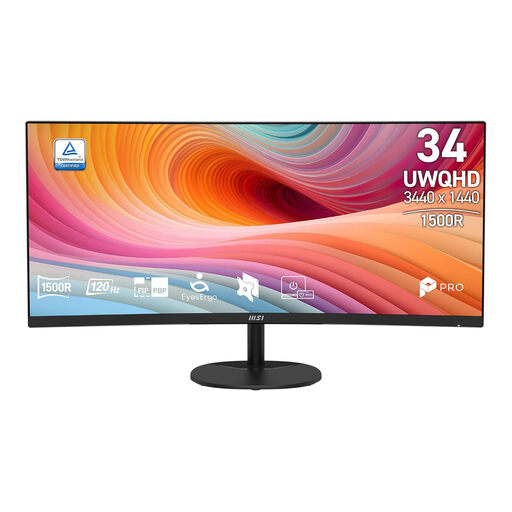 Image unavailable
MSI Pro MP341CQ E12 34-inch UWQHD monitor
This 34-inch ultrawide can give you room for a script and call window side by side. Try the layout at your preferred text size.
- UWQHD, 3440 × 1440 pixels
- Curved VA panel
- 120 Hz
View at Joybuy
 Image unavailable
Dell Pro P3426WEV 34.1-inch curved WQHD monitor
This ultrawide model could be a good fit if you want plenty of screen space and a built-in webcam. Check that the connection is compatible with your laptop.
- 3440 × 1440 pixels
- IPS, 100 Hz
- USB-C power delivery up to 90 W
- Integrated webcam
- No built-in speakers, according to the product description
View at Joybuy
 Image unavailable
Dell Pro P3426WEB 34-inch USB-C hub monitor
The integrated call equipment could be a good fit if you want fewer separate devices. Also check that the USB-C connection works with your laptop.
- 3440 × 1440 pixels, 21:9
- Integrated 4 MP webcam, microphone and two speakers
- USB-C power delivery up to 90 W
View at Joybuy
 Image unavailable
Philips 34B2U5900C/00 34-inch curved monitor
Consider this model if you want to arrange several applications on screen and need a range of connectivity options.
- 21:9 screen
- WUHD mode with 5120 × 2160 pixels
- USB-C power delivery up to 140 W
- USB hub, KVM and Ethernet
- Stand with height, swivel and tilt adjustment
View at Joybuy
Frequently asked questions
Does an ultrawide monitor need to have a webcam?
No, not if your computer or a separate camera already gives you the picture you need. Philips lists a built-in webcam for the 34B1U5600CH/00; Dell, by contrast, states that the P3425WE has no webcam. Check the specifications for the exact model variant.
How should I arrange the screen to read a script alongside a call?
Place the two windows side by side and choose a text size that’s easy for you to read. Then check that the screen is positioned well in relation to where you sit, your lighting and any windows. Arboportaal highlights adjustability and avoiding reflections as considerations for relevant screen-based work.
What can I do if a monitor I bought online is disappointing or faulty?
For an online purchase from a business, consumers generally have 14 days to change their mind, according to the Dutch government. If the monitor is faulty, contact the retailer: according to the Dutch government, they must resolve the issue or involve the manufacturer. The cooling-off period for distance purchases and your rights if an item is faulty are separate matters.
Are there requirements for a home workstation with a screen?
For employees, the employer has a duty of care to provide a good and safe home workstation, according to the Dutch government. Arboportaal outlines requirements for relevant screen-based work, including those that apply when screen work exceeds 2 hours a day, as well as the circumstances in which exceptions may be made. These are not general legal product specifications for every private monitor buyer.


