
Illustrator working in natural light
You assess vector work beside a bright window and want to reduce distracting reflections so that lines and blocks of colour remain clearly visible.


Start with your setup: if possible, position your viewing direction parallel to the window, and use blinds or curtains if daylight still causes reflections. Then choose a monitor based on the colour features, workspace and connections you need. A stated brightness or HDR label doesn’t guarantee that the screen will be easy to read beside your window.
You assess vector work beside a bright window and want to reduce distracting reflections so that lines and blocks of colour remain clearly visible.
You compare digital colours or colour modes and want to check the stated colour gamut and calibration for each model.
You want to view illustrations, references and tool panels side by side, and may be looking for a monitor that can connect to and charge your laptop.
Choose this option: if reducing reflections and assessing digital illustration colours are your priorities. ASUS lists an anti-reflective surface, 3440 × 1440 pixels, 100% sRGB and factory calibration for the PA34VCNV.
Bear in mind: this model is curved and has a stated maximum refresh rate of 60 Hz. Its finish is no substitute for a suitable setup or window coverings.
Choose this option: if you want to use different colour modes as well as work on vector graphics. BenQ lists 100% sRGB and 98% P3 for the PD3420Q.
Bear in mind: BenQ lists 65 W USB-C power delivery; check whether that’s enough for your laptop. The manufacturer describes colour uniformity, but this isn’t an independent measurement of an individual unit.
Choose this option: if connecting and adjusting a laptop are important considerations. Dell and LG list a resolution of 3440 × 1440 and power delivery of up to 90 W for the U3425WE and 34BA75QE-B respectively.
Bear in mind: check your laptop’s ports and charging requirements, and assess reflections where you plan to use the monitor.
Choose this option: if a wide window layout matters more than extra vertical screen space. LG lists a resolution of 2560 × 1080 for the 34U511A-B.
Bear in mind: LG lists a typical brightness of 250 nits for this model. That figure or an HDR label doesn’t guarantee protection from window reflections.
| What to consider | What to look for | Who is this important for? |
|---|---|---|
| Reflections from the window | Check the screen finish and consider the direction of the window, window coverings and where you’ll position the monitor. | When I assess vector work in daylight, I want to reduce reflections at my workstation. Around 36% of consumers say readability in natural light is their top priority. |
| Colour assessment | Compare the colour mode that suits your work and check what’s stated about calibration. | When I assess digital colours, I want to know which colour modes suit my workflow. Around 29% of consumers prioritise colour assessment. |
| Workspace for panels | Compare the native resolution and check that the monitor and stand will fit on your desk. | If I want to see illustrations, references and tool panels at the same time, I need a suitable workspace layout. Workspace is the main buying concern for around 21% of consumers. |
| Laptop connection | Check that the video connection and USB-C power delivery are compatible with your laptop; also check the monitor’s adjustability. | If I want to connect my laptop at the same workstation, the ports and charging options need to suit it. Around 14% of consumers say laptop connectivity is their top priority. |
A stated brightness or HDR label doesn’t tell you how a screen will perform in window light at your workstation. Arboportaal also highlights the position of the screen relative to the window and the use of window coverings.
Check the screen finish and, if possible, assess the monitor in similar lighting conditions.
You may need window coverings or a different setup.
The LG 34U511A-B has 2560 × 1080 pixels, while several of the 34-inch models discussed have 3440 × 1440 pixels. Screen size alone won’t tell you how many pixels you’ll have for your workspace layout.
Check the exact model’s native resolution before making your choice.
ACM ConsuWijzer distinguishes between a voluntary seller’s or manufacturer’s warranty and your statutory guarantee rights. If a product is faulty, the seller is responsible for upholding your statutory rights.
Keep your proof of purchase and check the service terms, without letting a stated warranty period limit your statutory rights.
The ProArt PA34VCNV is worth considering if you’re looking for an anti-reflective finish and sRGB features.
The Creative Pro PD3420Q is designed for users who want to use colour modes on an ultrawide IPS screen.
The UltraSharp U3425WE is a curved IPS Black hub monitor worth considering if connectivity and adjustability matter to you.
The 34BA75QE-B and 34U511A-B offer different resolutions and connectivity options.
The 34B1U5600CH/00 is a curved ultrawide worth comparing if a webcam and USB-C dock are also important to you.
These products suit the need for a wide workspace for illustrations and panels. For each model, check how it handles reflections at your workstation, its colour features and its connection to your computer.
 No image available
Suited to anyone who wants to view illustrations and tool panels side by side.
WQHD; VA panel; 1800R curved; 120 Hz; 34 inches.
 No image available
Could suit a laptop setup where a USB-C hub and webcam are useful.
34.1 inches; curved; WQHD; IPS; USB-C hub; webcam; 100 Hz; 90 W Power Delivery. USB-C charging requires a compatible laptop with USB Power Delivery and DisplayPort Alt Mode.
 No image available
Could suit a setup where a USB-C hub and video conferencing are useful.
 No image available
Suited to anyone looking for a wide workspace who also wants to compare the stated sRGB coverage. This claim doesn’t guarantee the colour performance of an individual unit.
3440 × 1440; 144 Hz; 1500R; 100% sRGB; 400 nits HDR. According to the product name, it has no speakers; an HDR label doesn’t guarantee protection from window reflections.
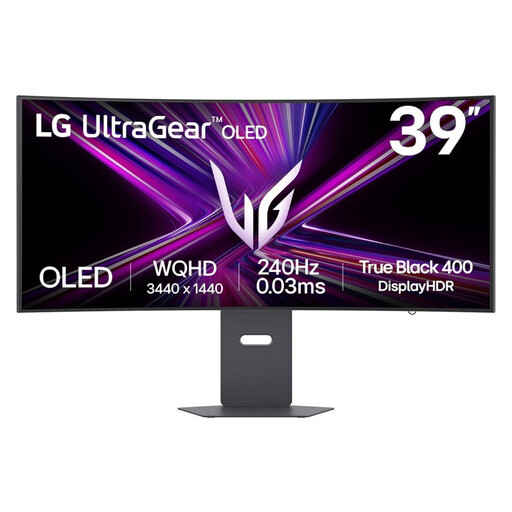 No image available
The product name places this model in the UltraGear gaming range; check that its connections and colour features suit your vector work.
39 inches.
Not necessarily. Arboportaal also recommends considering the monitor’s position relative to the window and using suitable window coverings. Compare brightness specifications, but also pay attention to the screen finish and the light at your workstation.
Arboportaal recommends starting with your viewing direction parallel to the window. Move your workstation or use suitable window coverings if daylight still causes reflections, then adjust the monitor’s height and tilt.
It depends on your laptop’s charging requirements and video support. BenQ lists 65 W for the PD3420Q; Dell and LG list power delivery of up to 90 W for the models discussed. Compare the exact monitor specifications with your laptop’s connection and power requirements.
For a standard online consumer purchase, you generally have up to 14 days after delivery to change your mind, subject to statutory exceptions. ACM ConsuWijzer also explains that statutory guarantee rights exist alongside a seller’s or manufacturer’s warranty, and that the seller is responsible for a faulty product. Check the specific sales and returns terms.
Arboportaal outlines employers’ obligations for employees working with display screens, including attention to workstation setup and reflections. How these rules apply depends on your working situation; they’re not a product specification that applies to every individual buyer.