Vandaag of morgen in huis

Kwaliteit gegarandeerd

Welkomstaanbiedingen ontgrendelen: GRATIS bezorging | Tot 80% korting | Gratis 30 dagen JoyPlus-proefperiode
Download de app
A clean desk is a clean mind. A growing number of professionals and remote workers are switching to an ultrawide monitor with USB-C to reduce cable clutter and boost productivity. A single cable for power, video, and data sounds ideal. However, there are pitfalls that can turn your purchase into a disappointment. Before you invest in a new setup, it's wise to know what to look for.
Here are the three most common mistakes made when buying an ultrawide monitor, and how you can avoid them.
Many manufacturers advertise a USB-C connection, but not every port is created equal. A common mistake is assuming that any USB-C port can both charge your laptop and transmit a video signal. In reality, cheaper models often only support data transfer or provide insufficient power (Power Delivery). The result? You still need a separate charger and video cable, defeating the entire purpose of a clean desk.
A 34-inch curved monitor offers vast screen real estate, but that space needs to be sharp. A resolution that's too low, like Full HD (1920x1080) stretched across such a wide screen, leads to visible pixels and blurry text. This is tiring for your eyes and detracts from the premium experience you're looking for. For a screen of this size, a higher resolution isn't a luxury, but a necessity.
The sheer size of an ultrawide monitor makes good ergonomics crucial. A monitor that isn't height-adjustable or tiltable forces you into an unnatural posture. Especially during long workdays, this can lead to neck and back pain. An ergonomic office monitor is an investment in your well-being, something that is often overlooked when focusing on technical specifications.
To avoid a bad purchase, there are a few technical specifications you must check. These determine whether a monitor is truly the all-in-one solution you're looking for in your home office monitor setup.
For the coveted single-cable solution, the USB-C port must support two things:
For a 34-inch ultrawide monitor, UWQHD (3440x1440 pixels) is the gold standard. This provides the perfect balance between sharpness and workspace, without needing to scale your software. For extra comfort and smoother visuals, especially when scrolling and moving windows, a 120Hz UWQHD monitor is a noticeable upgrade from the standard 60Hz.
Do you work with both a company laptop and a personal computer? A monitor with a KVM switch is a game-changer. It allows you to control two different computers connected to the same monitor with a single mouse and keyboard. You can switch between them with the press of a button, which keeps your desk organised and streamlines your workflow.
Based on these criteria, we have selected a few products that suit different user profiles.
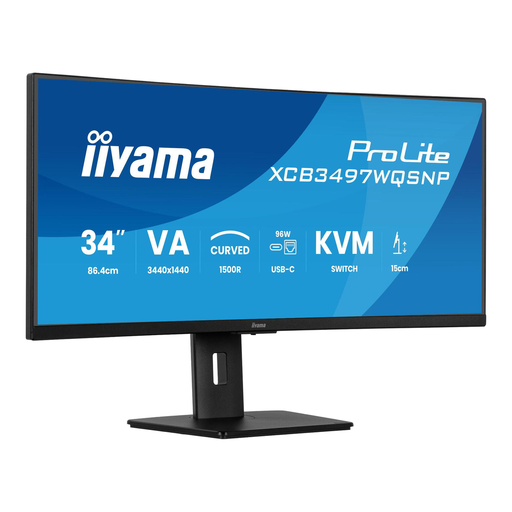
Why This Fits Their Persona: This user wants a complete, out-of-the-box solution. The 34-inch Iiyama monitor is a workhorse that combines all the key features: a large, curved screen for multitasking, a powerful USB-C dock, and a KVM switch for managing both work and personal computers.
This model delivers 95W Power Delivery, has the correct UWQHD resolution, and features a height-adjustable stand. It checks all the boxes to avoid the three common mistakes.
The built-in KVM switch and LAN port make this a full-fledged docking station, which is exceptional in this price range. The 120Hz refresh rate ensures a very smooth user experience.
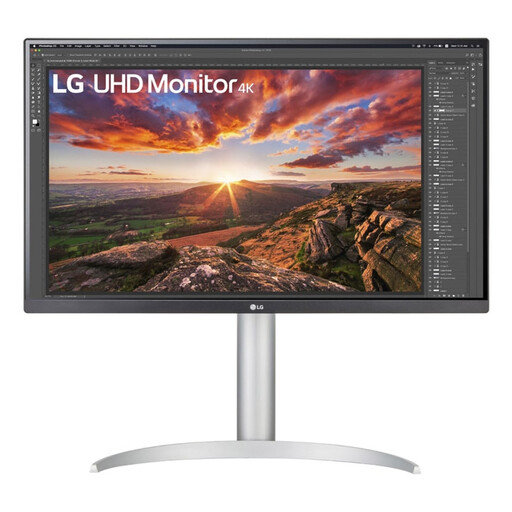
Why This Fits Their Persona: For designers, photographers, and video editors, pixel density and colour accuracy are more important than width. While not an ultrawide, this 4K screen is a popular choice for creatives who need a razor-sharp image and reliable colour reproduction, especially when paired with a MacBook.
With 96W Power Delivery, it effortlessly charges even the most powerful MacBook Pro. The 4K resolution on a 27-inch screen provides extremely high pixel density, avoiding the pitfall of a blurry image.
The combination of 4K resolution (3840x2160) and an IPS panel with wide colour gamut coverage (99% sRGB) delivers superior image quality for visual work. The ergonomic stand is fully adjustable.
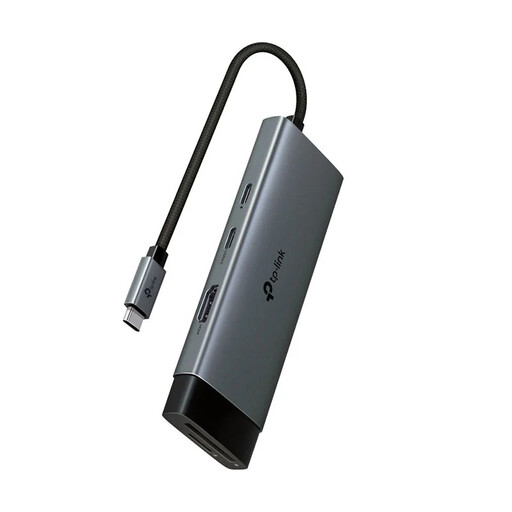
Why This Fits Their Persona: This user already has a good monitor without a USB-C dock, or wants to spread the cost. By combining an existing monitor with a separate hub, you can create similar functionality. It's a flexible and budget-friendly approach.
This approach bypasses the pitfall of a monitor with a subpar USB-C port. You can choose a hub that meets your specific requirements. However, be aware that most compact hubs like this one do not support Power Delivery for your laptop.
This hub instantly adds 7 ports to your laptop, including HDMI, USB-A, and a card reader. It's an affordable way to expand your connectivity without having to buy a completely new monitor.
We have compiled a complete, up-to-date list of products that fully meet these strict selection criteria.
For ultrawide screens 34 inches or larger, a gentle curve (like 1500R) is functional. It ensures the edges of the screen remain within your field of view, which reduces strain on your eyes and neck. For standard 16:9 screens, the effect is less pronounced, and the choice is more a matter of personal preference.
Check the charger that came with your laptop. A standard business laptop usually only needs 65W. Powerful models, such as a 16-inch MacBook Pro or a high-end Dell XPS, require 90W to 100W to charge at full speed while in use. A monitor with lower wattage will charge the battery slowly, or in some cases, not at all.
UWQHD (3440x1440) is a wide resolution with a 21:9 aspect ratio. This gives you significantly more horizontal workspace, ideal for opening two documents side-by-side. 4K (3840x2160) is a higher resolution with a traditional 16:9 ratio. This delivers sharper text and more detailed images. The choice depends on your priority: more horizontal space (UWQHD) or maximum sharpness (4K).