What should you look for when choosing one?
Start by thinking about how much space you need to read documents side by side. Then check that the screen will fit physically and work with your laptop.
| What to consider |
What should you check? |
Who is this important for? |
| Source text and translation side by side |
Test whether both windows remain wide enough at your usual text size, and check the model’s resolution and aspect ratio. |
If I want to compare both documents while translating, I need to be able to read them comfortably at my usual text size. Around 29% of consumers prioritise having space for documents side by side. |
| Readable text |
Assess the text from your usual viewing distance, and consider adjustability, reflections and the position of light sources. |
If you spend a long time checking text, you’ll want to assess characters and contrast comfortably rather than relying on screen size alone. Around 23% of consumers prioritise readability. |
| Desk space |
Measure the available width and depth, including space for the stand, and compare these with the exact model’s dimensions. |
If there’s little free space on my desk in my student room, I want to know how much room the monitor takes up with its stand. Around 18% of consumers prioritise how well it fits on their desk. |
| Balancing cost against use |
Work out whether you usually use one or two documents at a time and whether you need extra connection or docking features. |
If you’re weighing up the cost against how you’ll use it every day, you won’t want to pay for features that don’t suit your workflow or laptop. Around 18% of consumers prioritise the cost. |
| Laptop connection |
Check your laptop and port’s display capabilities, the cable you need, and whether the stated USB-C power output meets your charging requirements. |
If I want to connect my laptop with one cable, I need to know in advance whether it supports the picture I want and, if needed, provides enough power. Around 12% of consumers make laptop connectivity their top priority. |
Joybuy products
These Joybuy products are aimed at creating a 34-inch ultrawide workspace for viewing documents side by side. Check that each model is right for your desk and laptop.
 No image available
LG UltraWide 34U601B-B WQHD VA monitor
A 34-inch ultrawide to consider if you want to view source text and translation side by side. Check that it will fit on your desk.
WQHD; VA panel; 1800R curvature; 120 Hz; 34 inches.
View at Joybuy
 No image available
LG UltraWide 34U650A-B
A 34-inch ultrawide to compare if you’re looking for a wide workspace for documents. Measure your desk space first.
34 inches.
View at Joybuy
 No image available
Philips 6000 series 34B2U6603CH/00
A 34-inch model with a 3440 × 1440 resolution to consider for viewing documents side by side. Check how much desk space you have available.
34 inches; 3440 × 1440 pixels; Wide Quad HD; LCD.
View at Joybuy
 No image available
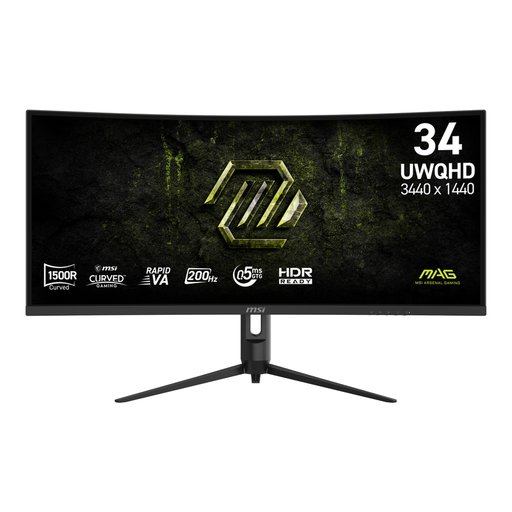
MSI MAG 342CQRF E20
A 34-inch ultrawide to compare if you want to view two documents side by side. Check the screen size and connections for your workspace.
34 inches; Rapid VA; UWQHD; 1500R; 21:9; 200 Hz; 300 cd/m²; 0,5 ms; 2× HDMI; DP.
View at Joybuy
 No image available
Dell Pro Plus P3425WE
A 34,1-inch model to compare if you want to view documents on a wide screen. Check that it will fit on your desk.
34,1 inches; 3440 × 1440 pixels; Wide Quad HD; LCD.
View at Joybuy
Frequently asked questions
Do I need a dual video source feature to view the source text and translation?
No, not if both documents are open on the same Windows computer. Microsoft explains how to snap application windows alongside each other; a feature for two input sources is intended for a different situation.
How do I arrange two documents side by side?
Choose an available display mode in Windows, then snap the two windows alongside each other. Check that the text is readable from your usual viewing distance. The available display mode depends on your laptop, port and cable.
What should I consider when setting up my workspace?
Check that the text size, reflections, lighting and screen height suit your set-up. Arboportaal lists factors such as text that is too small, reflections and poor lighting as things that can reduce readability. A particular monitor won’t automatically prevent discomfort.
What cooling-off period and warranty apply when buying online in the Netherlands?
According to the Dutch government, online distance purchases from a business generally come with a 14-day cooling-off period. You’re also entitled to a product that is fit for purpose. There is no fixed statutory warranty period in the Netherlands, and the retailer is your point of contact if a product is faulty. Check the terms that apply to your purchase.
Do the rules for screen work automatically apply to my student room?
No. The obligations for screen work described by Arboportaal are aimed at employers and employees, and don’t automatically apply as legal requirements to a private study space. The practical advice on readability and set-up can still help you make your own choice.


