
Translator with a small desk
Wants to see the source and translation at the same time, but needs to check how much room the screen and stand will take up.


Start by checking the space available on your desk and whether two windows will be easy to read side by side. A 29-inch screen with 2560 × 1080 pixels is the more compact option, while the 34-inch models reviewed offer 3440 × 1440 pixels, giving you more room for documents and toolbars. Before buying, check the dimensions of both the screen and stand, the adjustment options and your computer’s connections. A larger screen or USB-C connection won’t automatically solve these practical considerations.
Wants to see the source and translation at the same time, but needs to check how much room the screen and stand will take up.
Needs enough room to work with two documents, perhaps alongside comments or toolbars, and wants the text to be comfortable to read.
Wants to check whether a monitor can handle video, laptop charging and, if needed, peripherals through compatible connections.
First, measure the space on your desk, including the area needed for the stand. Then compare the resolution and window layout with your own documents, and check that the connections are compatible with your computer.
| What to consider | What should you check? | Who should consider this? |
|---|---|---|
| Desk space | Measure the available width and depth, then compare them with the dimensions of the exact model, including its stand. | If I want to keep the source and translation side by side on a small desk, I also need to leave room for my keyboard and papers. That’s why around 36% of consumers give the space available on their desk top priority. |
| Room to read two texts | Compare 2560 × 1080 with 3440 × 1440 using your own documents, and check whether you can arrange the text and windows as you prefer. | I want to compare both texts at the same time without comments or toolbars taking up too much of my reading space. Around 29% of consumers prioritise being able to read text side by side. |
| An adjustable workspace | Check whether the specific model is height-adjustable, and consider the position of your screen, keyboard and lighting. | When working with text for long periods, I want to be able to adjust the screen position to suit my workspace. Around 21% of consumers focus most on adjustability and positioning. |
| Laptop connection | Compare your laptop’s video output and power requirements with the ports and stated power delivery of the exact monitor model. | If I want to reduce cables, I need a connection that suits both my laptop and the way I work. Around 14% of consumers start by looking for a video and power connection that works for them. |
A 29- or 34-inch screen doesn’t tell you how much space the stand will take up. The base could also occupy room you need for a keyboard or papers.
Measure your workspace and check the dimensions of the exact model, including the stand.
A base that’s too large can reduce the usable space for your other work materials.
A single-cable connection will work only if the laptop’s video output and power capabilities are compatible with the monitor.
Before choosing a model for its single-cable connection, compare your laptop’s output, the cable, the monitor port and the power required.
Specifications can vary: Dell lists a resolution of 3440 × 1440 for the U3425WE, while a Joybuy listing gives 3440 × 1400.
If details differ, check the full model number and compare the key specifications with the information from the manufacturer and retailer.
The models reviewed include a 29-inch option and a 34-inch version with a larger work area.
The E Line 346E2CUAE/00 is a 34-inch model reviewed with a resolution of 3440 × 1440.
The UltraSharp U3425WE combines a 34.1-inch screen with connections for a laptop and peripherals.
The ViewFinity S50GC LS34C500GAUXEN is a 34-inch ultrawide model reviewed.
This selection includes a 29-inch ultrawide for a more compact screen setup and 34-inch models with room for documents side by side; some versions also list USB-C or a hub. Check the dimensions, connections and laptop compatibility of each model.
 No image available
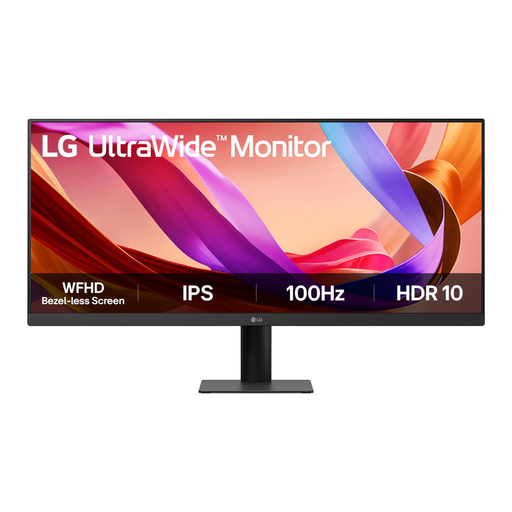
A more compact ultrawide option for viewing source and translation side by side; remember to measure the space needed for the stand.
The product description lists an IPS panel, 21:9, 2560 × 1080, HDMI and DisplayPort.
 No image available
A larger ultrawide option for viewing documents side by side, with a USB-C hub for a compatible laptop.
The product description lists 3440 × 1440, an adjustable stand and up to 90 W Power Delivery. Check that your laptop’s video connection and power requirements are compatible.
 No image available
For anyone looking for a larger work area for two documents who can make room for it on their desk.
The product description lists 3440 × 1440, an adjustable stand and USB-C with up to 96 W Power Delivery. Check compatibility with your laptop.
 No image available
A 34-inch option for anyone looking for connections for a laptop and peripherals as well as space for two documents side by side.
The product description lists 3440 × 1440, a USB hub, Thunderbolt 4 and height adjustment. Check your desk space and your computer’s connection.
 No image available
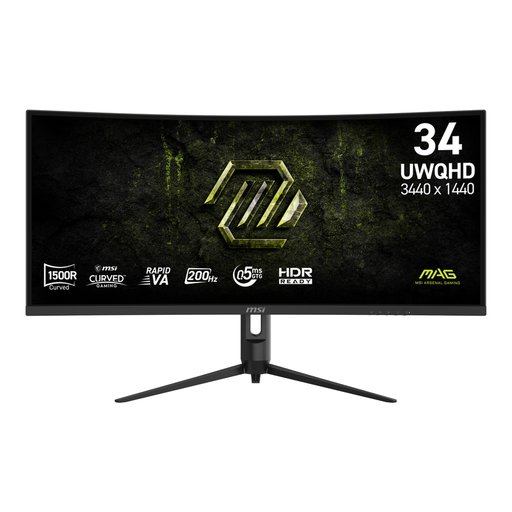
A 34-inch ultrawide for viewing documents side by side; make sure you have enough desk space.
The product description lists a VA panel, 3440 × 1440, 21:9 and an adjustable stand. Check the base dimensions of the exact version.
No, not necessarily if you use Windows: Microsoft Support explains how to snap two windows side by side and drag the divider between them. However, check that your documents remain readable at the screen size you choose. This particular method applies to Windows.
Check that your laptop can output video through the connection you plan to use, and that the monitor’s power delivery meets your laptop’s requirements. LG lists 65 W USB-C Power Delivery for the 34U640B-B; Dell specifies 90 W for the U3425WE. These specifications don’t automatically make every USB-C laptop compatible.
For employees, Arboportaal says that screen work should regularly be alternated with other work or a break. If you work with a screen for more than 2 hours a day, there are also requirements covering the screen, keyboard and workspace setup, among other things. These are workplace obligations, not product specifications that apply to every individual buyer.
According to the Dutch government, many applicable online consumer purchases come with a 14-day cooling-off period. In the Netherlands, products are also covered by a legal guarantee, with no fixed statutory guarantee period; if a product is faulty, the retailer must provide a solution. Check the terms that apply to your specific purchase.