
Translator working with two documents
You check the source text and translation on one computer and mainly want two readable windows side by side.


Choose a screen that keeps your translation software and source document easy to read side by side. A 34-inch model with a resolution of 3440 × 1440 is a useful point of comparison, not a minimum requirement. Dell, iiyama and LG list this combination for the models discussed here. Then consider whether you need an adjustable setup, a USB-C connection or the ability to switch between two computers, and check that your laptop supports the video and charging features you want.
You check the source text and translation on one computer and mainly want two readable windows side by side.
You spend long periods working with small text details and want to adjust the screen layout, text size and working posture to suit your needs.
You connect a laptop at your home office and want to check whether a monitor with a USB-C hub suits your laptop and the way you work.
Start with your window layout and text size. Then check that the monitor fits your desk and works with your laptop or other computer.
| What to consider | What should you check? | Who should pay particular attention? |
|---|---|---|
| Space for source text and translation | Check whether both programmes fit side by side and try the window layout you use. | If I want to compare the source and translation at the same time, I need enough space to see both windows. Around 33% of consumers prioritise having room for documents on screen at the same time. |
| Readability of long texts | Try your preferred text size and window width with the programmes you use. | When I spend a long time checking small text, I want to balance text size with how much content is visible. Around 27% of consumers prioritise readability. |
| Fit and adjustability | Check the dimensions, including the stand, the height adjustment and where it will sit in relation to windows. | If space on my desk or my viewing position is limited, I want to know in advance how easily the monitor can be positioned and adjusted. Around 20% of consumers make workspace setup their main priority. |
| Connecting or switching between devices | Check your laptop’s video support, the charging power required and the cable. Decide whether you really need to switch between two computers. | When I want to connect a laptop or switch between devices, I want to know which features work with my equipment. Around 20% of consumers prioritise connecting or switching between devices. |
PBP displays images from different sources side by side. To view two documents on one Windows computer, you can arrange the windows on screen; Microsoft Support explains how.
First decide whether you want to use two windows on one computer or display images from separate devices.
A USB-C connection or a stated charging power does not, by itself, confirm that your laptop supports video through that connection or can be charged by the monitor.
Before choosing a monitor with a docking station, check your laptop’s video support, its charging power requirements and which cable is suitable.
Depending on your equipment, you may need a suitable cable, adapter or separate docking station; check before buying.
In the Netherlands, the statutory guarantee is not the same as a manufacturer’s warranty or an additional warranty plan. The Government of the Netherlands states that there is no fixed statutory guarantee period.
If you’re considering an additional plan, compare the extra cover it offers and keep your proof of purchase.
The Dell Pro 34 Plus P3425WE is a 34.1-inch IPS monitor with a resolution of 3440 × 1440 and a USB-C hub.
According to iiyama, the ProLite XCB3497WQSNP-B1 combines a 34-inch curved VA screen with a USB-C docking station and KVM.
The E Line 346E2CUAE/00 is a 34-inch monitor with a resolution of 3440 × 1440, USB-C and MultiView.
According to MSI, the Modern MD342CQP is designed for a workspace where KVM or displaying images from two sources could be useful.
According to LG Netherlands, the LG 34U650A-B is a 34-inch 21:9 IPS model with a resolution of 3440 × 1440.
This selection includes ultrawide screens for viewing documents side by side, as well as models with a USB-C hub or an extra-wide screen format.
 Image unavailable
Worth comparing if you’re looking for a wide workspace and a USB-C hub; check that your laptop supports video over DisplayPort Alt Mode and USB Power Delivery.
34.1 inches, curved IPS screen, WQHD, 100 Hz and 90 W Power Delivery according to the product name.
 Image unavailable
Worth comparing if you’re looking for a 34-inch monitor with a USB-C hub for your home office; check which connections and features your laptop supports.
34 inches; USB-C hub according to the product name.
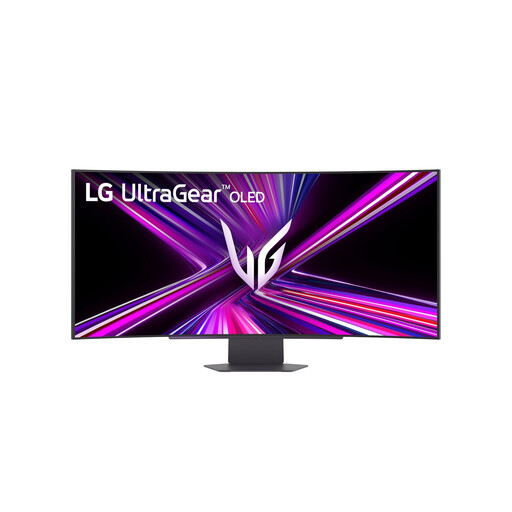 Image unavailable
Worth comparing if you’re considering an extra-wide screen; check that its dimensions and window layout will fit your desk.
44.5 inches, OLED, 3440 × 1440 and 165 Hz according to the product name.
 Image unavailable
Worth comparing if you want to view source text and translation side by side on a 34-inch IPS screen.
21:9, 3440 × 1440, IPS and 100 Hz for the LG 34U650A-B, according to LG Netherlands.
 Image unavailable
Worth comparing if you want an extra-wide workspace; check the screen and stand dimensions before deciding where to put it on your desk.
5120 × 1440, 32:9, 1500R, VA panel and 165 Hz according to the product name.
No, not if both documents are open as windows on the same Windows computer: Microsoft Support explains how to arrange windows side by side. PBP on the MSI model reviewed is designed to show images from different sources side by side.
No, the presence of a USB-C connection alone doesn’t guarantee this. Check whether your laptop supports video over the required connection, how much charging power it needs and which cable is suitable. The wattages listed are specifications for individual monitors, not a guarantee of compatibility.
Check adjustability, reflections and lighting, and set the window layout and text size to suit your work. For employees, Arboportaal outlines requirements for computer workstations; what applies depends on the working situation.
The Government of the Netherlands states that statutory guarantees in the Netherlands have no fixed legal term and apply alongside manufacturer’s or separately purchased warranties. Compare what an additional plan actually offers. For online distance purchases from a business, in many cases you have a 14-day cooling-off period; check the terms and any exceptions for your specific purchase.