
Assessing images beside a bright window
You view images in a space where daylight may fall on the screen. Reflections and the position of your desk can affect how clearly you can see texture details.


Start with the light: choose a monitor with a specified anti-reflective finish, then position your workspace so the window isn’t reflected in the screen. Next, compare the resolution and colour specifications with the work you do. A wider screen or higher refresh rate alone doesn’t prove better colour accuracy. Manufacturer specifications describe the model; they aren’t a measurement of your individual unit.
You view images in a space where daylight may fall on the screen. Reflections and the position of your desk can affect how clearly you can see texture details.
You want to view a source image and your finished work side by side, so horizontal workspace and detail rendering matter to you.
Alongside seams, you compare colour differences and want to take colour modes and factory calibration into account, without mistaking manufacturer specifications for a measurement of your individual unit.
A good fit if: you assess colour differences as well as texture seams and want to compare colour modes or calibration information.
Trade-off: ASUS and BenQ list different refresh rates and USB-C power outputs. Check that the stated colour specifications suit your workflow, too.
A good fit if: you want to display references, editing windows and results at the same time, and convenient connectivity matters to you.
Trade-off: the listed hub and connectivity features say nothing, on their own, about colour accuracy or reflections from your window.
| What to consider | What to look for | Who is this most relevant to? |
|---|---|---|
| Window reflections | Check the stated screen finish and whether you can position the monitor out of the window’s direct reflection. | When I’m looking for texture seams in daylight, I don’t want reflections to obscure the image. Around 29% of consumers say reducing window reflections is their main concern when buying. |
| Seam detail and workspace | Compare the resolution, screen size and scale at which you assess detail. The 34-inch models listed have a stated resolution of 3440 × 1440. | I want to inspect small transitions without losing sight of my reference or work file. Around 29% of consumers prioritise seam detail and workspace above all else. |
| Colour assessment | Check whether the stated colour gamut, colour mode and calibration information suit your workflow. | When I’m assessing differences in hue as well as seams, I want to know what the model’s colour specifications do and don’t tell me. Around 24% of consumers put colour control first. |
| Connecting and positioning | Check support for video signals, the laptop charging power you need and the stand’s range of adjustment. | I want to set up my laptop and monitor to work well on my desk, without assuming every USB-C port does the same thing. Around 18% of consumers say connectivity and workspace setup are their main concerns when buying. |
An ultrawide gives you room for multiple windows, but extra width doesn’t guarantee the right level of detail or colour control.
Compare the resolution with the scale at which you actually assess texture seams and reference images.
Even with a matte or anti-reflective finish, the direction of the window light and the position of your screen still matter.
Plan where to place the screen and, if necessary, see whether you can block the incoming light.
A stated colour-gamut coverage or factory calibration doesn’t automatically represent a measurement of the monitor you receive in the colour mode you use.
Compare the colour modes and calibration information with your workflow, then assess the screen in your own working environment.
The models reviewed list different USB-C power outputs. The right connection also depends on your computer’s video-signal support.
Before buying, check which video connection your laptop supports and how much charging power you need.
Depending on your laptop and connection, you may need a different video connection or a separate laptop power supply.
The ProArt PA348CGV is a 34-inch ultrawide designed for creative work.
The Creative Pro PD3420Q is a 34-inch ultrawide with documented colour modes.
The UltraSharp U3425WE is a curved 34.1-inch ultrawide with hub features.
The 34BA75QE-B is a curved 34-inch IPS ultrawide with USB-C and a network port.
The B Line 346B1C/00 is a curved 34-inch ultrawide with USB-C and an ergonomic stand.
These Joybuy picks offer ultrawide screen space for multiple windows and work files. Check each model’s resolution, aspect ratio and connectivity to make sure they suit the way you assess texture seams.
 No image available
The 21:9 aspect ratio and 3440 × 1440 resolution provide a wide workspace for multiple windows.
34-inch; VA panel; 1800R curvature; 120 Hz.
The product information lists an adjustable stand. Check that its range of adjustment works with your desk and window.
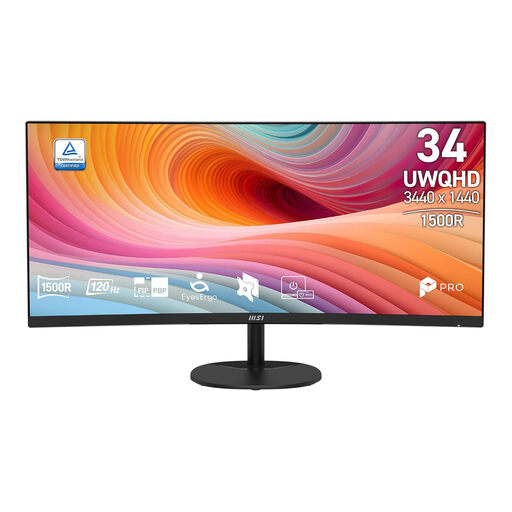 No image available
This 34-inch 21:9 monitor gives you room to view references and work windows side by side.
UWQHD, 3440 × 1440; VA panel; curved; 120 Hz.
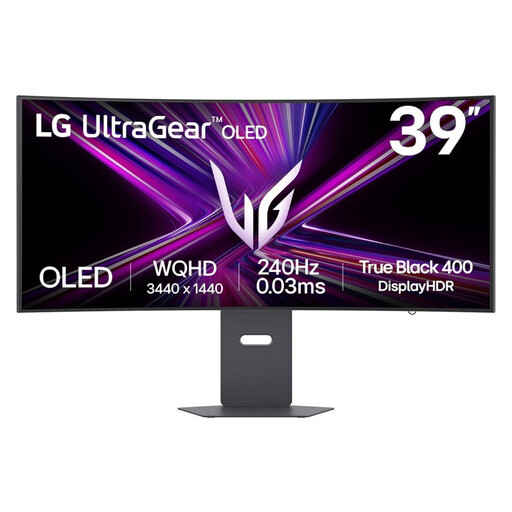 No image available
The 21:9 aspect ratio and 3440 × 1440 resolution provide a wide view for detailed work and multiple windows.
39-inch; WOLED panel; stated DCI-P3 coverage of 98.5%.
Stated colour-gamut coverage isn’t a measurement of the colour accuracy of your individual unit.
 No image available
The product information describes a 34-inch 21:9 screen with a 5120 × 2160 WUHD mode for detailed viewing and working across multiple applications.
Curved business monitor; USB-C, hub and built-in KVM switch.
Check that the listed connections and available display mode suit your computer and workflow.
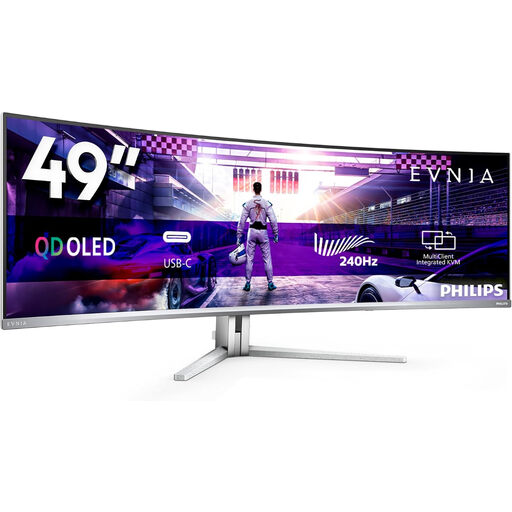 No image available
The 32:9 aspect ratio and 5120 × 1440 resolution give you room to place applications side by side.
49-inch; QD-OLED panel; 240 Hz.
These specifications alone don’t tell you whether the monitor is suitable for your colour-critical workflow.
A matte or anti-reflective finish can reduce distracting reflections, but it can’t replace positioning the screen appropriately or blocking incoming light. The practical result depends on your window and workspace.
Only if your laptop supports video through the USB-C port you’re using and the monitor provides enough power to charge it. BenQ lists 65 W for the PD3420Q; ASUS, Dell and LG list 90 W for the models mentioned.
First, set the screen position and choose the colour mode for your work. Then view familiar textures and reference images at the scale you normally use to assess seams. Manufacturer specifications are no substitute for checking the screen you receive in your own lighting conditions.
Consumer purchases are covered by the statutory guarantee. If the product doesn’t meet what you were entitled to expect under normal use, the seller must offer an appropriate solution, according to ACM ConsuWijzer. A manufacturer’s warranty doesn’t replace this statutory right.
For a standard online consumer purchase, you generally have a statutory cooling-off period of up to 14 days after delivery, with some exceptions. Check the terms that apply to your specific purchase.