
Comparing drawings
You want to view two floor plans or revisions at the same time, while keeping dimensions and small annotations legible. Autodesk Support explains how to display drawing windows side by side in AutoCAD.


Start with an ultrawide monitor that keeps two drawing windows readable side by side. Then check that its connection and power delivery meet your laptop’s needs. USB-C power delivery and a hub can remove the need for a separate laptop charger on your desk, but the monitor still needs its own power supply, and not every laptop can charge through every monitor.
You want to view two floor plans or revisions at the same time, while keeping dimensions and small annotations legible. Autodesk Support explains how to display drawing windows side by side in AutoCAD.
You’d like to power your laptop through the monitor where possible, so you don’t need a separate laptop charger on your desk. Whether this works depends on your laptop, the connection and the power output.
You switch between computers or view presentations alongside technical drawings. KVM, docking or colour features may be useful, depending on your equipment and the work you do.
First, check that two drawing windows are legible at your preferred scale. Then consider which connections and features your laptop and workspace really need.
| What to consider | What should you check? | Who is this important for? |
|---|---|---|
| Viewing two drawings at once | Open your own drawing files side by side at the resolution you intend to use, and check that dimensions and symbols are legible. | If I want to compare two drawings at once, the text needs to remain legible at my usual scale. Around 33% of consumers prioritise this ability to read both at the same time. |
| Laptop power | Check your laptop’s video and charging support, the output of the relevant monitor port and the cable you’ll need. | If you mainly want to avoid having a separate laptop charger on your desk, first check that the monitor and laptop support both video and sufficient power delivery over the same connection. Around 33% of consumers give this connection and power delivery top priority. |
| Viewing comfort and positioning | Check the screen position, how much space the stand takes up, reflections and legibility from your usual seating position. | For extended drawing sessions, I want to position the screen properly and read symbols comfortably. Around 20% of consumers prioritise these workspace factors. |
| Switching and colour work | Check which devices support KVM and whether the stated colour features suit your work. | If I switch between computers or assess colour as part of my work, KVM or design modes may be useful. They may not be necessary for a single computer and line drawings. Around 14% of consumers prioritise these extra features. |
Monitors vary in their power output and port features, and your laptop also needs to support the connection required. The monitor itself still needs to be plugged into a power socket.
Compare the relevant monitor port and cable with your laptop’s video and charging requirements.
You may still need a separate laptop charger or a suitable cable.
Two windows may fit side by side, but that doesn’t mean small text and symbols will be legible at every scale.
Test your own drawings side by side, and check symbol size, screen position and reflections.
A model name alone doesn’t always tell you which connections or features come with the exact version.
Before buying, check the full model name, specifications and details of the version you’ve chosen.
LG describes the 34BA75QE-B as a 34-inch WQHD ultrawide monitor with USB-C power delivery of up to 90 W and RJ45.
Dell lists a resolution of 3440 × 1440 pixels, USB-C power delivery of up to 90 W and ethernet for the P3425WE.
Philips describes the 34B2U6603CH/00 as a WQHD monitor with Thunderbolt 4 and Smart KVM.
According to its product information, BenQ targets the PD3420Q at design work and lists features including CAD/CAM mode and colour tools.
Lenovo describes the ThinkVision P34WD-40 as a 34-inch WQHD docking monitor with USB-C connections.
This selection includes ultrawide monitors for viewing drawing windows side by side. Check that the connections and features on each version suit your laptop.
 No image available
The ultrawide format may suit viewing drawing windows side by side; check legibility using your own files.
34 inch, WQHD, VA, curved 1800R and 120 Hz.
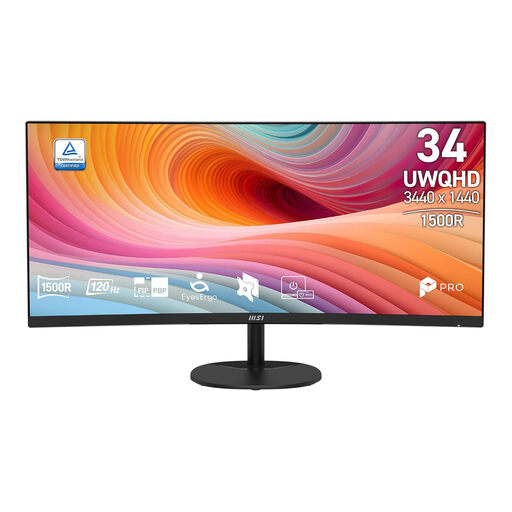 No image available
An ultrawide screen can give you room to view drawing windows side by side; use your own files to check that dimensions and symbols remain legible.
34 inch, UWQHD, VA, curved and 120 Hz.
 No image available
The USB-C hub may be useful if you want to bring your connections together at the monitor; check laptop compatibility and whether the power output meets your needs.
34.1 inch, WQHD, IPS, 100 Hz and Power Delivery up to 90 W.
USB-C charging requires a compatible laptop with USB Power Delivery and DisplayPort Alt Mode; charging performance depends on the connected device.
 No image available
An integrated USB-C hub may suit a workspace where you want to bring connections together; check the exact ports and compatibility with your computer.
 No image available
The ultrawide screen may be suitable for viewing several windows side by side; test your own drawings to check whether the details are legible.
3440 × 1440 pixels; up to 180 Hz via DisplayPort and 100 Hz via HDMI; 300 cd/m²; 2 HDMI ports and DisplayPort; tilt-adjustable.
Yes. Autodesk Support explains how to display open drawing windows side by side within a single AutoCAD session. Use your own files to check that annotations remain legible at your chosen window size.
No, not necessarily. Check that your laptop supports the required video and charging connection, and that the output of the relevant monitor port is sufficient. The monitor still needs to be plugged into a power socket.
Adjust your workspace to suit your body, keep symbols easy to read and avoid distracting reflections. Arboportaal highlights legibility and reflections as things to consider; an adjustable monitor alone won’t prevent discomfort.
Compare the energy label for the specific monitor version; electronic displays are covered by European energy-labelling rules. For consumer purchases in the Netherlands, the legal guarantee depends on what you can reasonably expect from the product, rather than a fixed two-year period. The retailer is your point of contact.